ExpertOption Login and Verification: Steps, Documents, Troubleshooting
Writen By

Online Trading Platform Researcher and Guide Writer
Researches broker platforms and trading account Systems.
Accessing ExpertOption requires two coordinated steps: secure login and a completed identity verification that unlocks full trading and cashout capabilities. Traders commonly get tripped up by forgotten passwords, multi-device authentication prompts, or incomplete KYC documents — issues that can pause deposits, block withdrawals, or limit trading access. Verification is a standard anti-fraud and regulatory measure; preparing clear ID and proof of address in accepted formats prevents avoidable delays and reduces account holds.
You'll find precise login routines, password recovery options, two-step access checks, and the typical verification documents ExpertOption accepts, along with practical tips for mobile and desktop flows. Guidance covers acceptable file types and photo quality, how to upload documents inside the account area, expected review windows and reasons for rejection, plus simple troubleshooting steps to clear holds quickly and safely so your account is ready for funding and trading.
You'll find precise login routines, password recovery options, two-step access checks, and the typical verification documents ExpertOption accepts, along with practical tips for mobile and desktop flows. Guidance covers acceptable file types and photo quality, how to upload documents inside the account area, expected review windows and reasons for rejection, plus simple troubleshooting steps to clear holds quickly and safely so your account is ready for funding and trading.

How to Log In to ExpertOption
How to Log In to the ExpertOption Account
- Go to the mobile ExpertOption App or Website.
- Click on “Login”.
- Enter your email and password.
- Click on the “Log in” blue button.
- If you forgot your email, you can log in using “Google” or “Facebook”.
- If you forgot your password, click on “Forgot Password”.
Click "Login", sign-in form will appear.
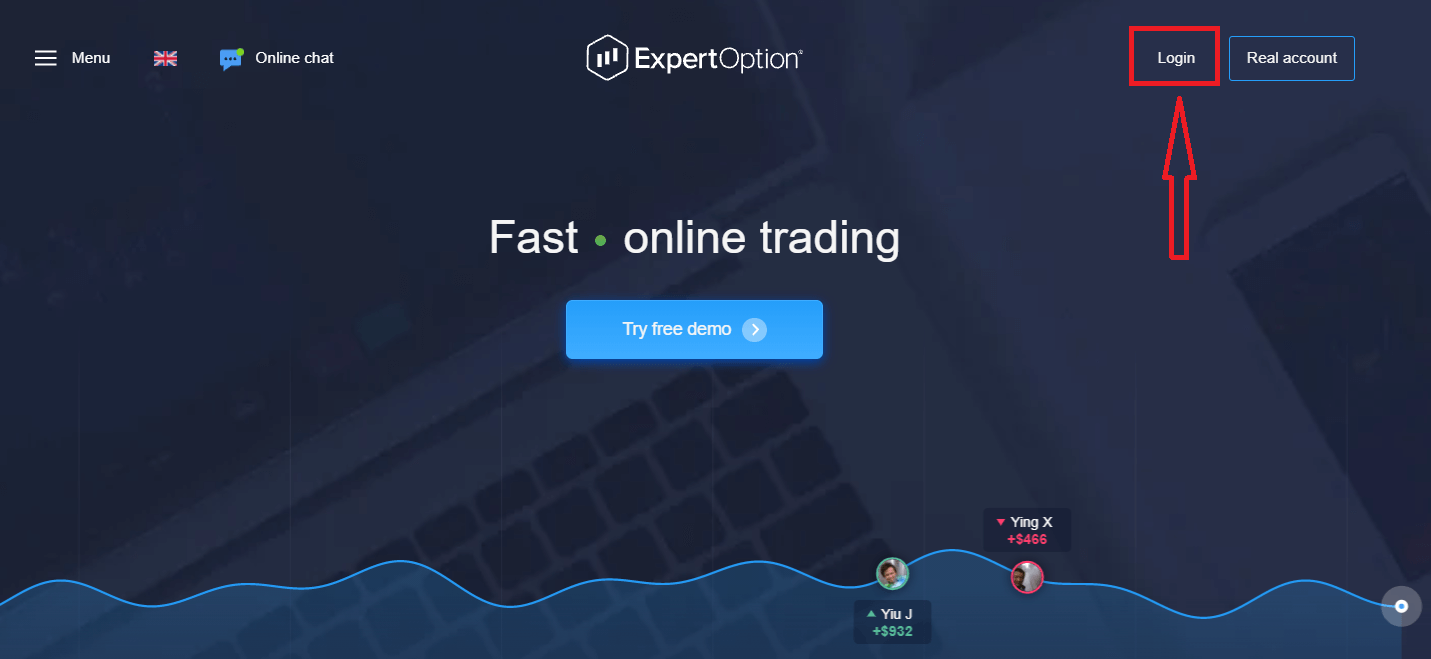
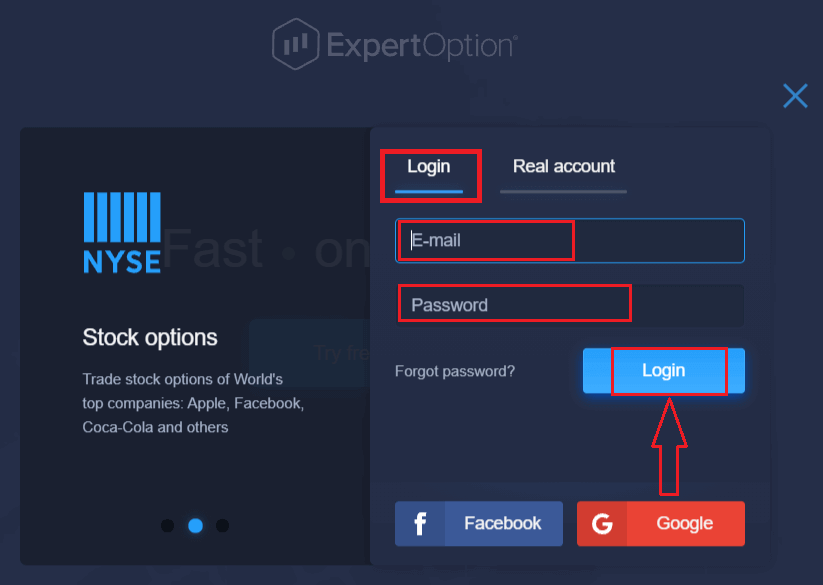
Enter your email address and password that you registered to log into your account with, and click the "Login" button.
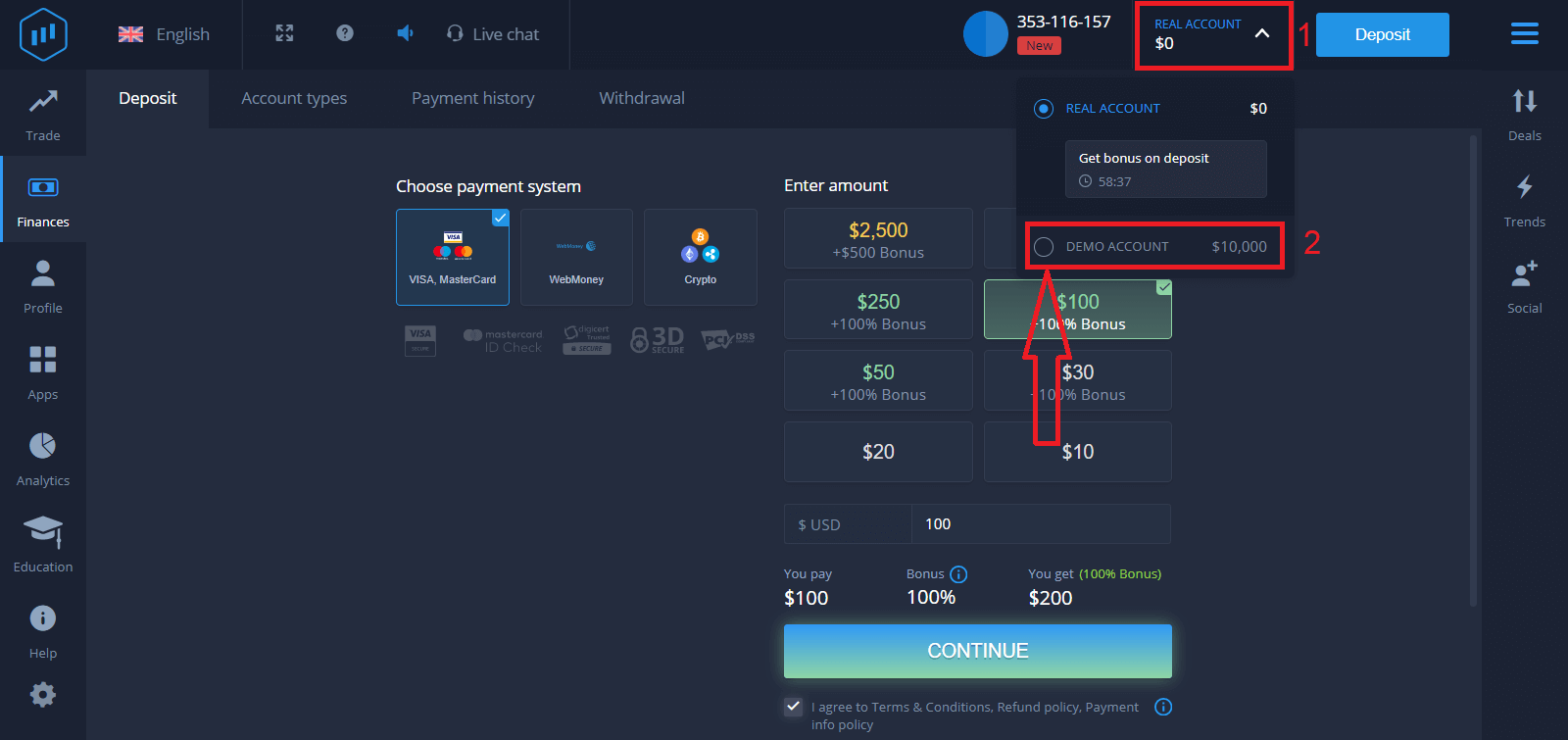
After logging in successfully, you will see the Deposit page as shown below. To start Live trading, you need to make an investment in your account (the minimum deposit is USD 10).
How to make a Deposit in ExpertOption
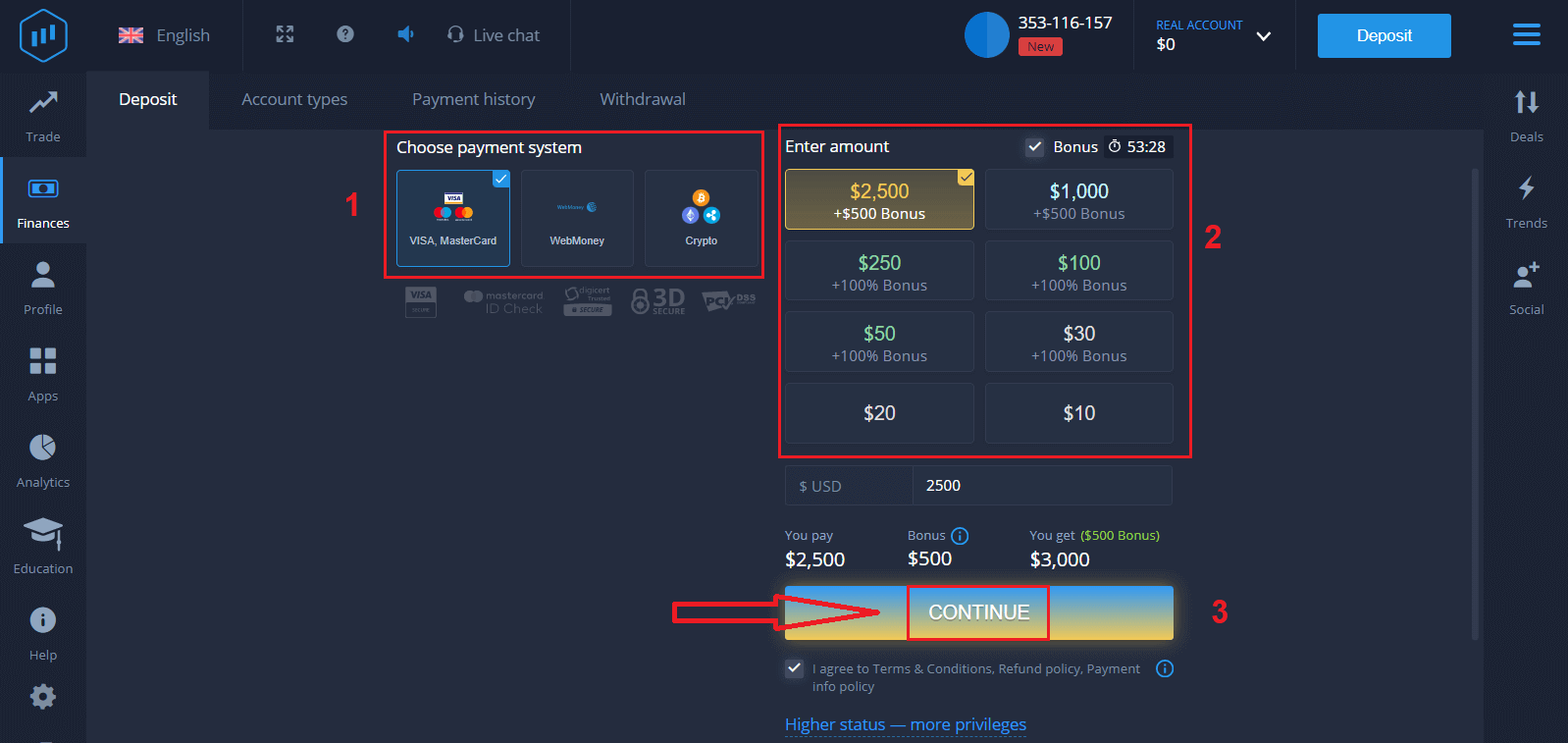
Enter the card data and click "Add funds ..."
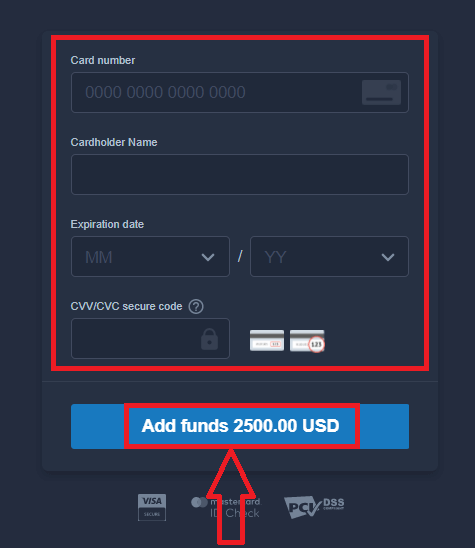
Now you can trade on a real account after depositing successfully.
If you want to use the Demo Account, click "REAL ACCOUNT" and select "DEMO ACCOUNT" to start trading with $10,000 in the Demo Account. A demo account is a tool for you to get familiar with the platform, practice your trading skills on different assets, and try out new mechanics on a real-time chart without risks.
How to Log In to ExpertOption using Facebook
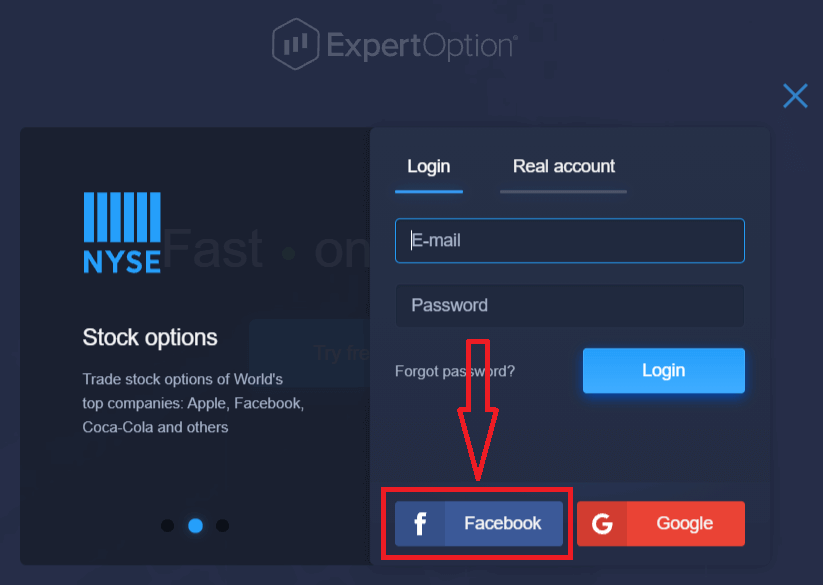
You can also log in to the website using your personal Facebook account by clicking on the Facebook button.1. Click on the Facebook button
2. The Facebook login window will be opened, where you will need to enter your email address that you used to register on Facebook
3. Enter the password from your Facebook account
4. Click on “Log In.”
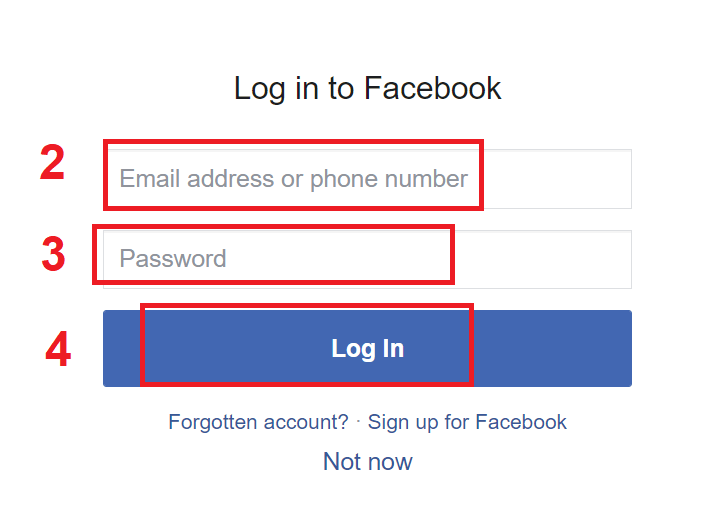
Once you’ve clicked on the “Log in” button, ExpertOption will request access to: Your name and profile picture, and email address. Click "Continue..."
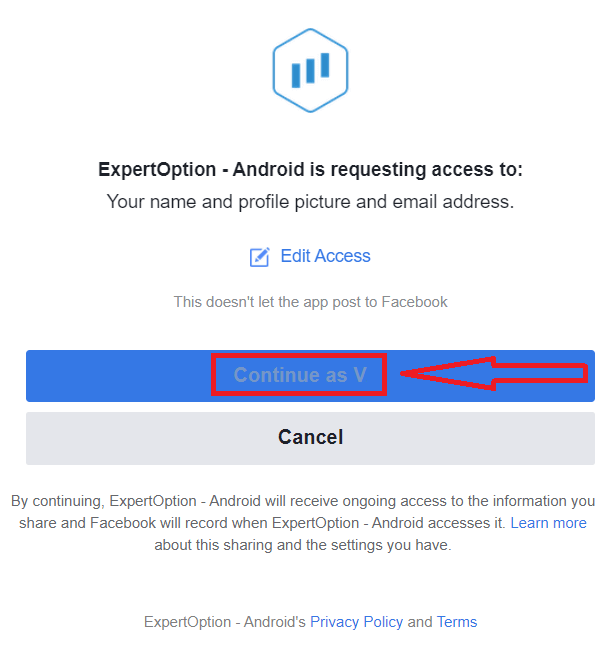
After that, you will be automatically redirected to the ExpertOption platform.
How to Log In to ExpertOption using Google
1. For authorization through your Google account, you need to click on the Google button.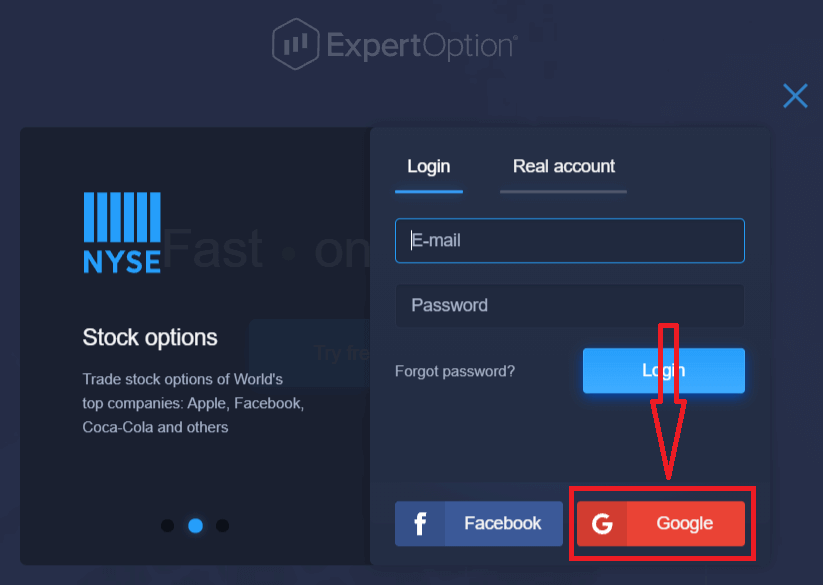
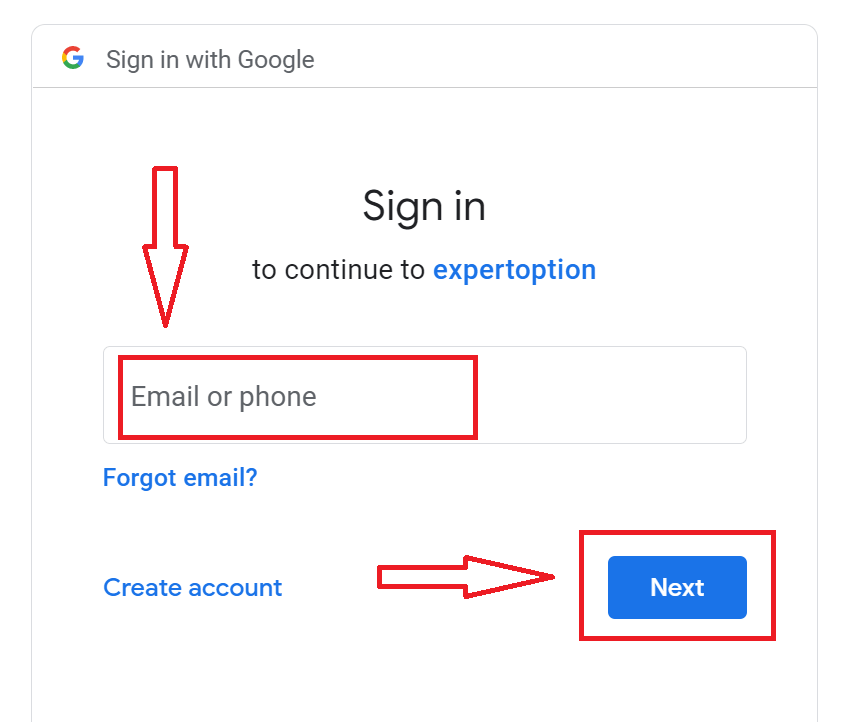
2. Then, in the new window that opens, enter your phone number or email and click “Next”. The system will open a window, and you will be asked for the password for your Google account.
3. Then enter the password for your Google account and click “Next”.
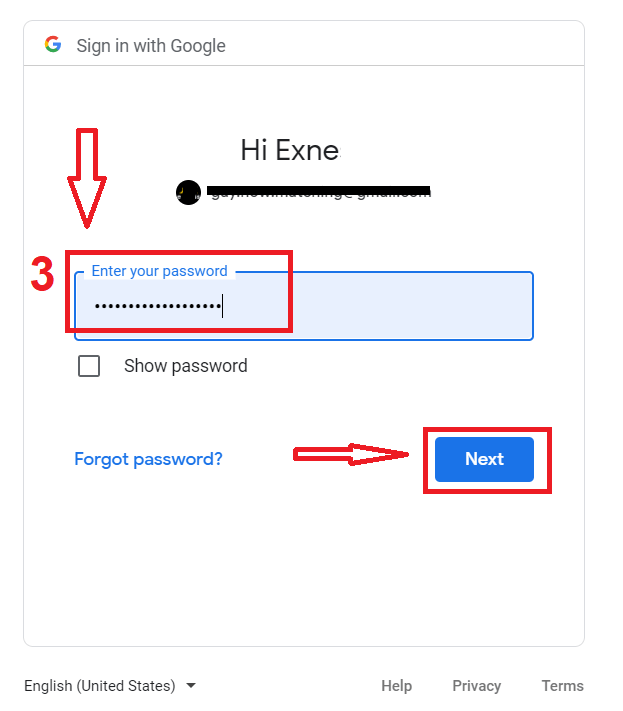
After that, follow the instructions sent from the service to your email address. You will be taken to your personal ExpertOption account.
Recover Your ExpertOption Account Password
Don’t worry if you can’t log into the platform; you might just be entering the wrong password. You can come up with a new one.If you use the web version
To do that, click the "Forgot Password" link.
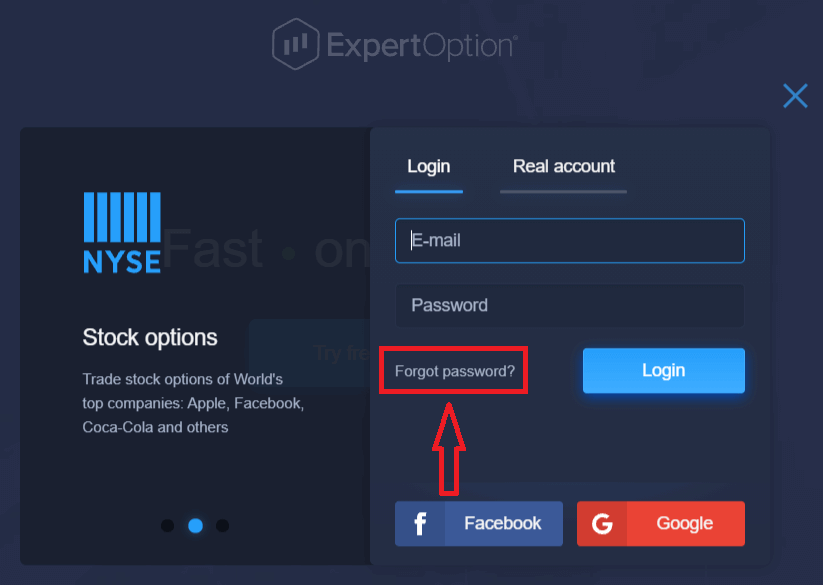
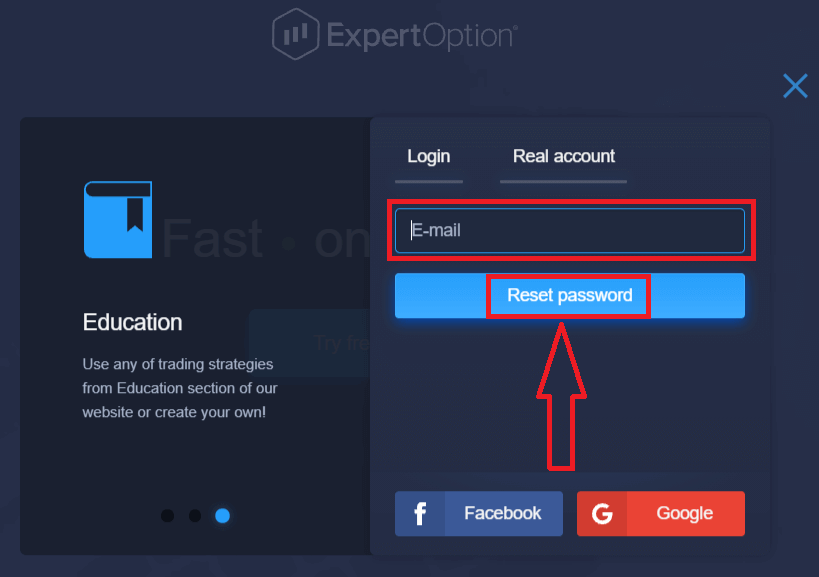
Then, the system will open a new form where you will be requested to restore your password for your ExpertOption account. You need to provide the system with the appropriate email address and click "Reset Password."
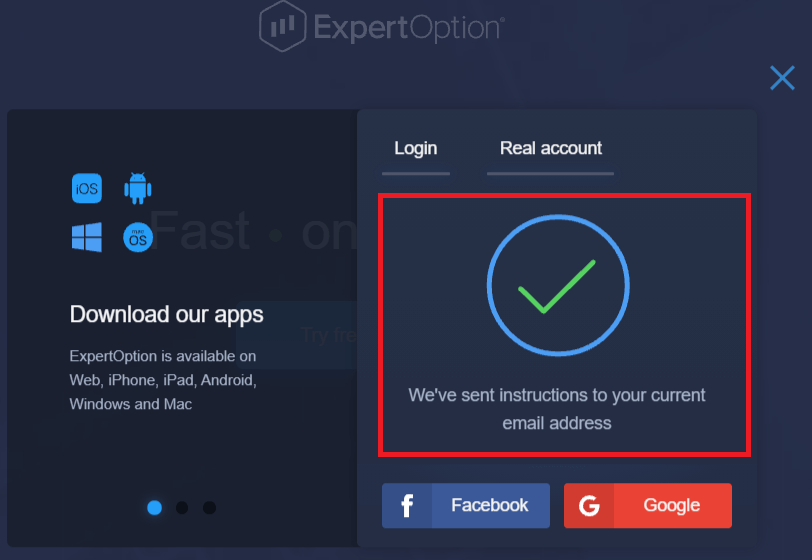
A notification will open that an email has been sent to this email address to reset the password.
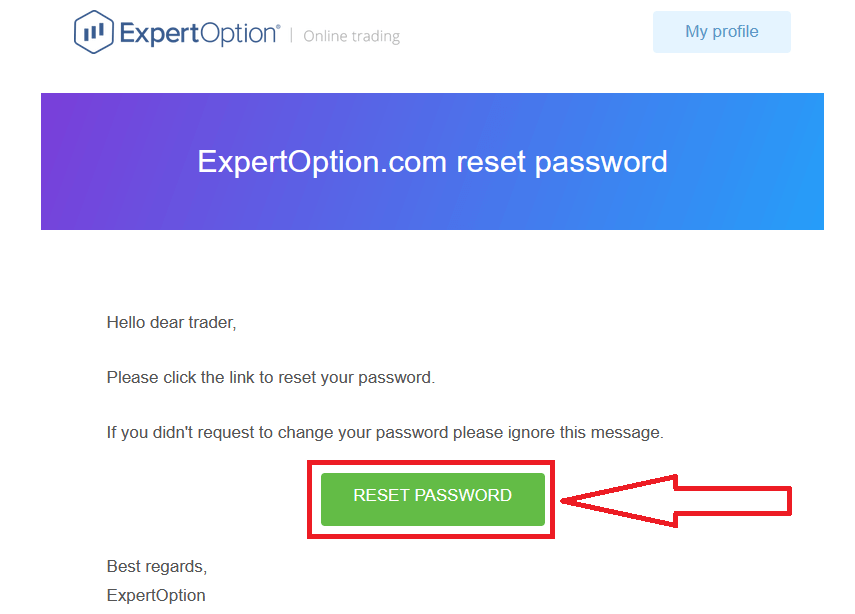
Further in the letter in your email, you will be offered to change your password. Click on the «Reset Password»
The link from the email will lead you to a special section on the ExpertOption website. Enter your new password here twice and click the "Change password" button.
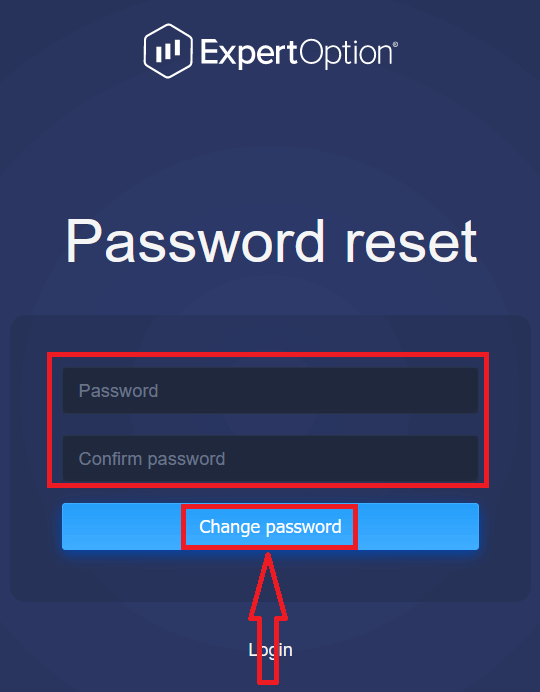
After entering "Password" and "Confirm password". A message will appear indicating that the password has been changed successfully.
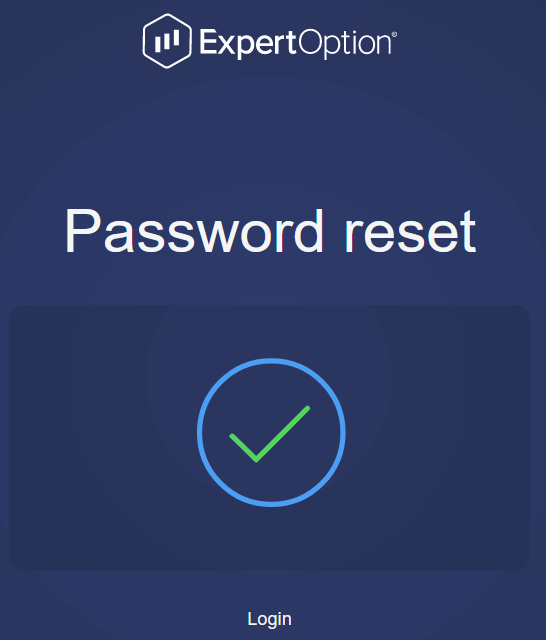
That’s it! Now you can log into the ExpertOption platform using your username and new password.
If you use the mobile application
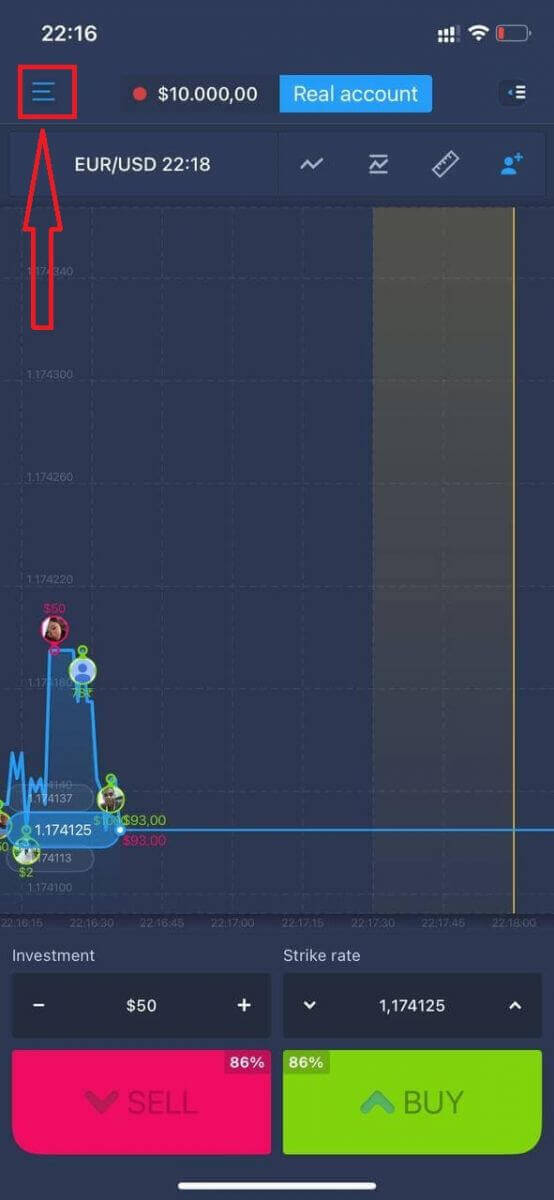
To do that, click the "Menu" icon.
Click "Login."
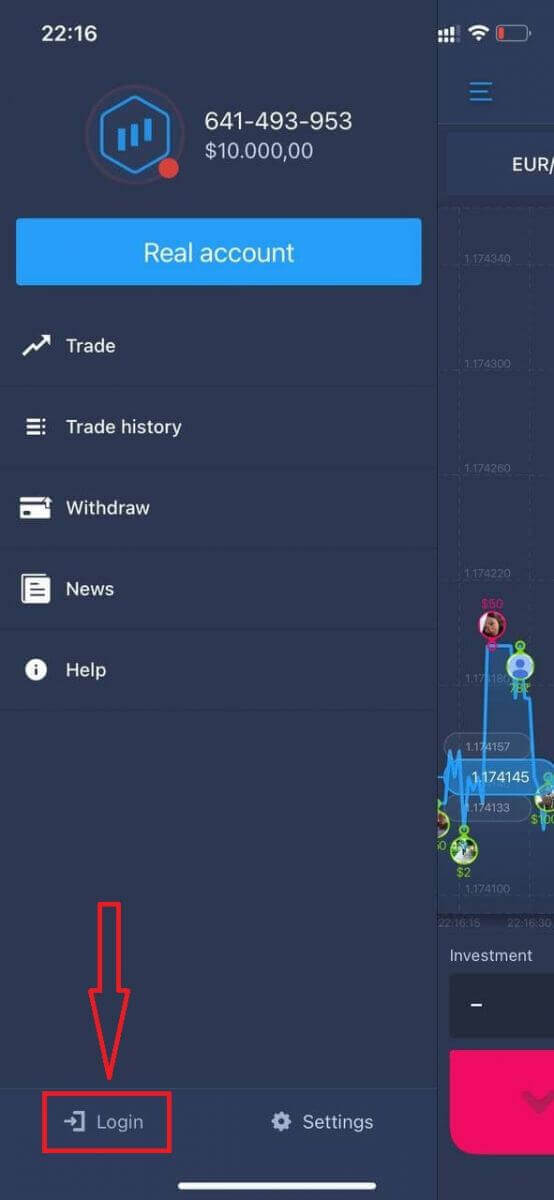
Click on the "Forgot password" link.
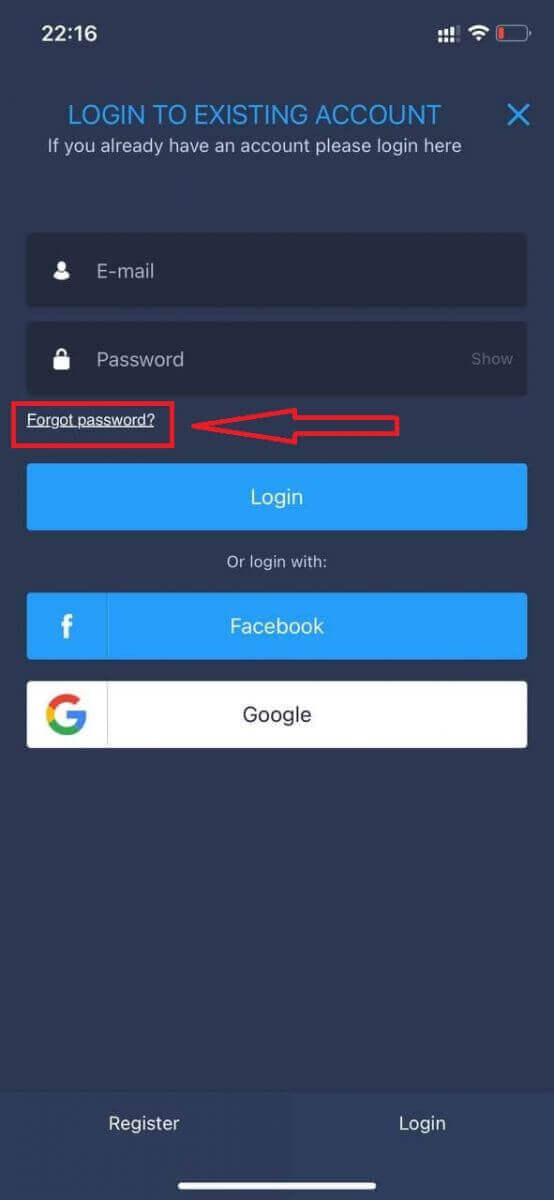
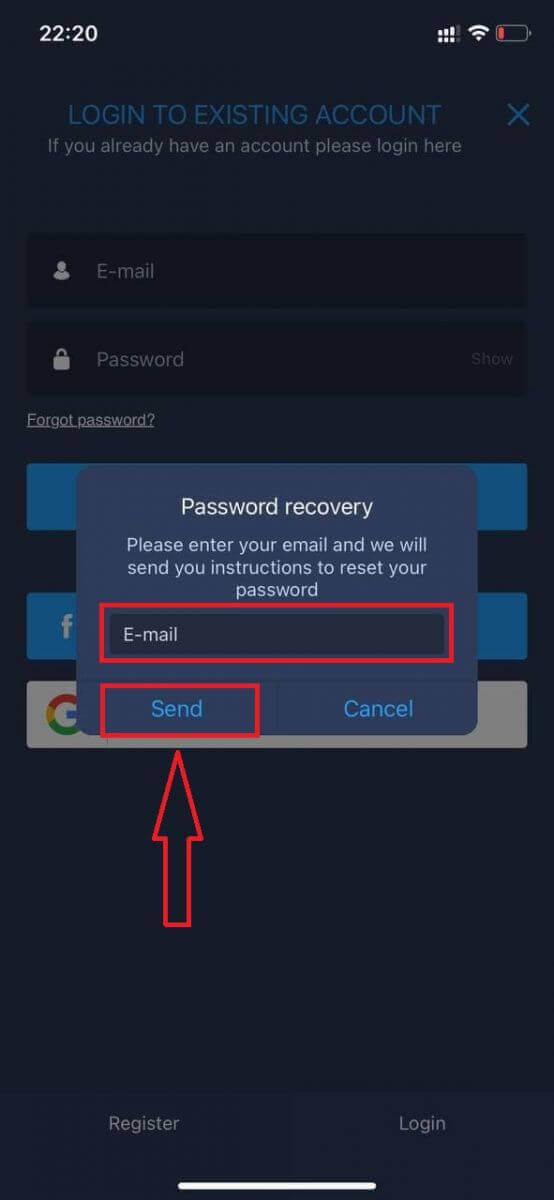
In the new window, enter the email you used during sign-up and click the "Send" button. Then do the same remaining steps as the web app.p
Log In to ExpertOption Mobile Web
If you want to trade on the mobile web version of the ExpertOption trading platform, you can easily do it. Initially, open up your browser on your mobile device. After that, search for “expertoption” and visit the official website of the broker.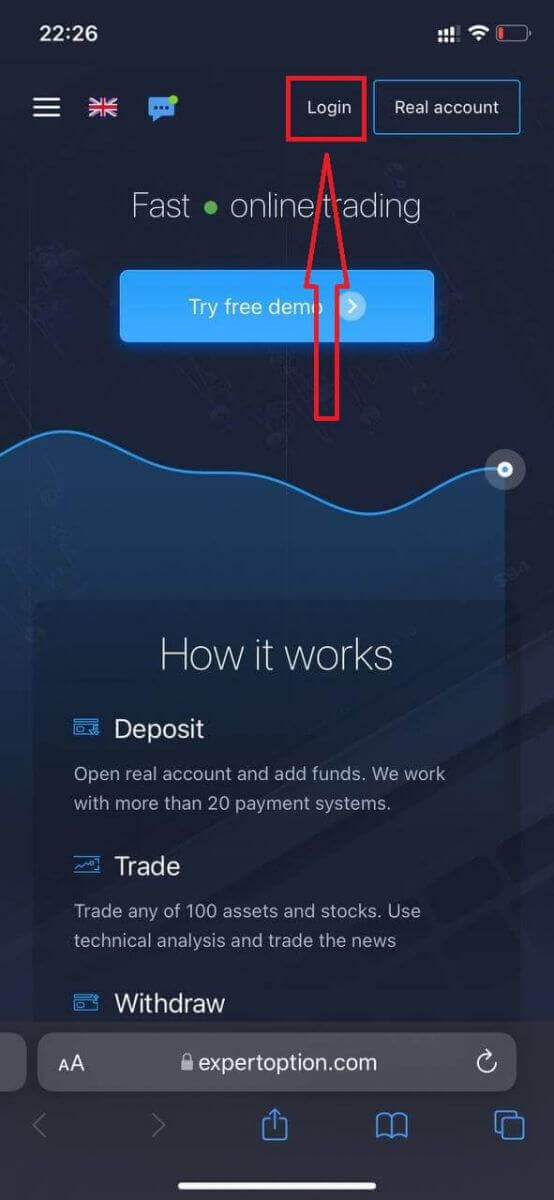
Enter your email and password, and then click on the “Login” button.
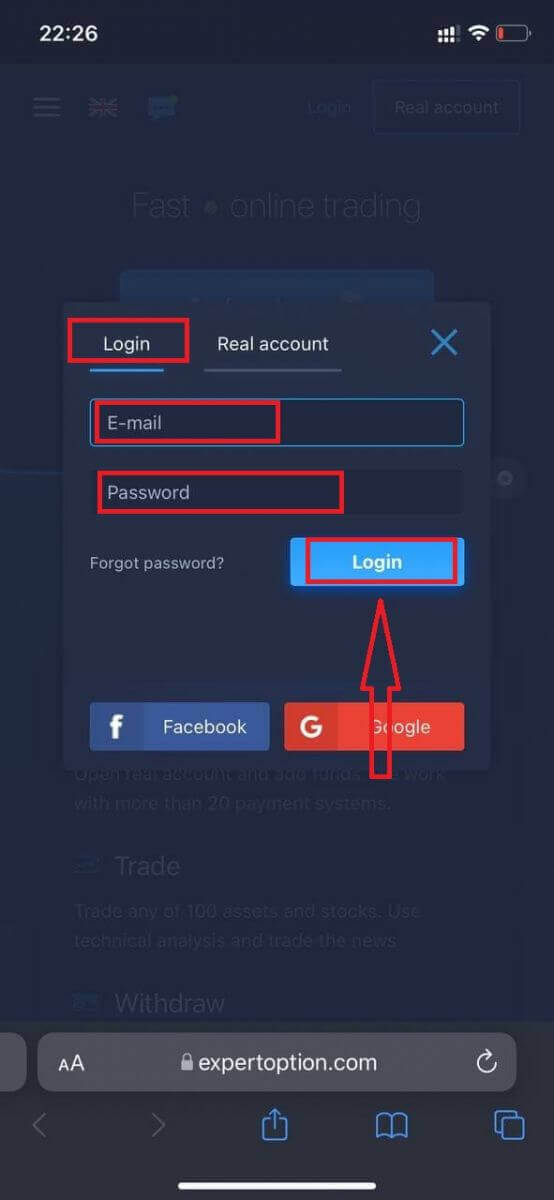
After logging in successfully, you will see the Deposit page. To start Live trading, you need to make an investment in your account (the minimum deposit is USD 10).
How to make a Deposit in ExpertOption
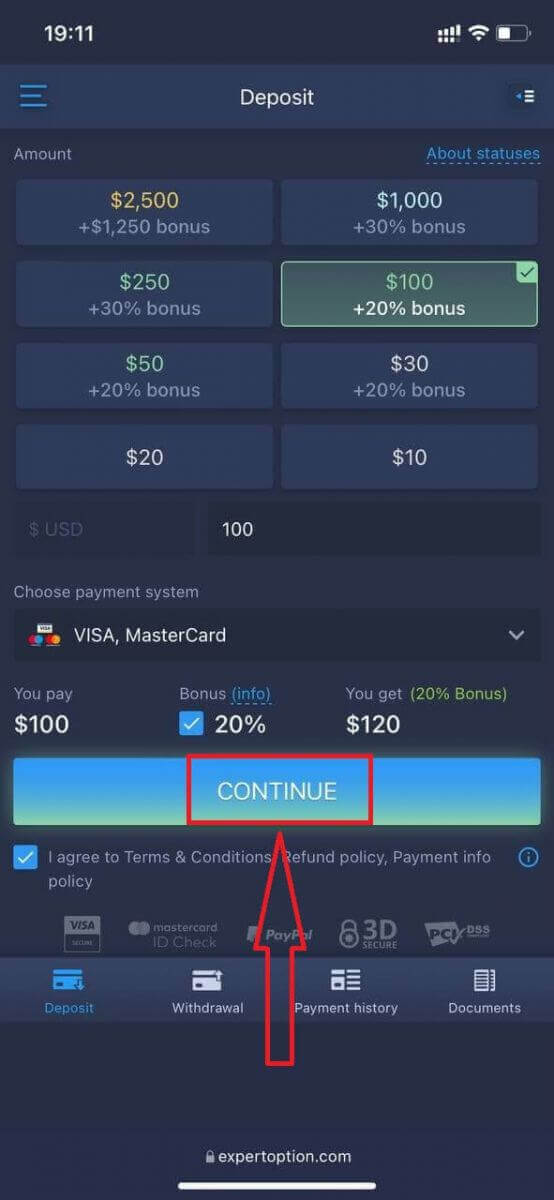
Enter the card data and click "Add funds ..."
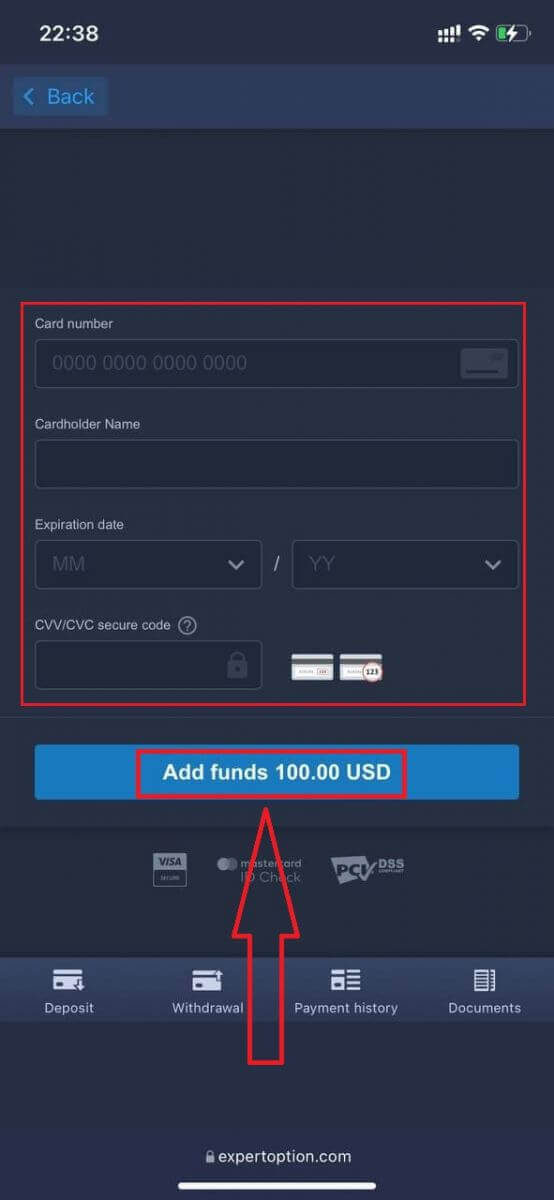
Now you can trade on a real account after depositing successfully.
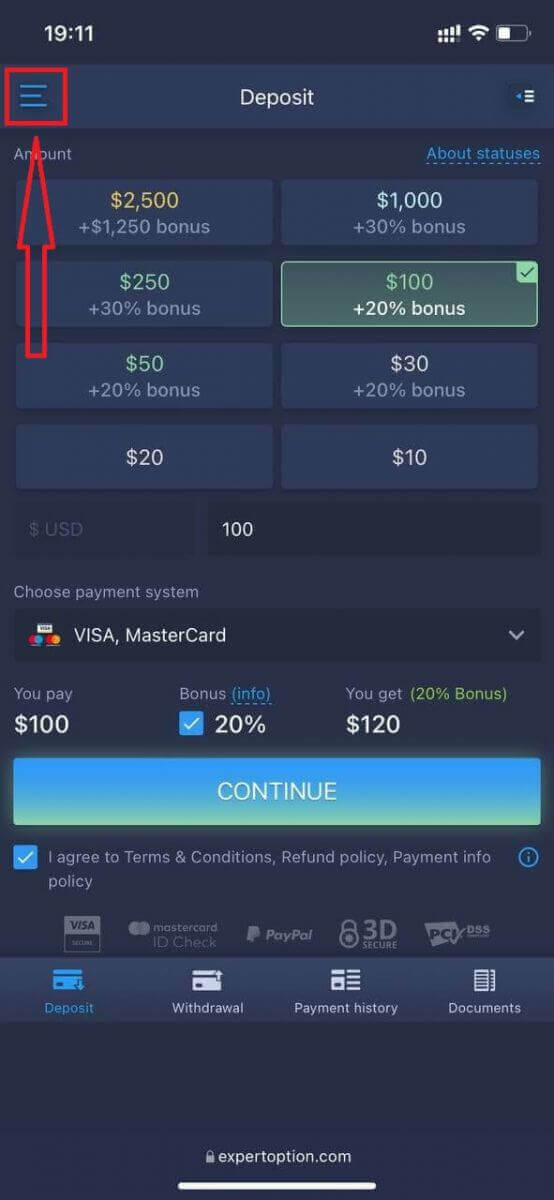
If you want to use the Demo Account, click the "Menu" icon.
Click "Trade."
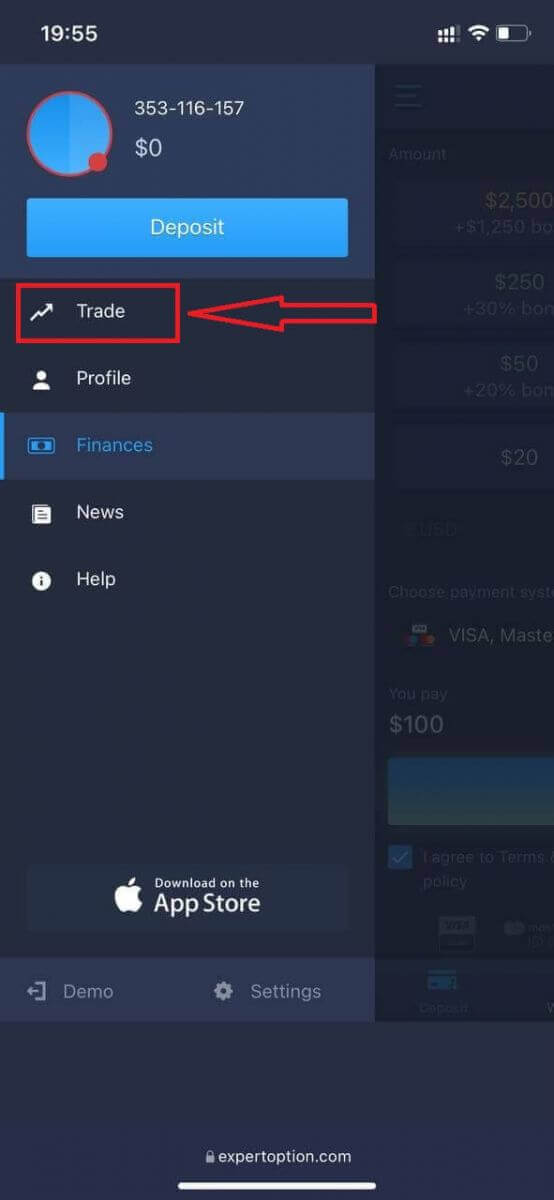
Switch accounts from the Real account to the Demo account.
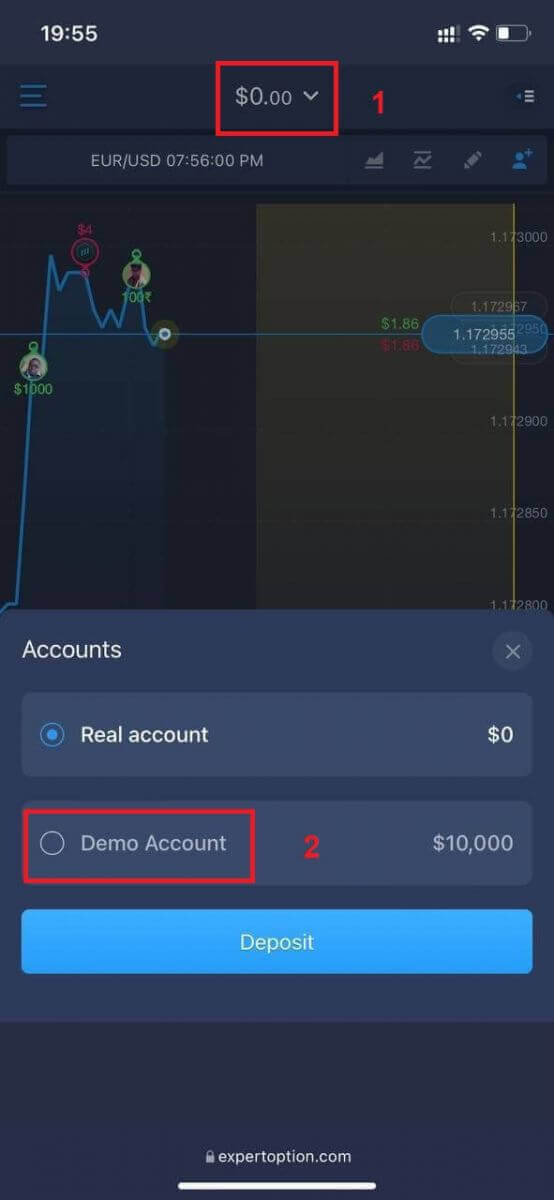
You will have $10,000 in the Demo account.
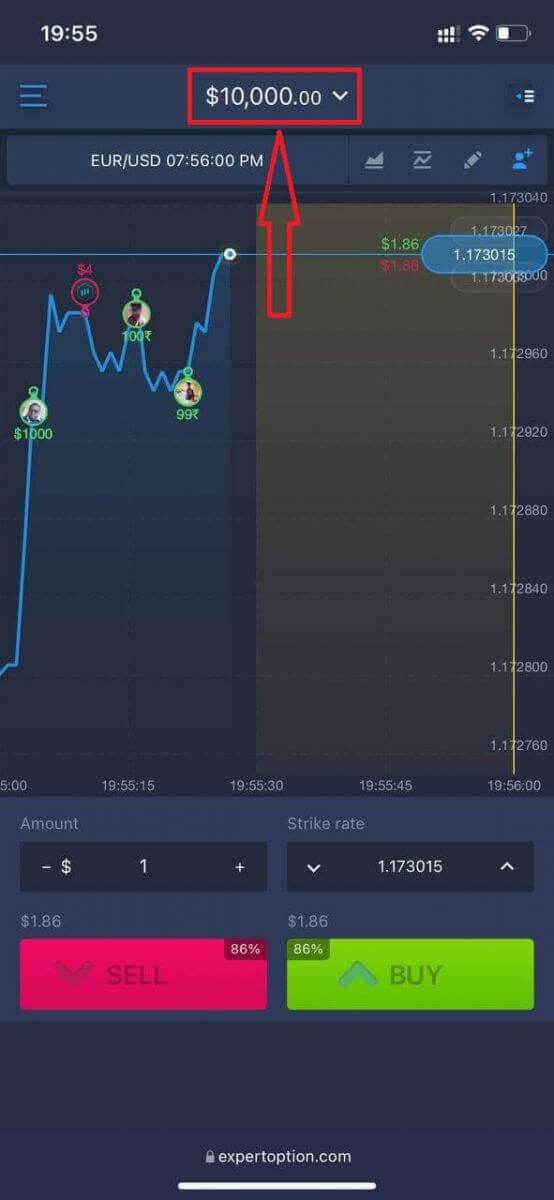
Now you can trade from the mobile web version of the platform. The mobile web version of the trading platform is identical to the regular web version. Consequently, there won’t be any problems with trading and transferring funds.
How to Log In to the ExpertOption iOS App
Logging in on the iOS mobile platform is similar to logging in on the ExpertOption web app. The application can be downloaded through the App Store on your device, or click here. Simply search for “ExpertOption - Mobile Trading” app and click «GET» to install it on your iPhone or iPad.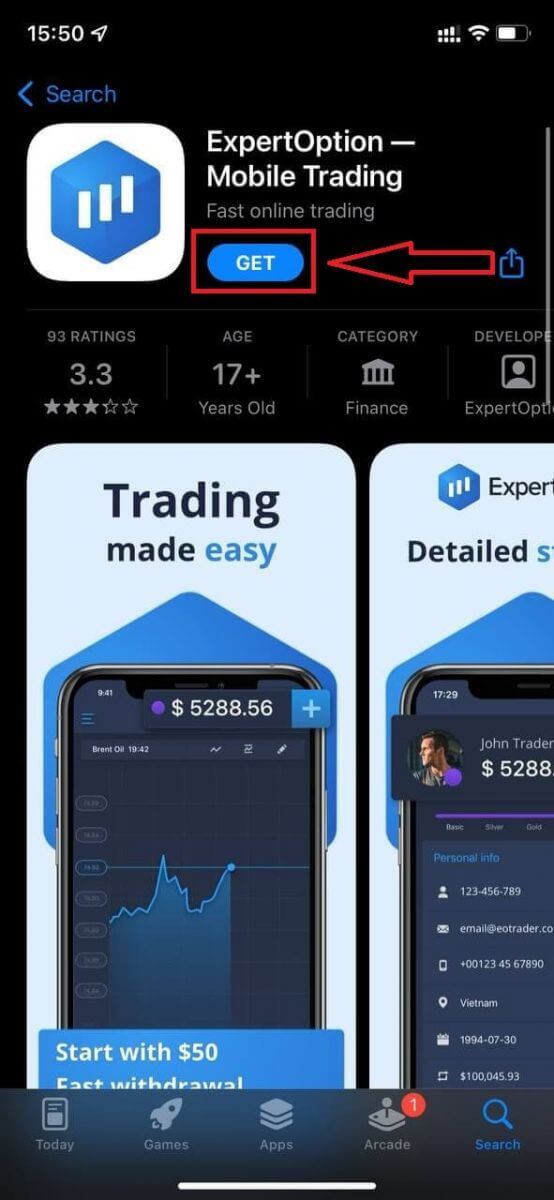
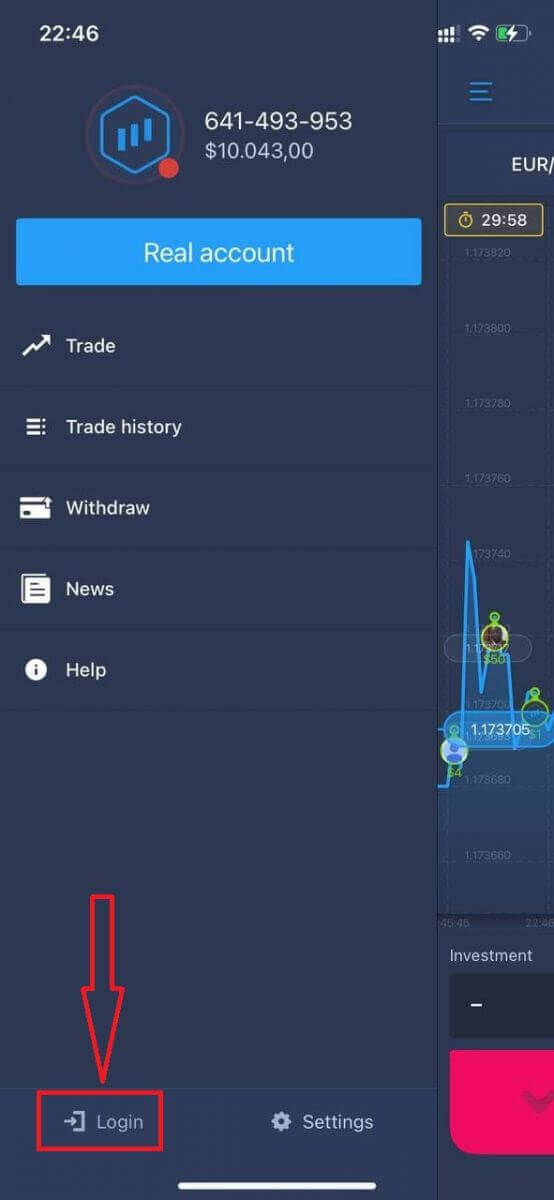
After installation and launching, you may log in to the ExpertOption iOS mobile app by using your email, Facebook, or Google. You just need to choose the "Menu" icon.
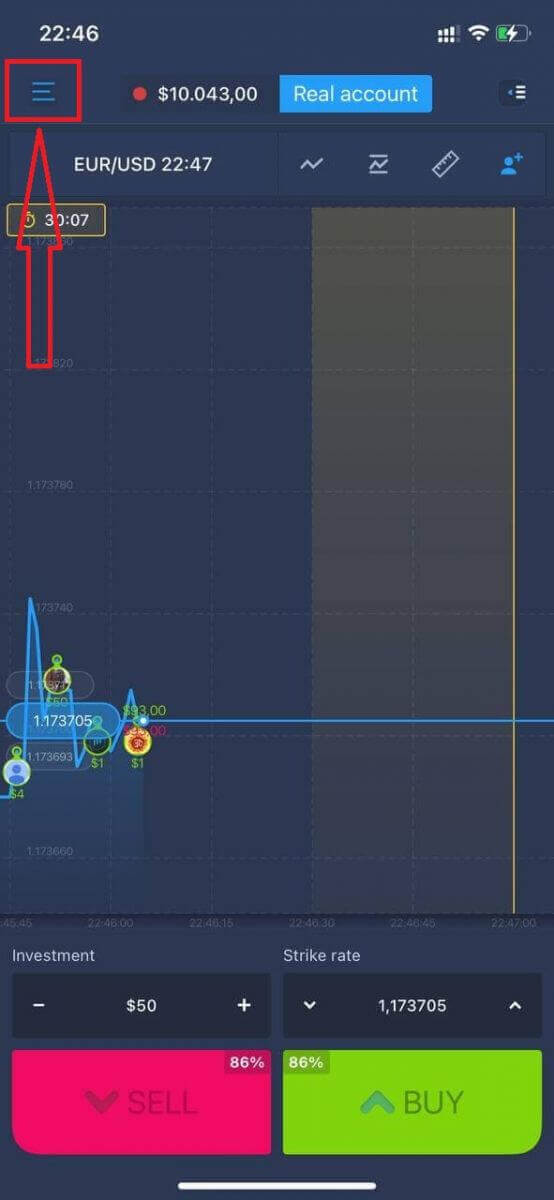
Click "Login."
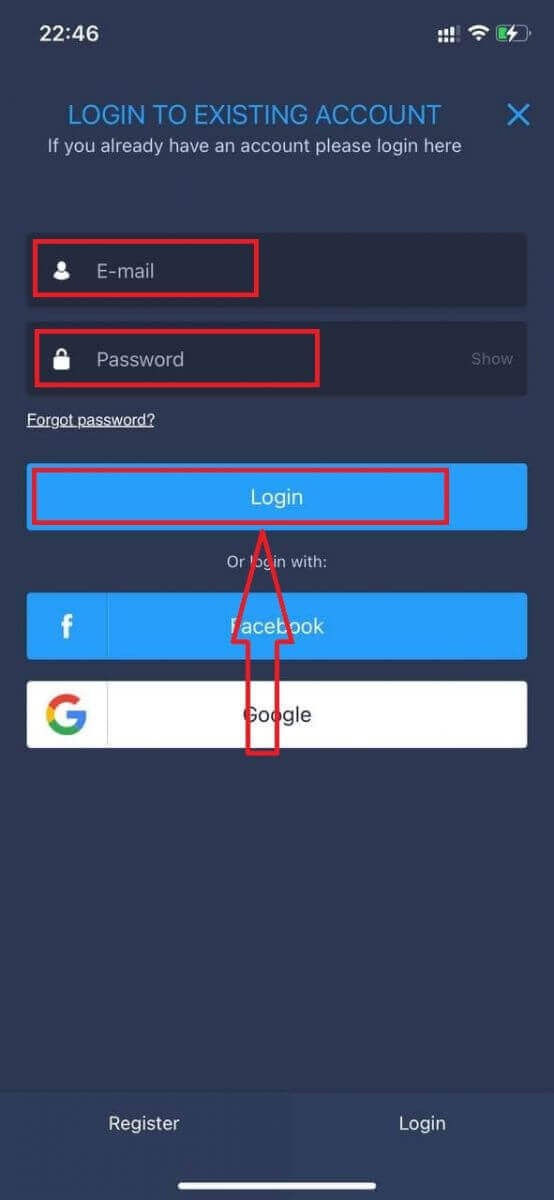
Enter your email and password, and then click on the “Login” button.
How to Log In to the ExpertOption Android App
You have to visit the Google Play store and search for "ExpertOption - Mobile Trading" to find this app, or click here.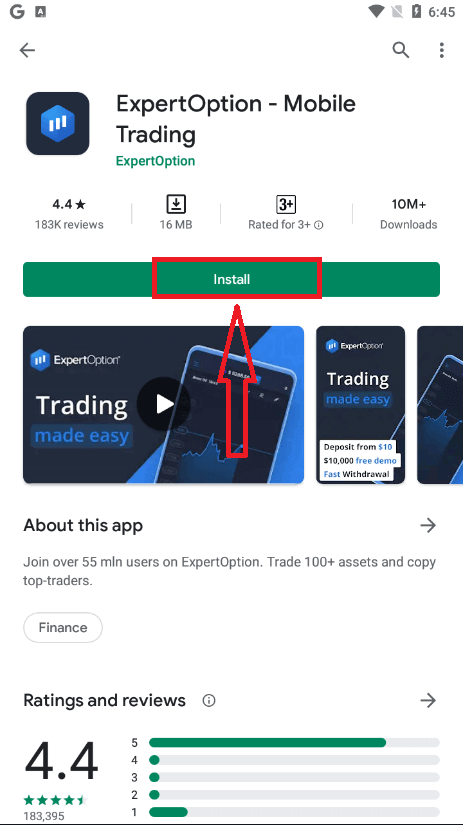
After installation and launching, you may log in to the ExpertOption Android mobile app by using your email, Facebook, or Google account.
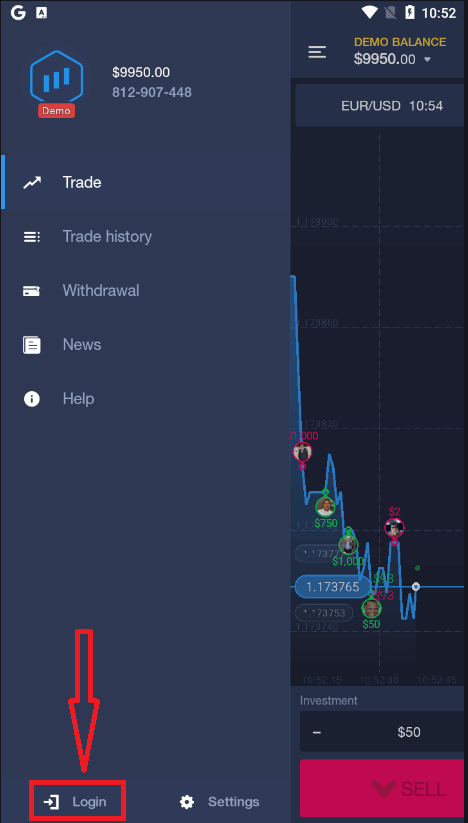
Do the same steps as on an iOS device, choose the "Menu" icon.
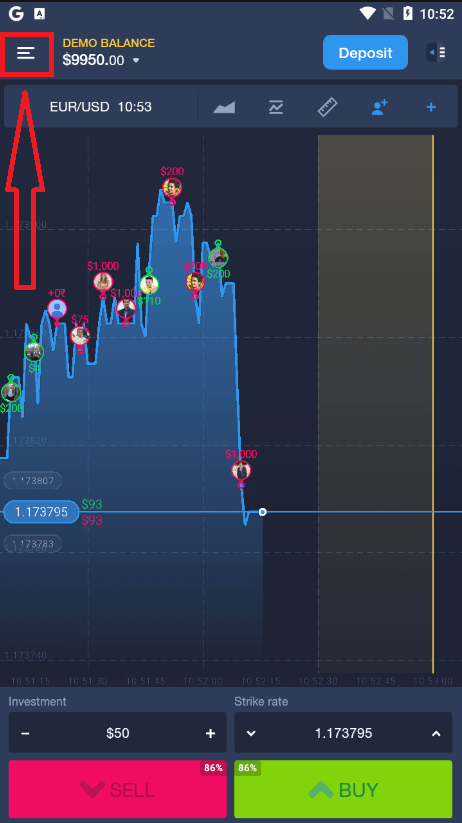
Click "Login."
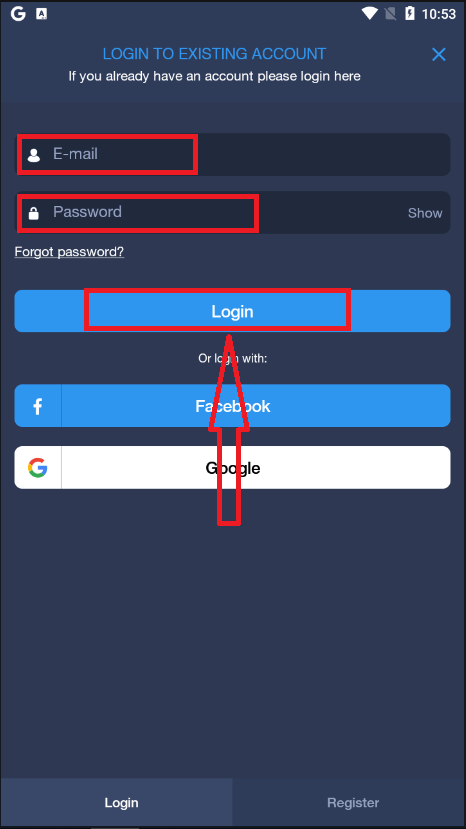
Enter your email and password, and then click on the “Login” button.
How to Verify an Account on ExpertOption
Email Verification on ExpertOption
Once you’ve signed up, you will receive a confirmation email (a message from ExpertOption) which includes a link that you need to click to verify your email address.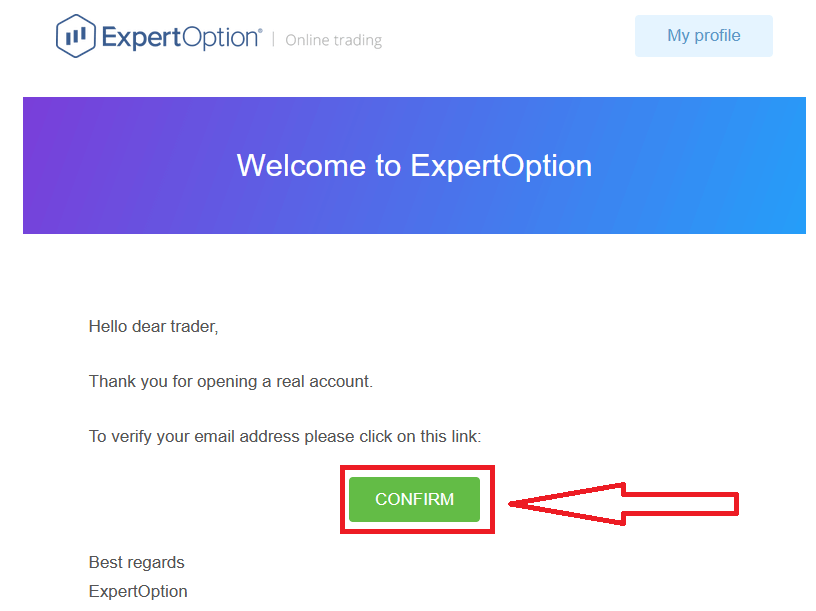
If you do not receive a confirmation email from us at all, send a message to [email protected] from your email address used on the platform, and we will confirm your email manually.
Address and Identity Verification on ExpertOption
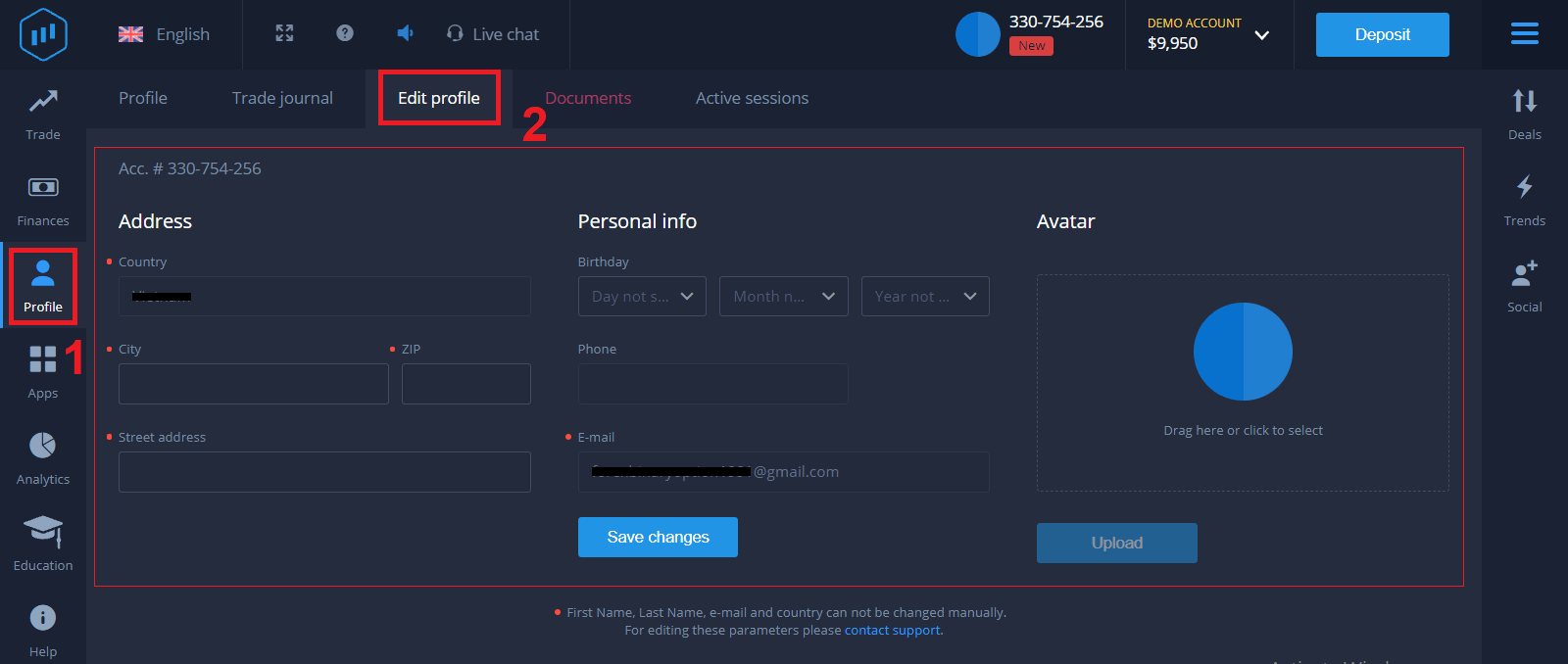
The verification process is a simple one-time review of your documents. This is a necessary step for us to fully comply with AML KYC policy, thus confirming your identity as a Trader with ExpertOption. The verification process starts once you fill in Identity and Address information in your Profile. Open the Profile page and locate the Identity status and Address status sections.
Bank Card Verification on ExpertOption
The verification process varies depending on the deposit method.If you deposit using VISA or MASTERCARD (either credit or debit card), we will need to verify the following:
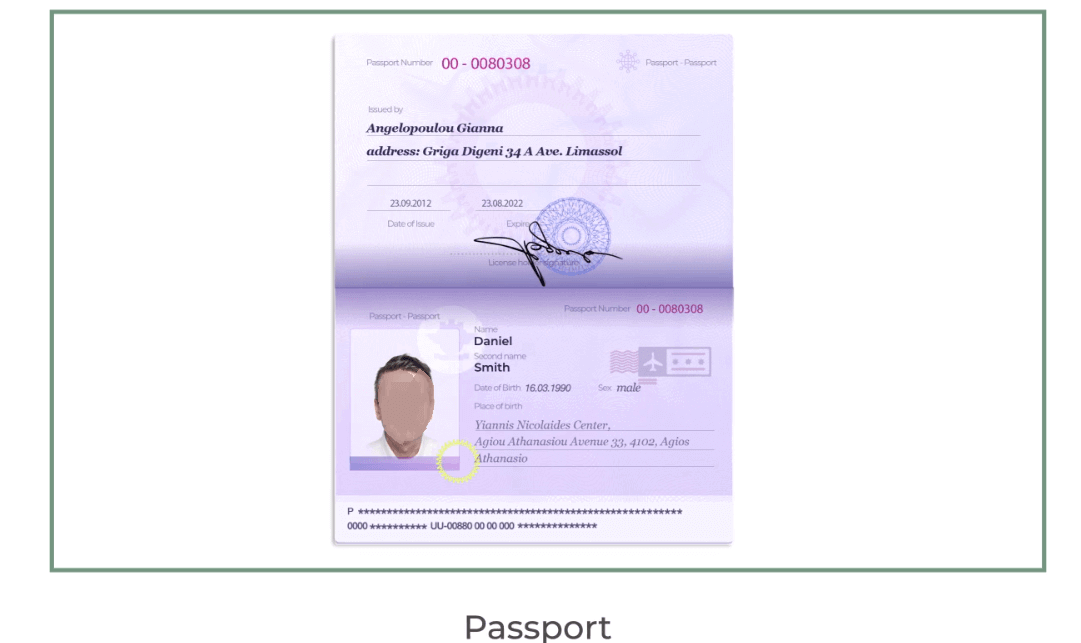
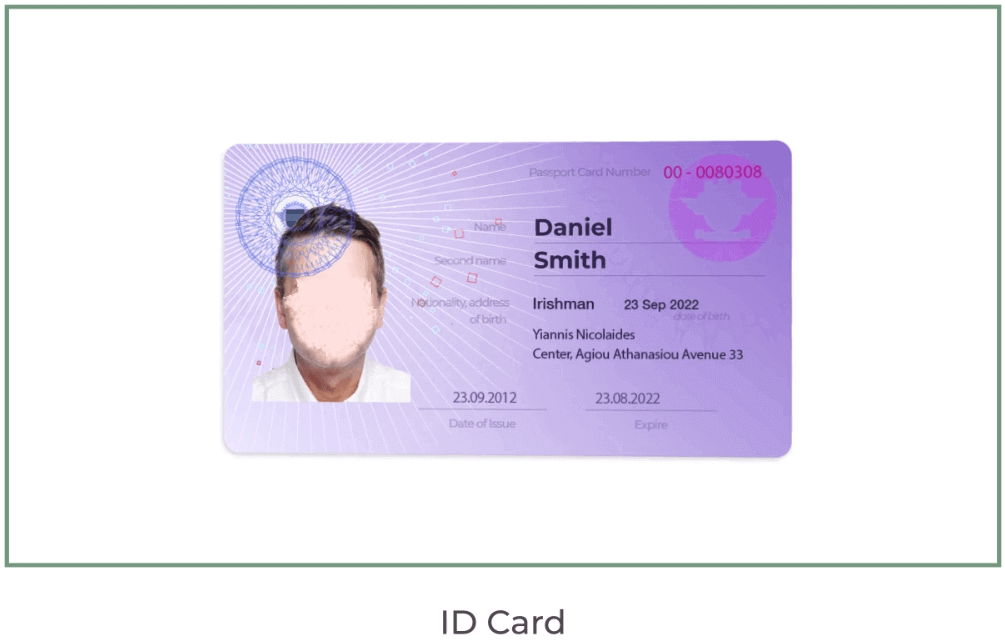
- A colour photo of a primary valid ID or Passport which shows your photo and full name
Passport
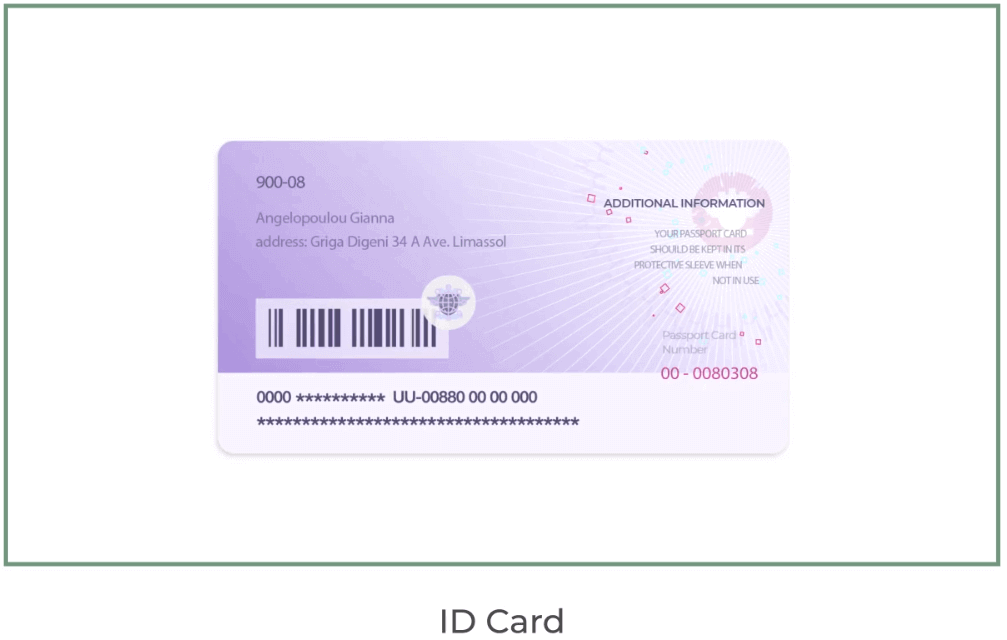
ID Card on both sides
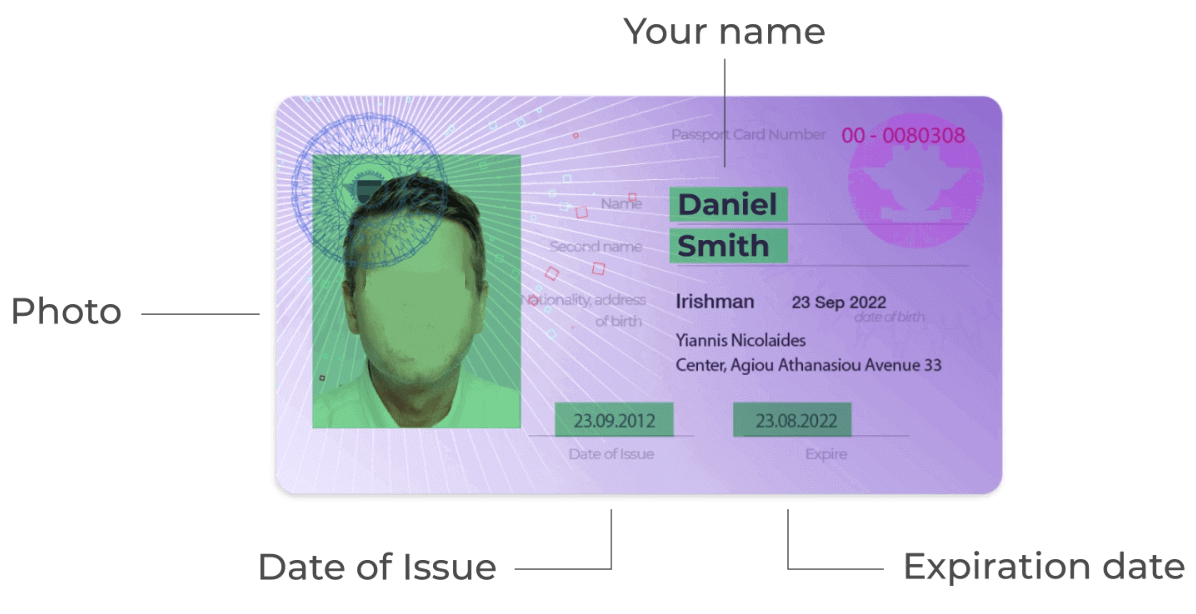
The documents must show your name, photo,o and not expired. re
- A photo of the bank card (front side of your card used for deposit, showing with first six and last four digits, with your name and expiry date)
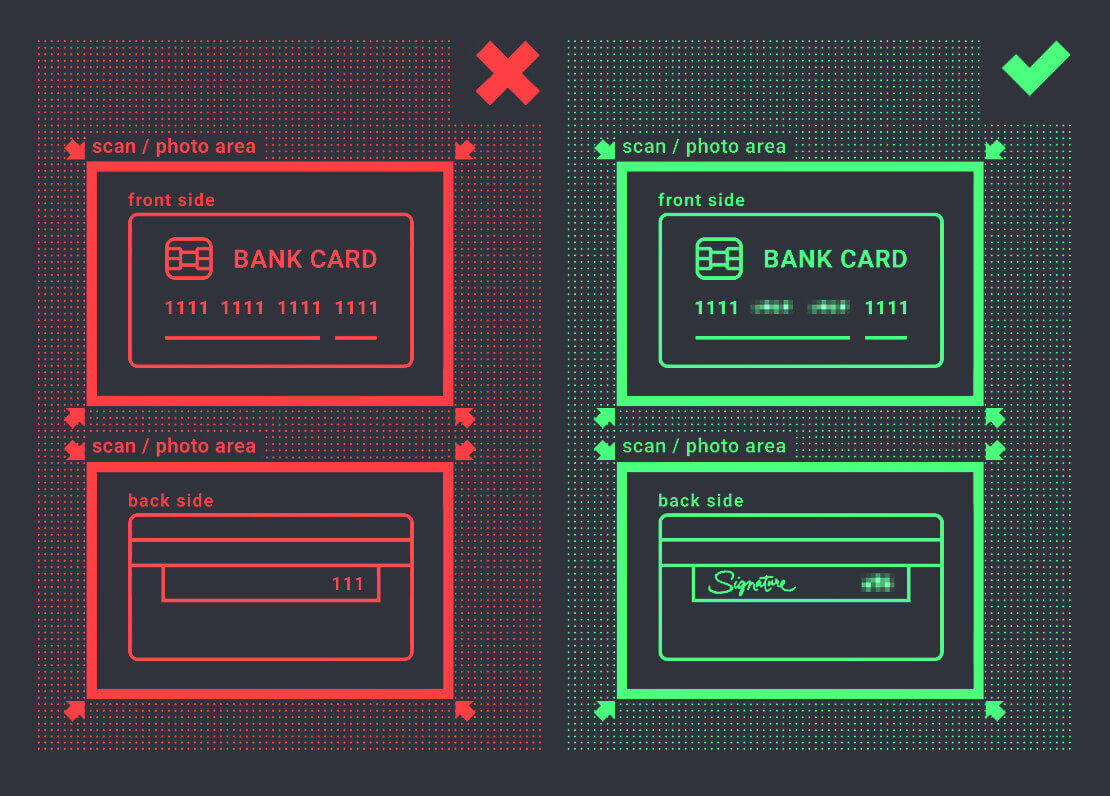
If you choose to deposit using an e-wallet, cryptocurrency, online banking, or mobile payment, we will only need to verify your primary valid ID or Passport.
Please note that the photos must be of high quality, the entire document should be visible, and we do not accept photocopies or scans.
Verification is only available after creating a REAL account and after depositing.
Conclusion: Secure Your Trading with Verified Access on ExpertOption
Logging in and verifying your account on ExpertOption is the first step toward a secure and seamless trading experience. By completing these steps, you ensure your account is fully protected, ready for deposits, withdrawals, and trading without restrictions, while maintaining compliance with global trading standards.
Start your trading journey confidently—log in and verify your account on ExpertOption today to unlock the full potential of your trading experience.
FAQs
ExpertOption typically asks for a government-issued photo ID (passport, national ID, or driver’s license), a recent proof of address (utility bill or bank statement showing your name and address), and sometimes a selfie. Submit clear, unedited images in common formats (JPG, PNG, PDF) with readable text and matching personal details.
Verification review times vary but are commonly completed within a day or a few business days. Speed depends on document quality, peak volume, and any additional AML checks. You can usually still log in and fund an account, but withdrawals or higher limits may remain restricted until verification finishes; check the account status panel for updates.
Common causes include blurry or cropped documents, expired IDs, mismatched names or addresses, unsupported file types, or a selfie that doesn’t match the ID. Resolve rejections by uploading full-page, color scans or photos, ensuring document edges and text are visible, and using the exact name on your account. If problems persist, contact support with the rejection reason and resubmit only the requested files.
Most platforms require full verification before processing withdrawals or raising payout limits. Unverified accounts may face temporary caps, be restricted to deposit-only activity, or be limited to returning funds to the original payment source. To avoid holds, complete verification before initiating large withdrawals and confirm any payment-method rules in your account.
Use the “Forgot password” option to receive a reset link via your registered email, then choose a strong unique password and sign out other sessions. Enable any available two-factor authentication, confirm your email and phone are up to date, avoid public Wi-Fi for sensitive access, and contact support immediately if you see unknown activity or cannot regain access.