How to Start ExpertOption Trading in 2026: A Step-By-Step Guide for Beginners

ExpertOption is a globally recognized online trading platform that enables you to trade a wide range of assets, including stocks, commodities, cryptocurrencies, and forex, through binary options. For beginners looking to enter the trading world, ExpertOption offers a user-friendly interface, a free demo account, and flexible trading conditions, making it a suitable choice for learning and earning simultaneously.
However, like any investment, trading on ExpertOption requires a structured approach to avoid unnecessary risks and to maximize your chances of profitability. This guide will walk you through the essential steps to start your ExpertOption trading journey, from registration to placing your first trade confidently.

How to Sign Up to ExpertOption
Start the ExpertOption Trading in 1 Click
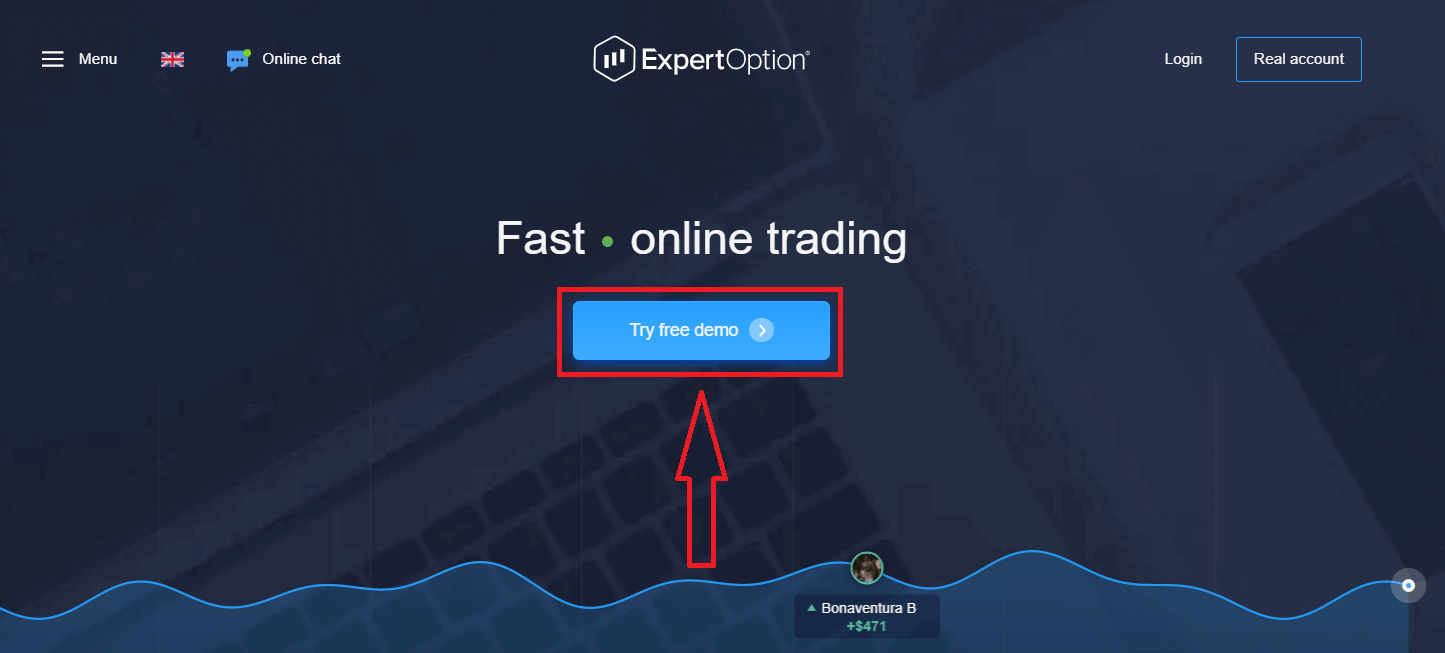
Signing up on the platform is simple: Just a few clicks are required. To open the trading interface in one click, click on the “Try free demo” button.
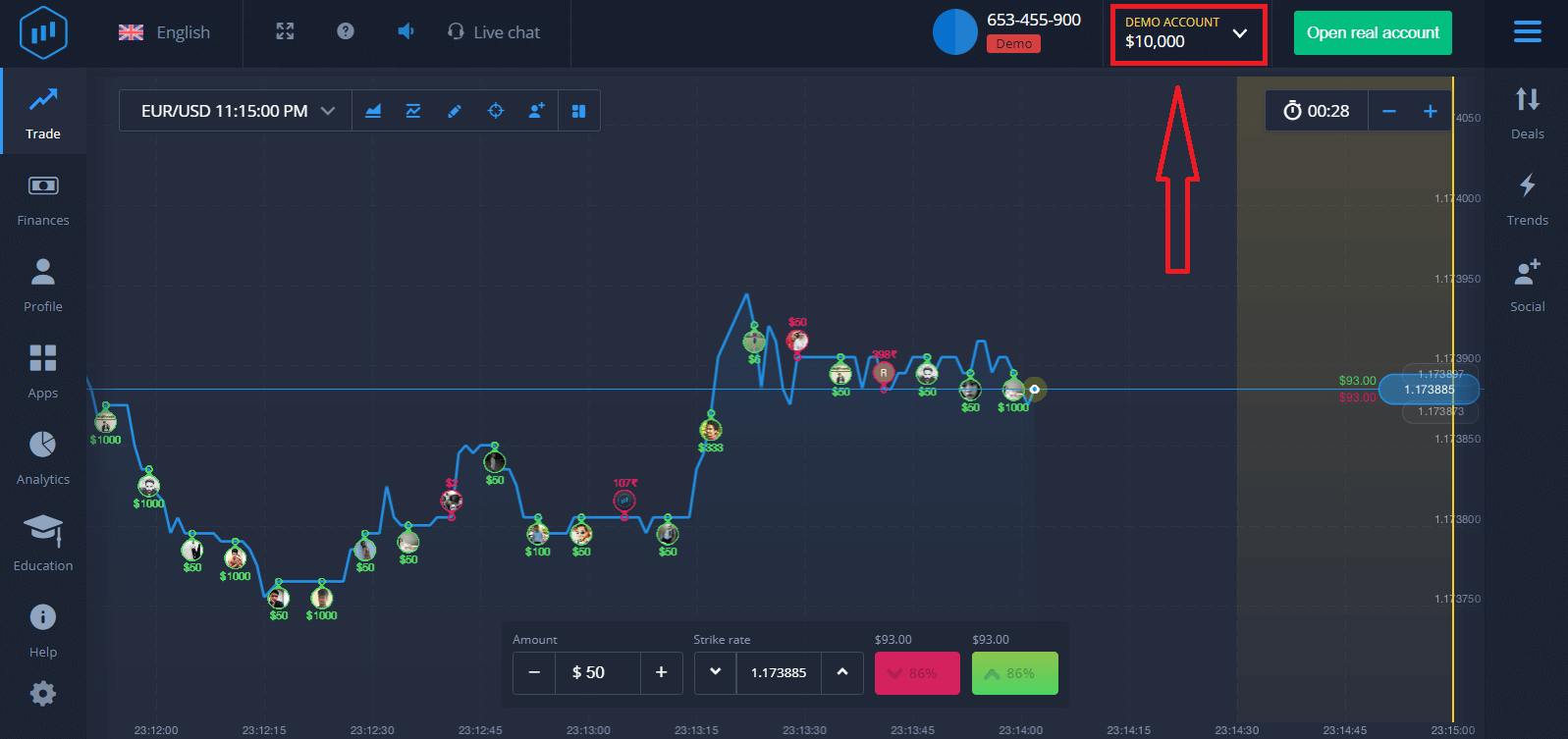
This will direct you to the Demo trading page, where you can start trading with a $10,000 Demo account.
 To continue using the account, save trading results, and trade on a real account. Click "Open real account" to create an ExpertOption account.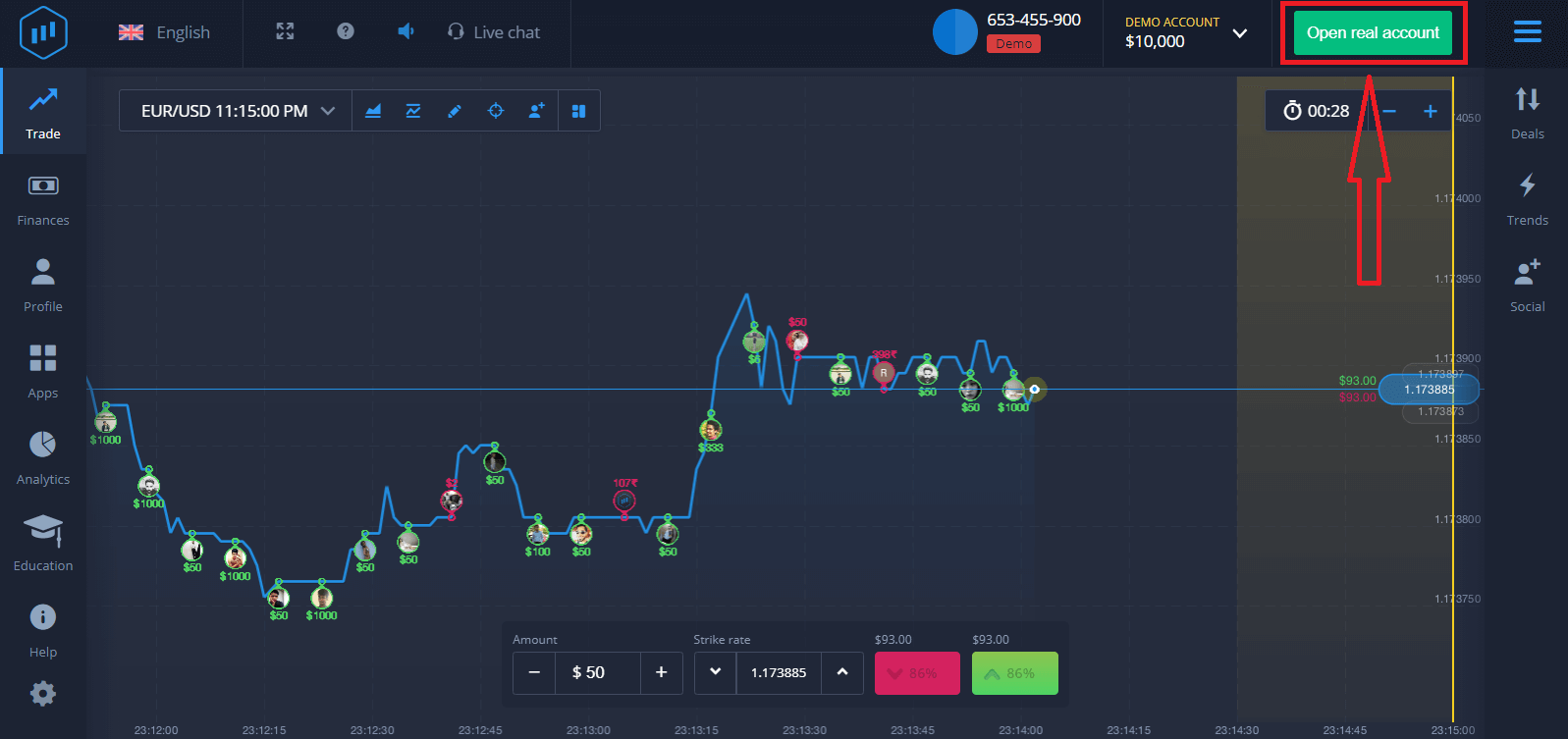
There are three available options: signing up with your email address, Facebook account, or Google account, as shown below. All you need to do is choose any suitable method and create a password.
How to Sign Up for an ExpertOption Account with an Email
1. You can sign up for an account on the platform by clicking the “Real Account” button in the upper right corner.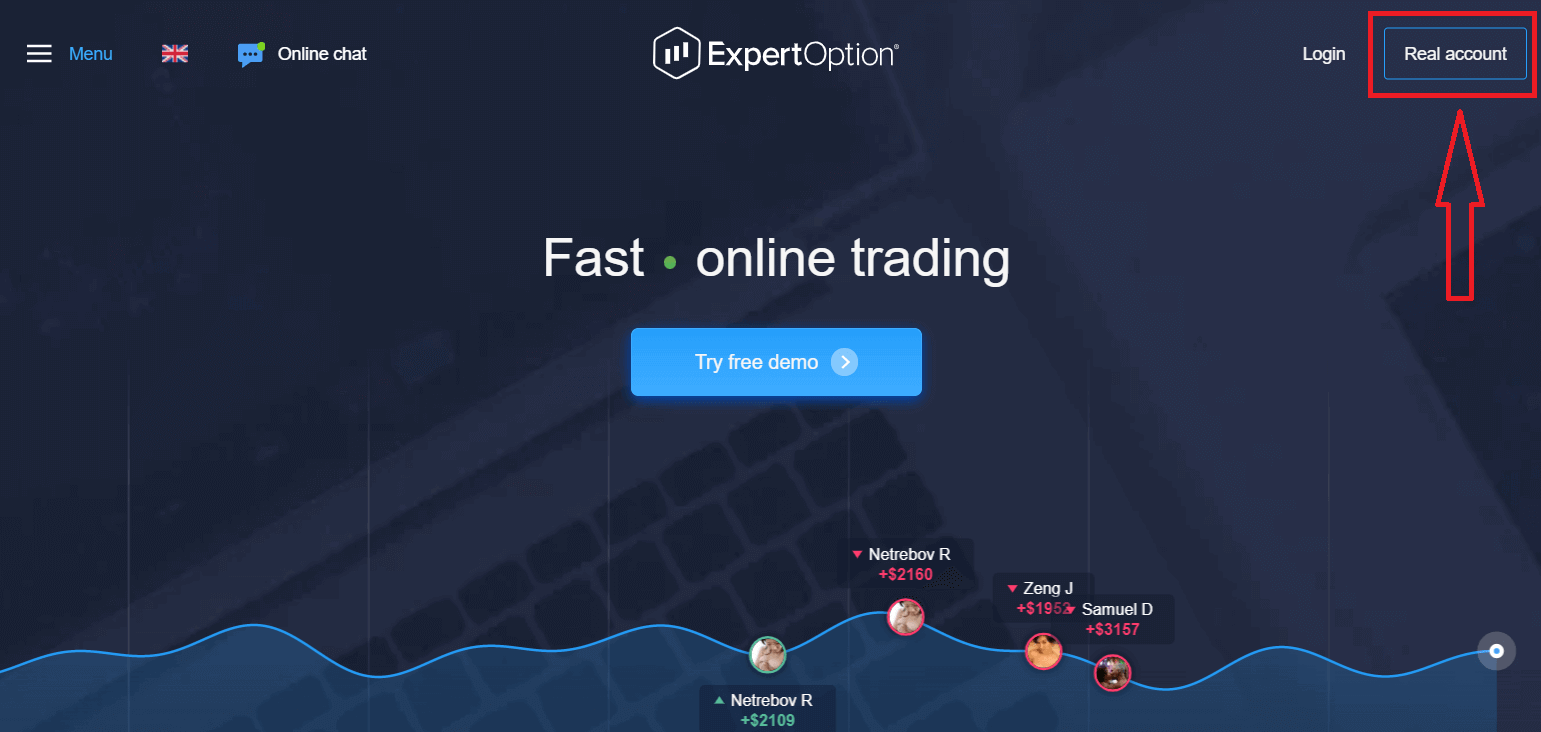
2. To sign up, please fill in all the necessary information and click "Open Account."
- Enter a valid email address.
- Create a strong password.
- You also need to read "Terms and Conditions" and check it.
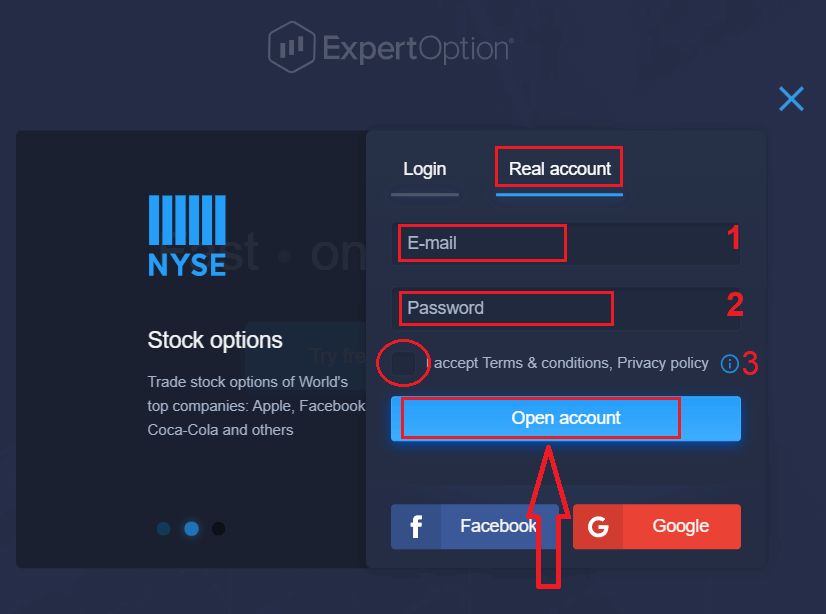
Congratulation! You have signed up successfully. To start Live trading, you need to make an investment in your account (the minimum deposit is USD 10).
How to make a Deposit in ExpertOption
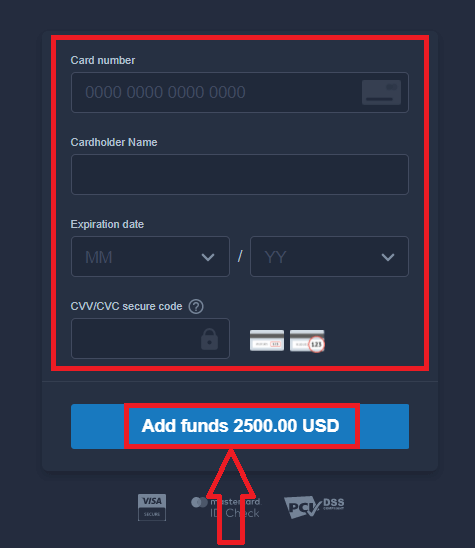
Enter the card data and click "Add funds ..."
Now you can trade on a real account after depositing successfully.
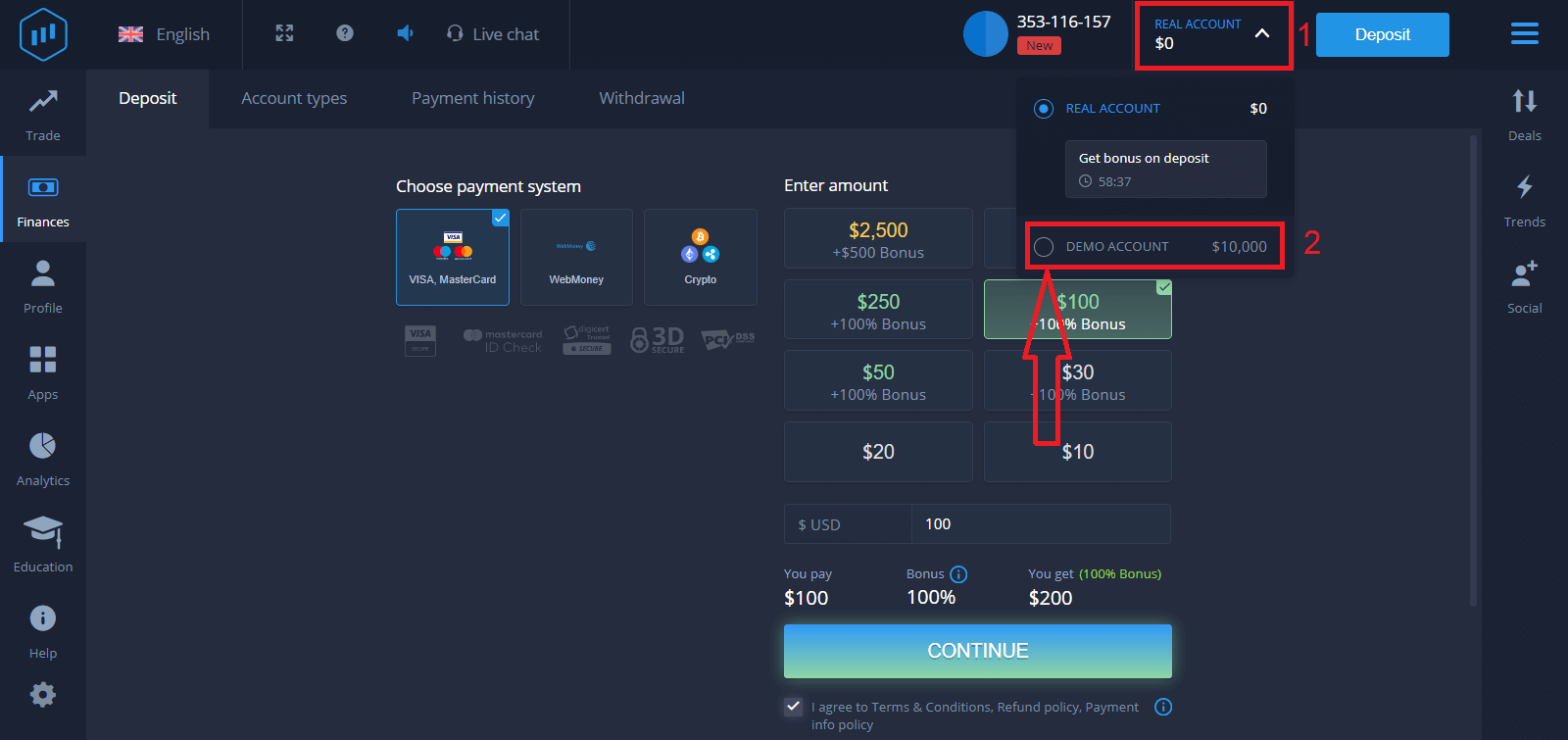
If you want to use the Demo Account, click "REAL ACCOUNT" and select "DEMO ACCOUNT" to start trading with $10,000 in the Demo Account. A demo account is a tool for you to get familiar with the platform, practice your trading skills on different assets, and try out new mechanics on a real-time chart without risks.
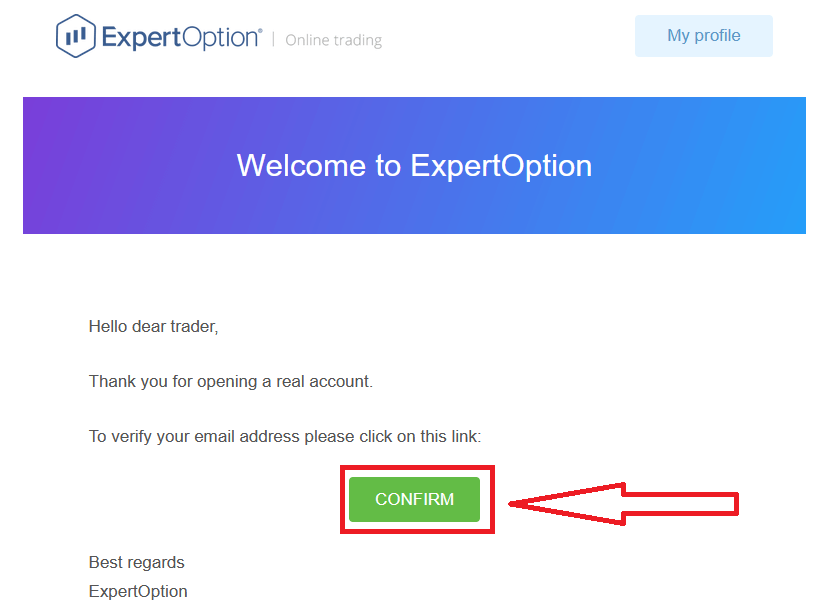
Finally, after you access your email, ExpertOption will send you a confirmation email. Click the button in that mail to activate your account. So, you will finish signing up and activating your account.
How to Sign Up for an ExpertOption Account using Facebook
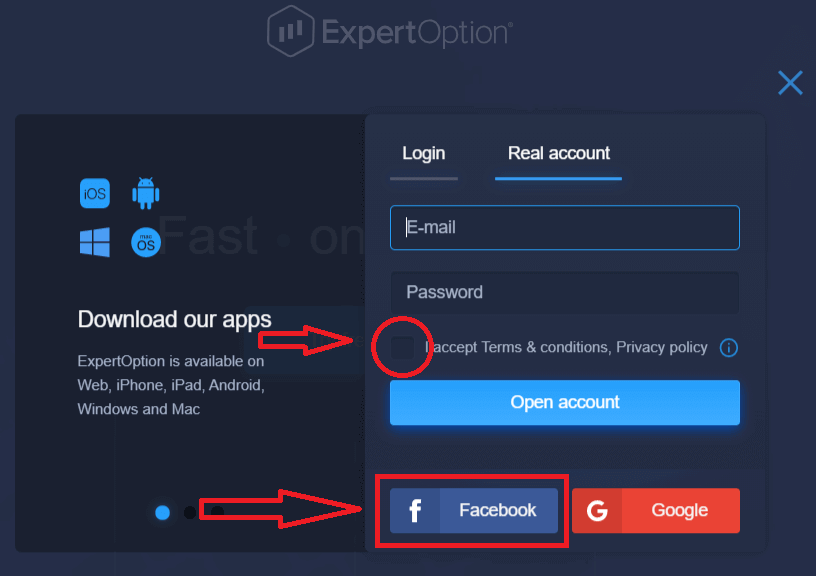
Also, you have an option to open your account by Facebook account, and you can do that in just a few simple steps:1. Check "Terms and Conditions" and click on the Facebook button
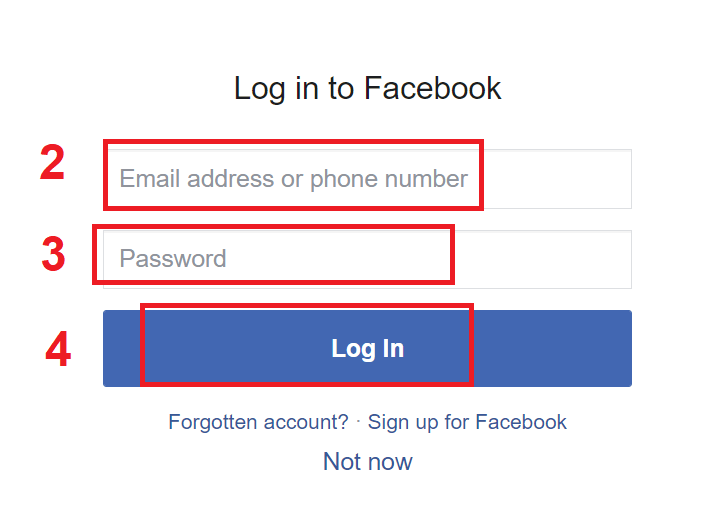
2. The Facebook login window will be opened, where you will need to enter your email address that you used to sign up for Facebook
3. Enter the password from your Facebook account
4. Click on “Log In.”
Once you’ve clicked on the “Log in” button, ExpertOption is requesting access to: Your name and profile picture, and your email address. Click "Continue..."
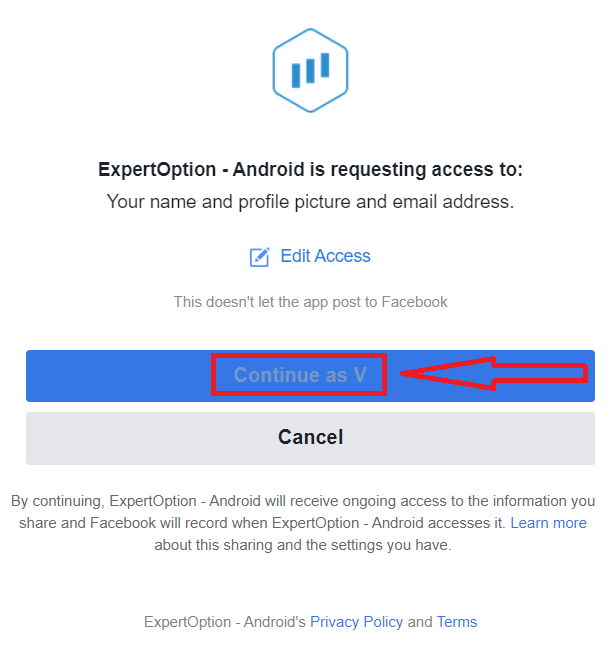
After that, you will be automatically redirected to the ExpertOption platform.
How to Sign Up for an ExpertOption Account using Google
1. To sign up with a Google account, check "Terms and Conditions" and click on the corresponding button in the sign-up form.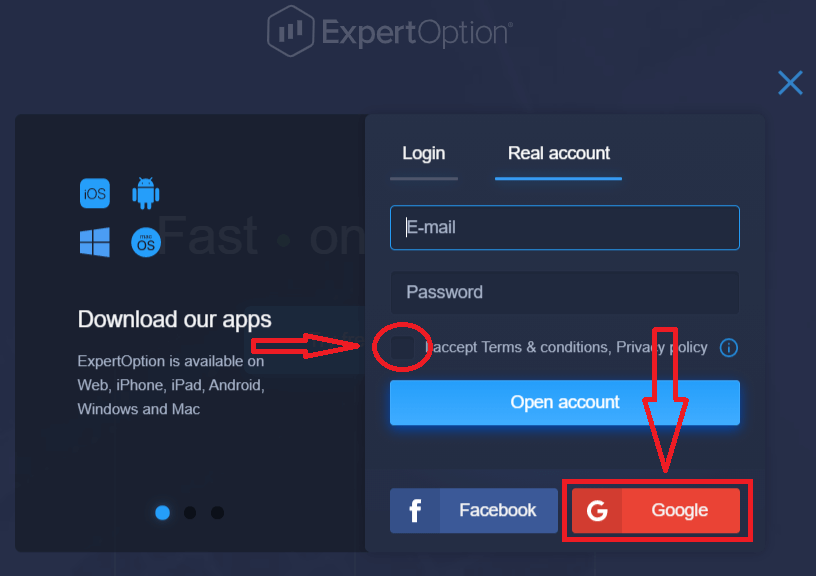
2. In the newly opened window, enter your phone number or email and click "Next".
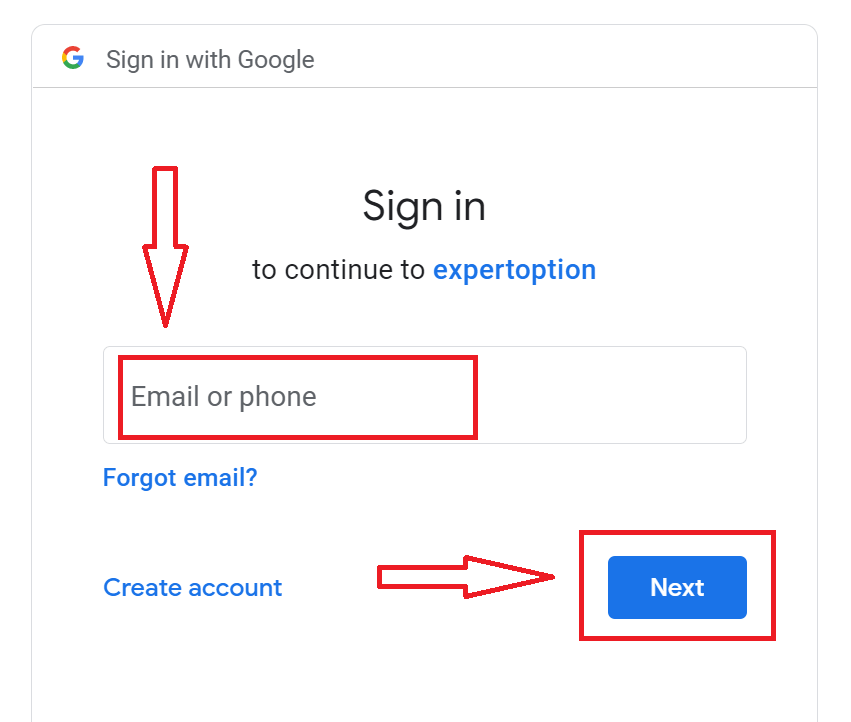
3. Then enter the password for your Google account and click “Next”.
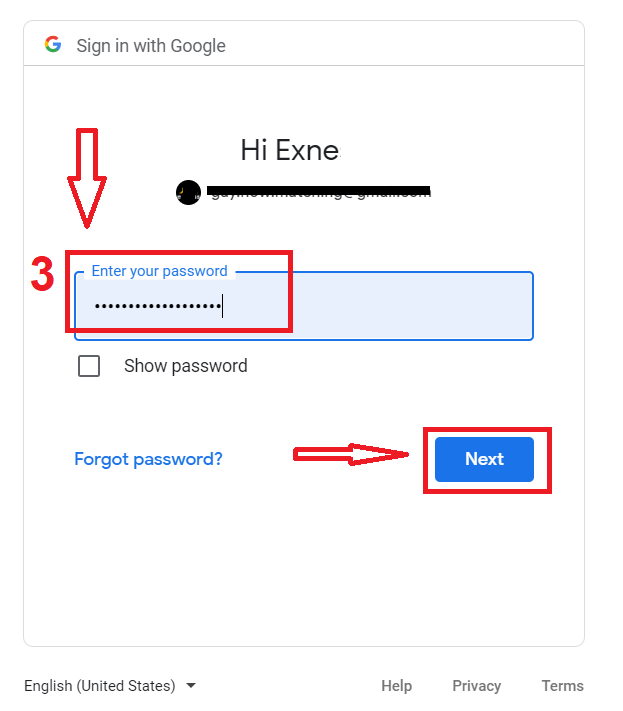
After that, follow the instructions sent from the service to your email address.
Sign up for an Account on the ExpertOption iOS App
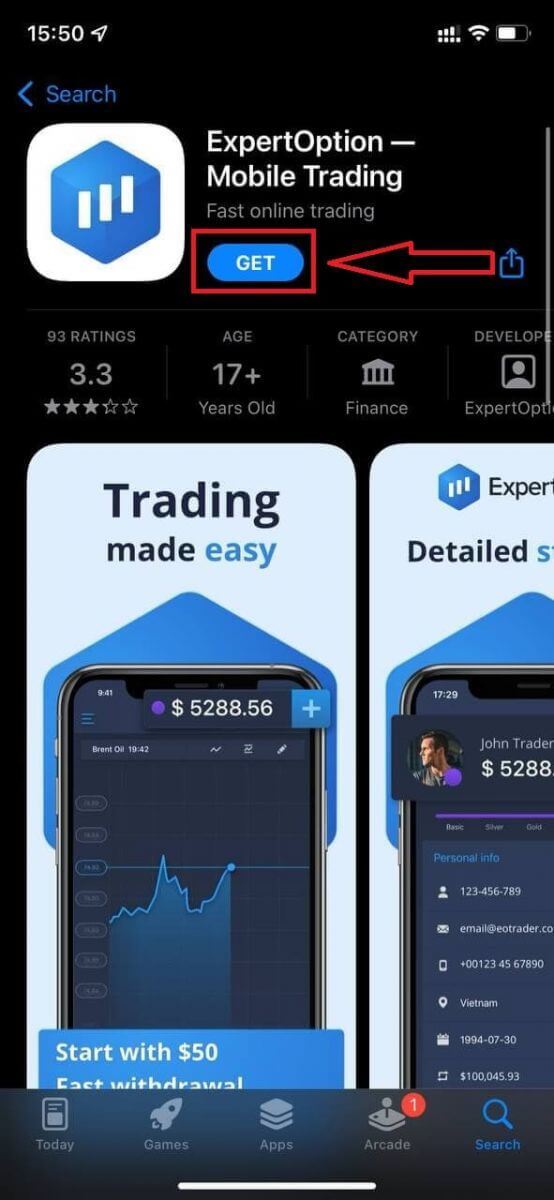
If you have an iOS mobile device, you will need to download the official ExpertOption mobile app from the App Store or here. Simply search for “ExpertOption - Mobile Trading” app and download it on your iPhone or iPad.The mobile version of the trading platform is exactly the same as the web version. Consequently, there won’t be any problems with trading and transferring funds.
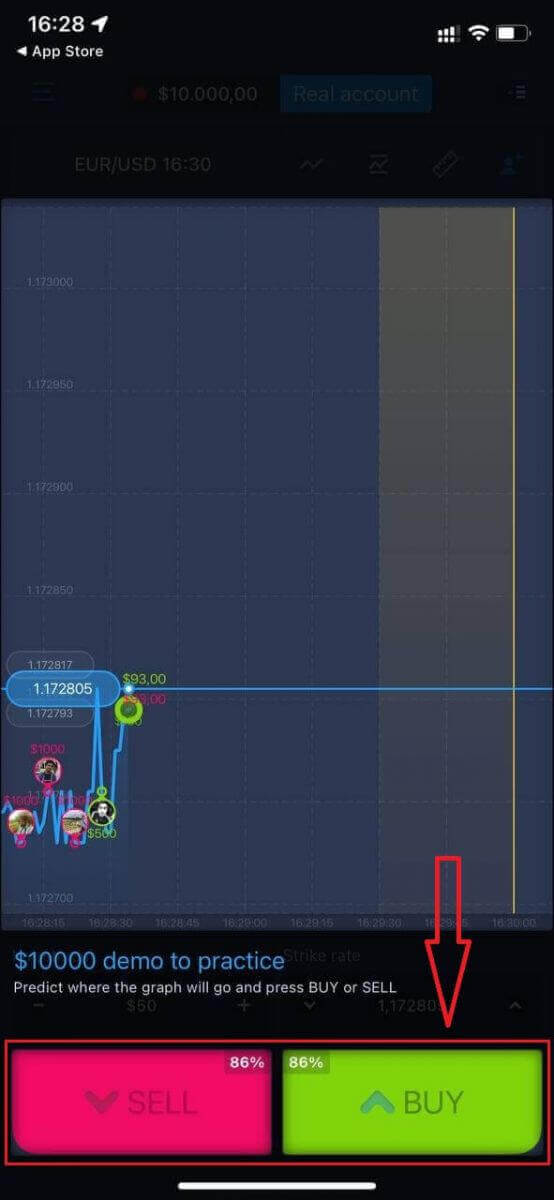
After that, open the ExpertOption app, and you will see the trading platform. Click "Buy" or "Sell" to predict where the graph will go.
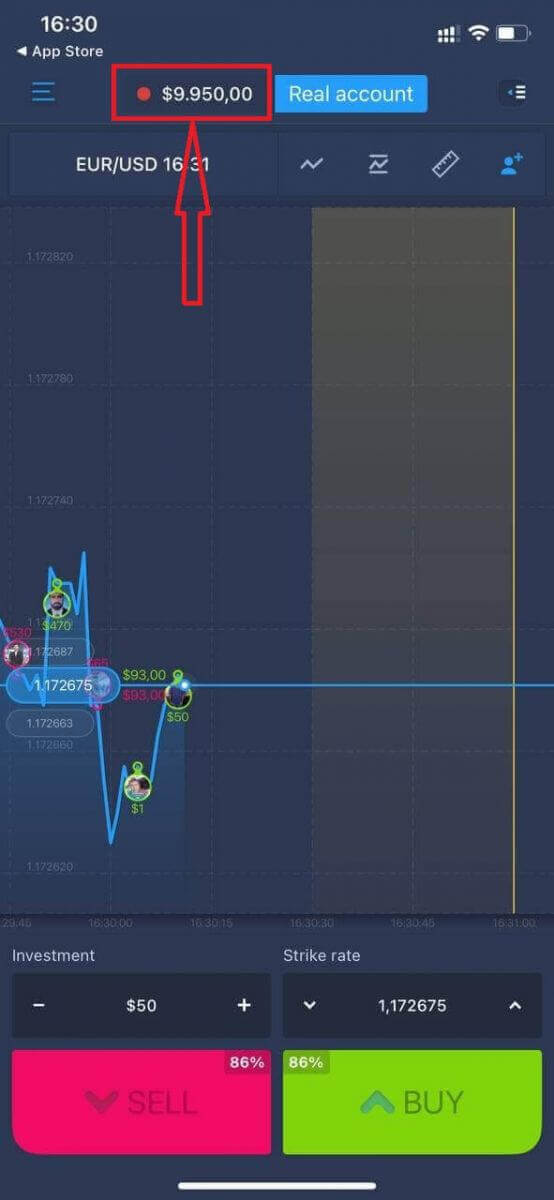
Now you can continue trading with $10,000 in the Daemo account.
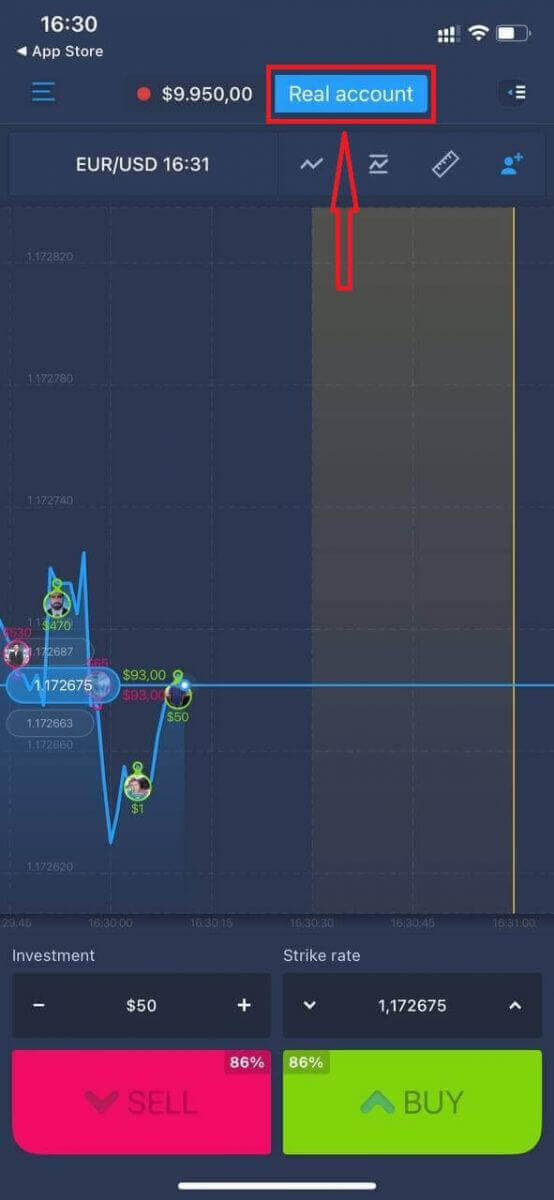
You can also open an account on the iOS mobile platform by clicking "Real account."
- Enter a valid email address.
- Create a strong password.
- You also need to accept the "Terms and Conditions."
- Click "Create account."
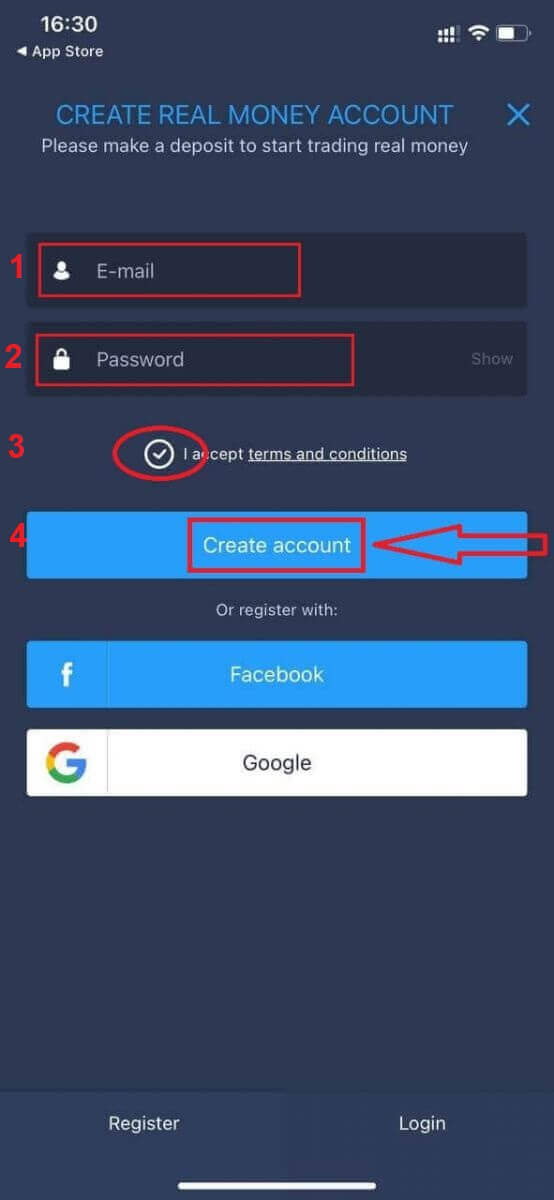
Congratulation! You have signed up successfully, now you can deposit and start trading with a real account.
Sign up for an Account on the ExpertOption Android App
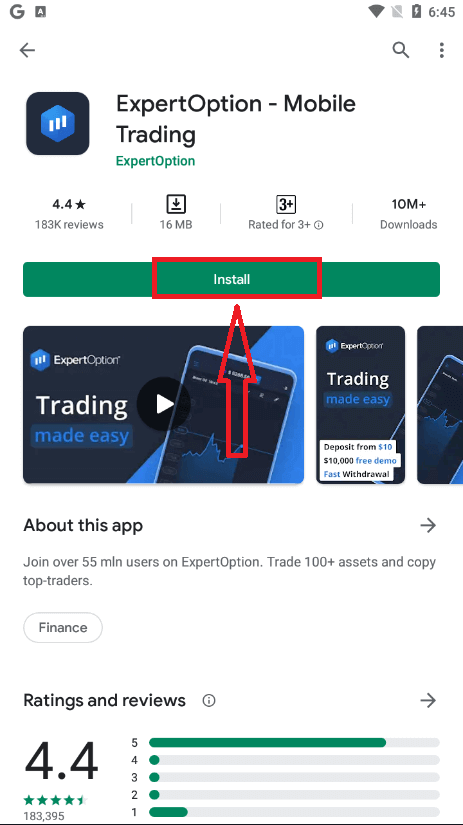
If you have an Android mobile device, you will need to download the official ExpertOption mobile app from Google Play or here. Simply search for “ExpertOption - Mobile Trading” app and download it on your device.The mobile version of the trading platform is exactly the same as the web version. Consequently, there won’t be any problems with trading and transferring funds. Moreover, the ExpertOption trading app for Android is considered to be the best app for online trading. Thus, it has a high rating in the store.
After that, open the ExpertOption app, and you will see the trading platform. Click "Buy" or "Sell" to predict where the graph will go.
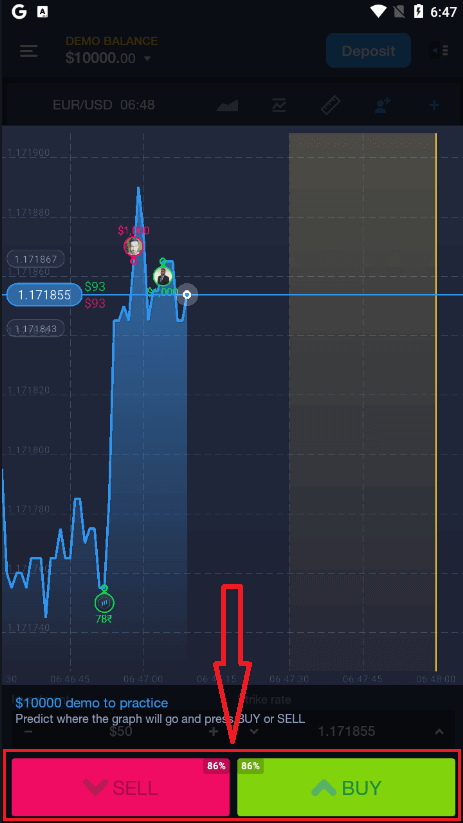
Now you can continue trading with $10,000 in a Demo account.
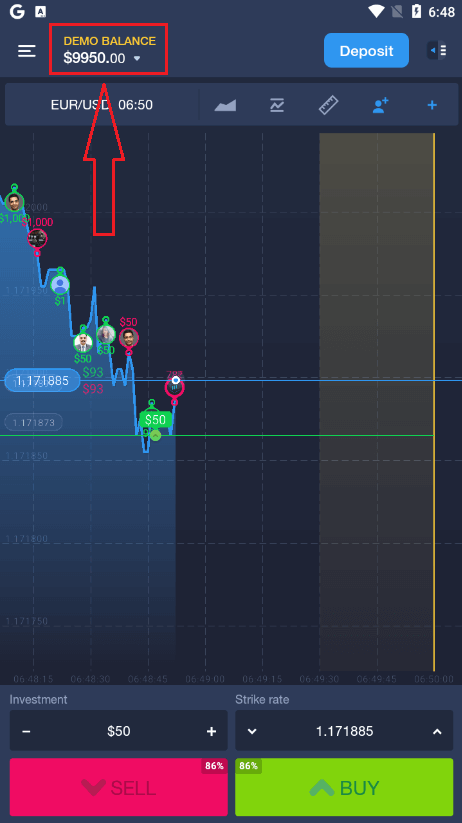
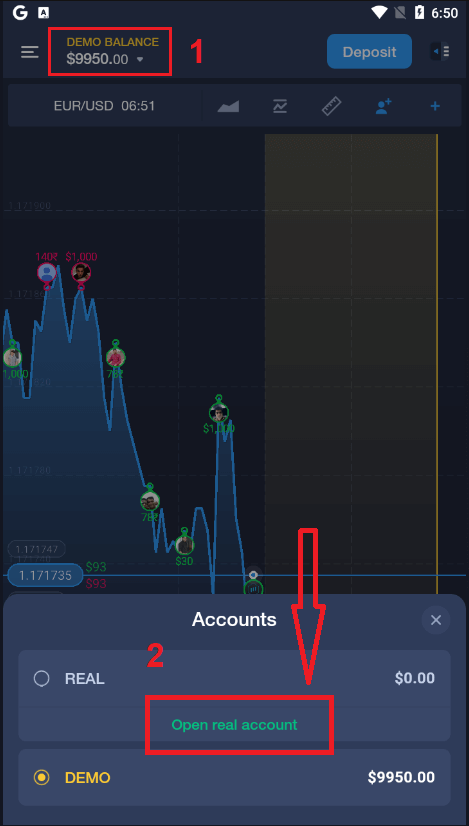
You can also open an account on the Android mobile platform by clicking "DEMO BALANCE," then clicking "Open real account."
- Enter a valid email address.
- Create a strong password.
- You also need to accept the "Terms and Conditions."
- Click "Create account."
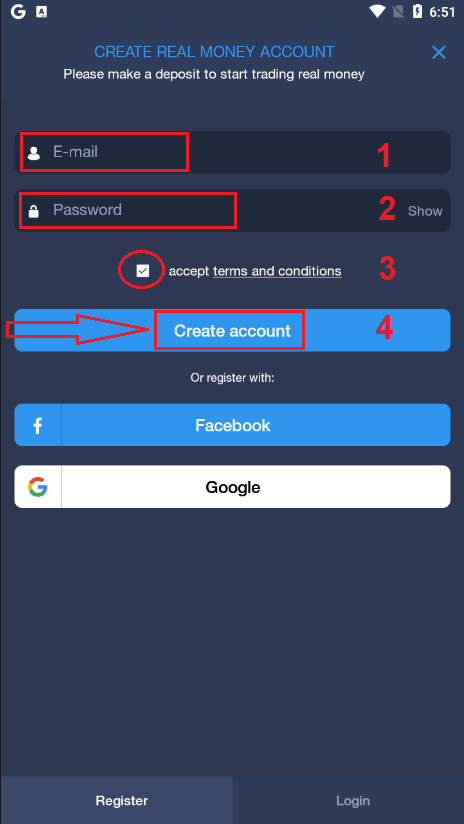
Congratulation! You have signed up successfully, now you can deposit and start trading with the real account.t
Sign Up for an ExpertOption Account on the Mobile Web
If you want to trade on the mobile web version of the ExpertOption trading platform, you can easily do it. Initially, open up your browser on your mobile device. After that, search for “expertoption” and visit the official website of the broker.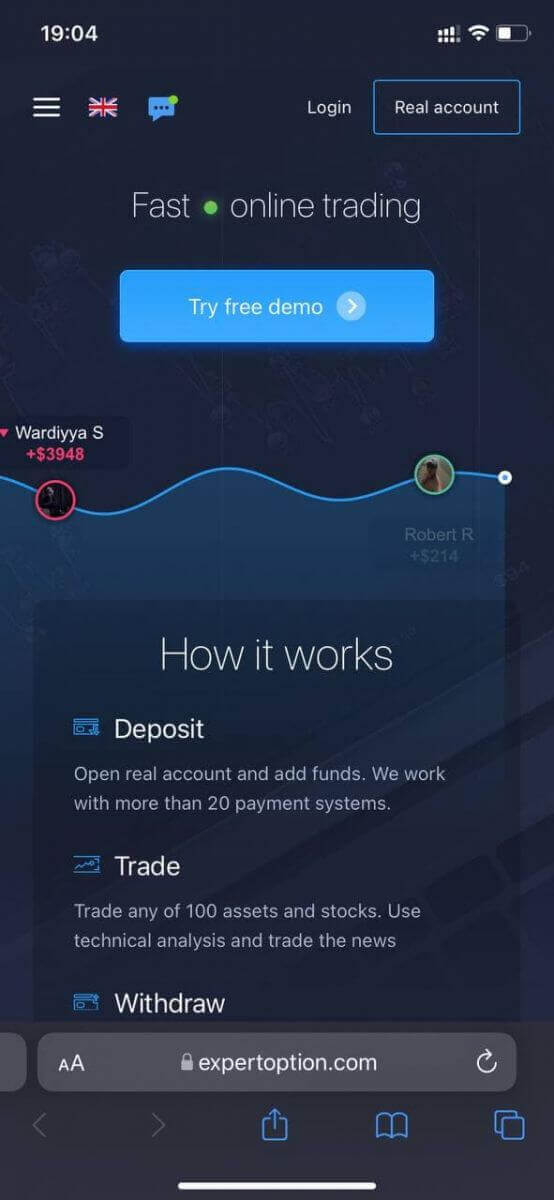
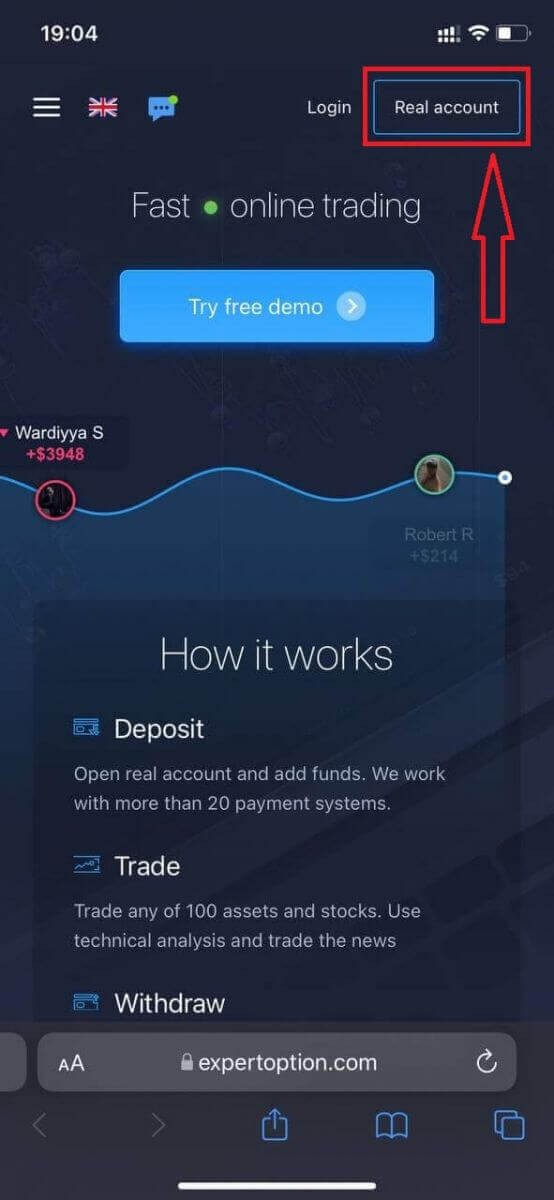
Click the "Real account" button in the upper right corner.
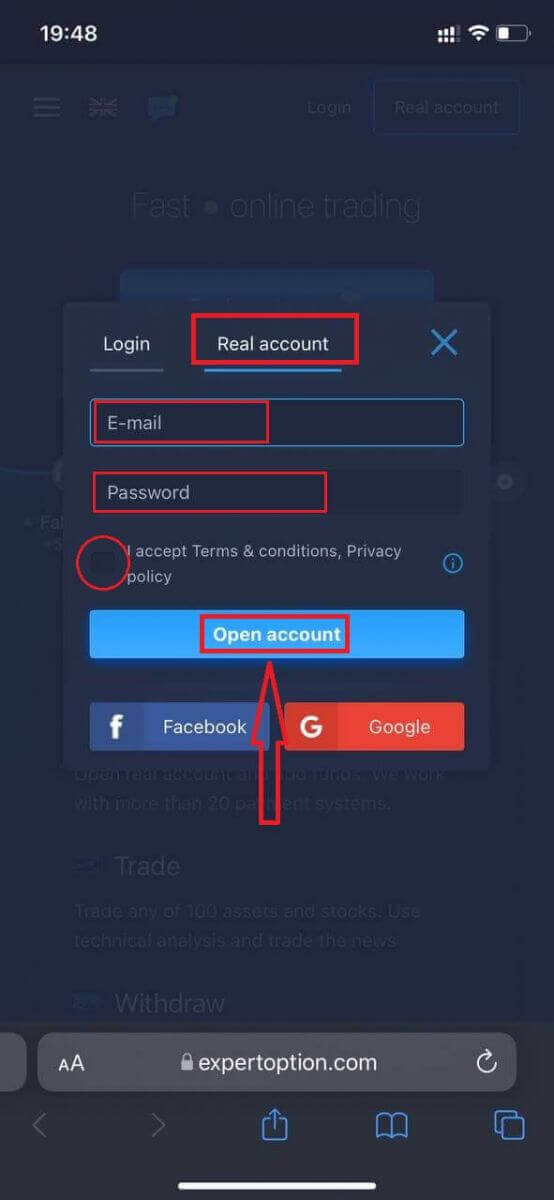
At this step, we still enter the data: email, password, accept "Terms and Conditions", and click "Open account"
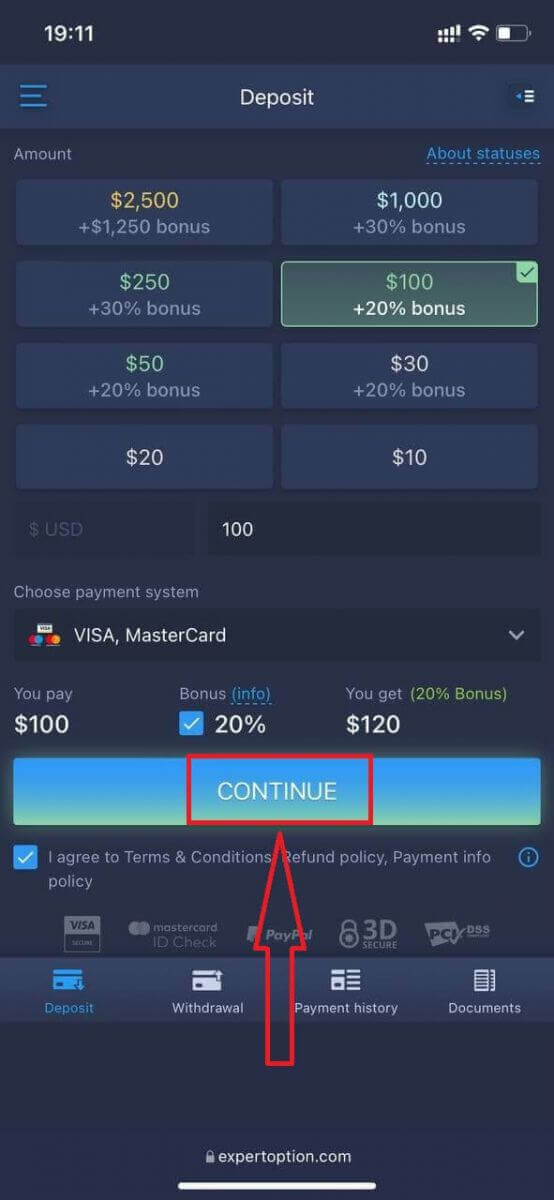
Congratulation! You have signed up successfully. Now you can deposit and start trading with a real account.
The mobile web version of the trading platform is identical to the regular web version. Consequently, there won’t be any problems with trading and transferring funds.
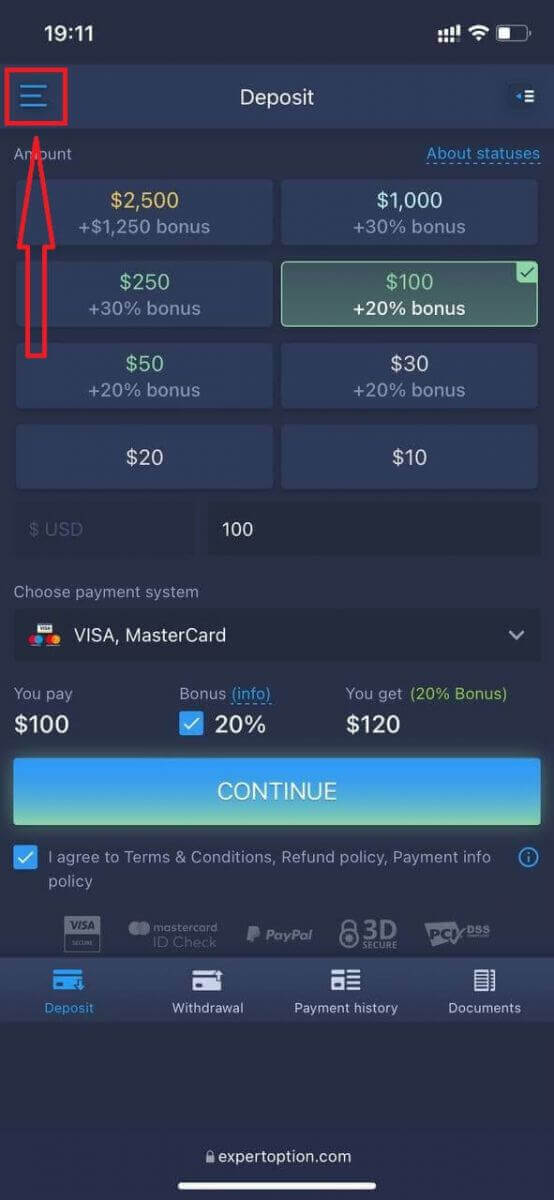
Or you want to trade with a Demo account first, to do that by clicking the menu icon.n
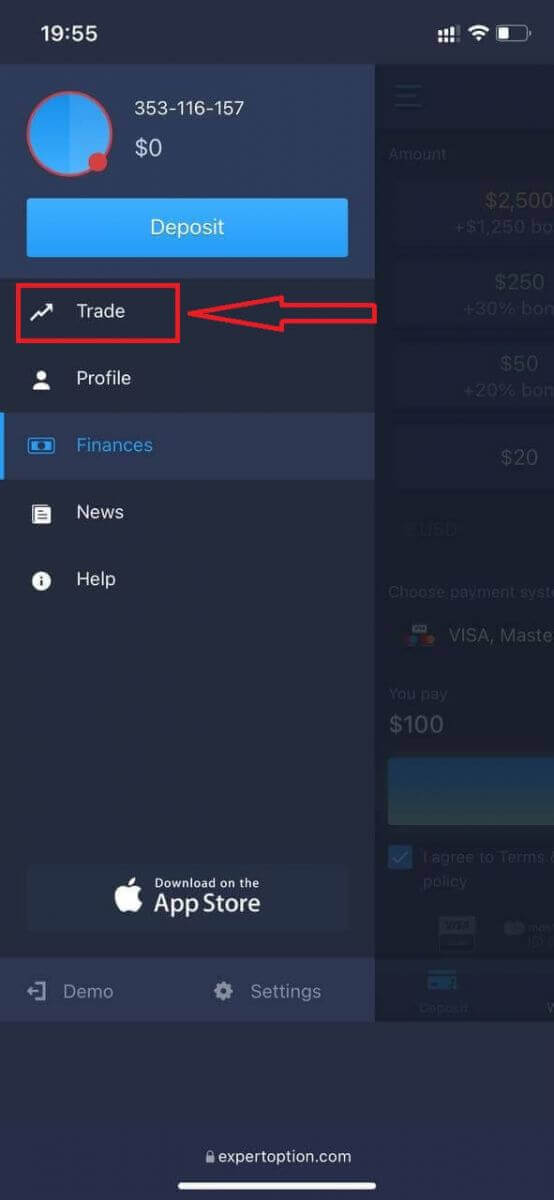
Click "Trade."
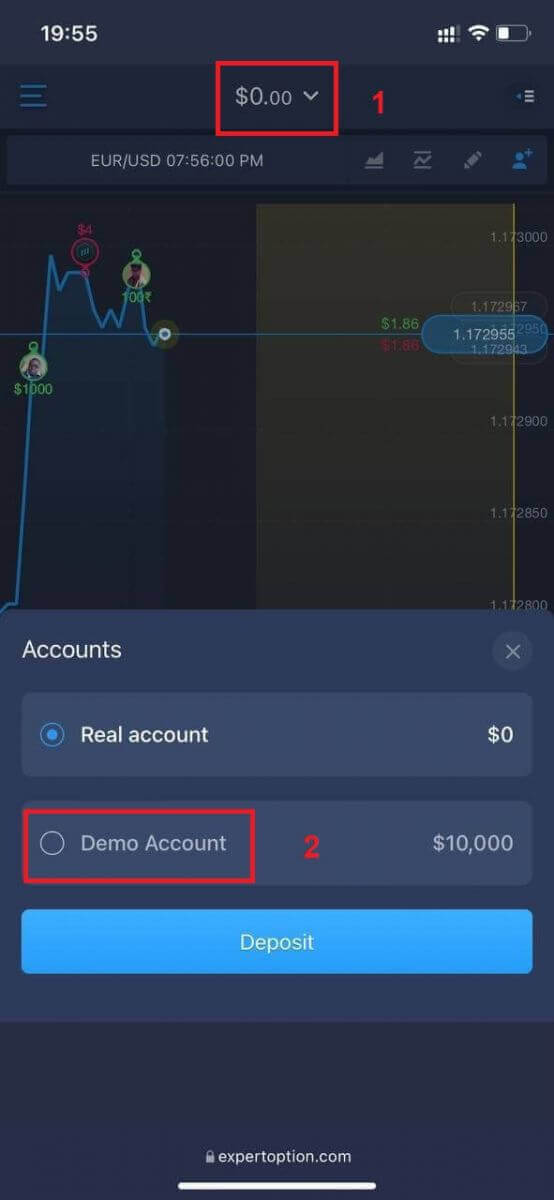
Switch accounts from the real account to the Demo account. nt
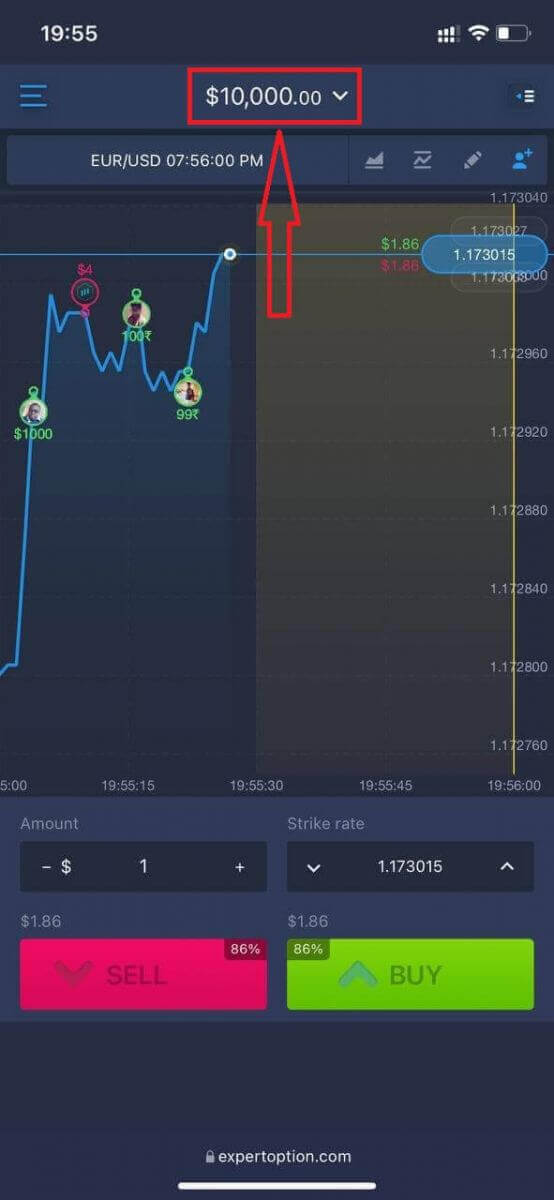
You will have $10,000 in the demo account.
Frequently Asked Questions (FAQ)
Is there a demo account?
We invite you to use a demo account with a balance of 10,000 virtual money to be able to evaluate the benefits of the trading platform.
How much money can I make on the practice account?
You can’t take any profit from transactions you complete on the practice account. You get virtual funds and make virtual transactions. It is intended for training purposes only. To trade using real money, you need to deposit funds into a real account.
How do I switch between the practice account and the real account?
To switch between accounts, click your balance in the upper-center corner. Make sure you are in the traderoom. The panel that opens shows all your accounts: your real account and your practice account. Click an account to make it active so you can use it for trading.How to Verify an Account on ExpertOption
Email Verification on ExpertOption
Once you’ve signed up, you will receive a confirmation email (a message from ExpertOption) which includes a link that you need to click to verify your email address.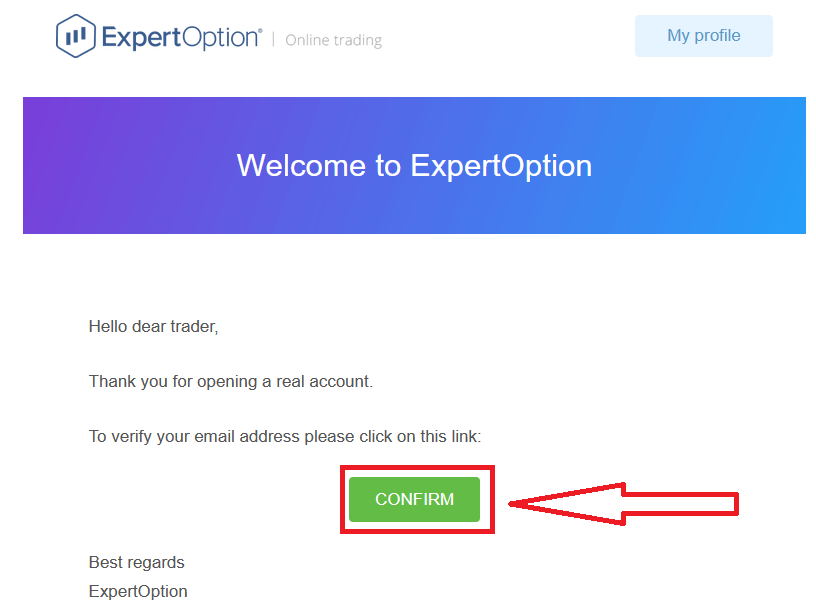
If you do not receive a confirmation email from us at all, send a message to [email protected] from your email address used on the platform, and we will confirm your email manually.
Address and Identity Verification on ExpertOption
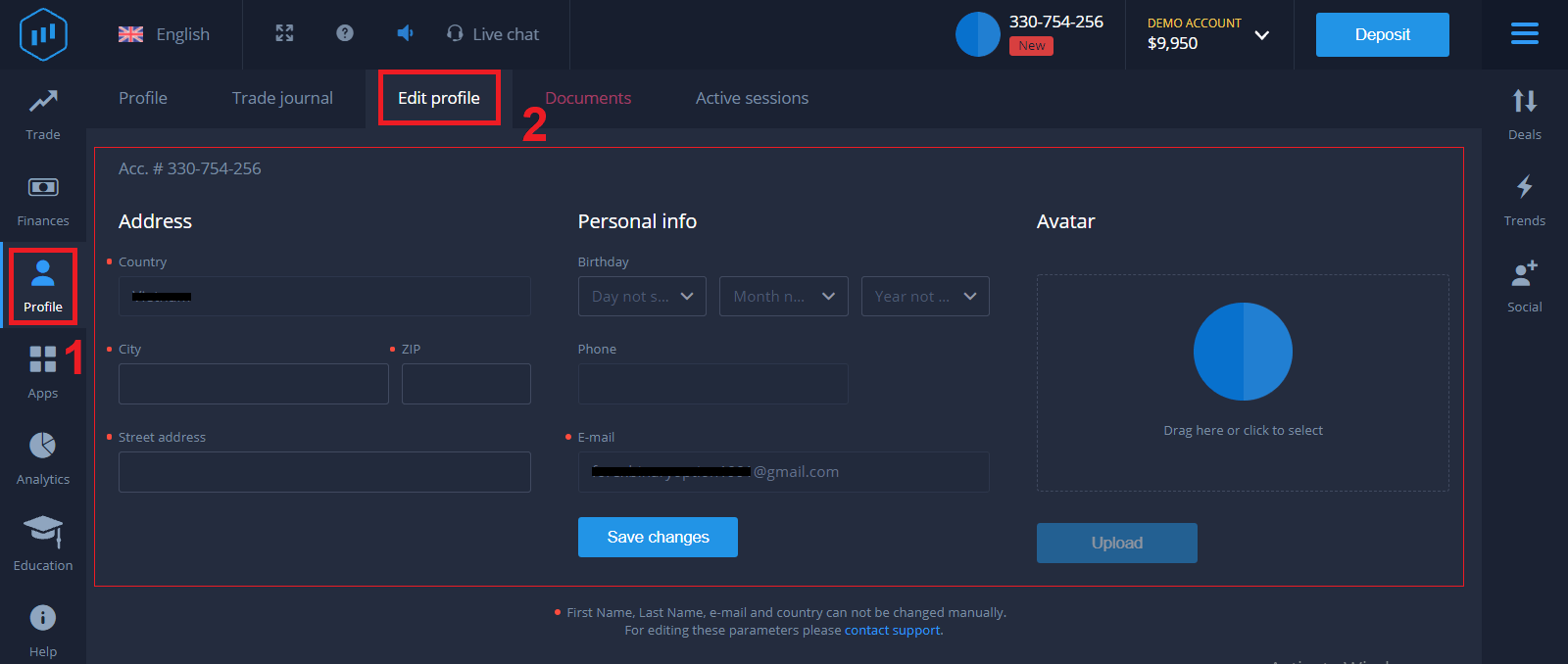
The verification process is a simple one-time review of your documents. This is a necessary step for us to fully comply with AML KYC policy, thus confirming your identity as a Trader with ExpertOption. The verification process starts once you fill in Identity and Address information in your Profile. Open the Profile page and locate the Identity status and Address status sections.
Bank Card Verification on ExpertOption
The verification process varies depending on the deposit method.If you deposit using VISA or MASTERCARD (either credit or debit card), we will need to verify the following:
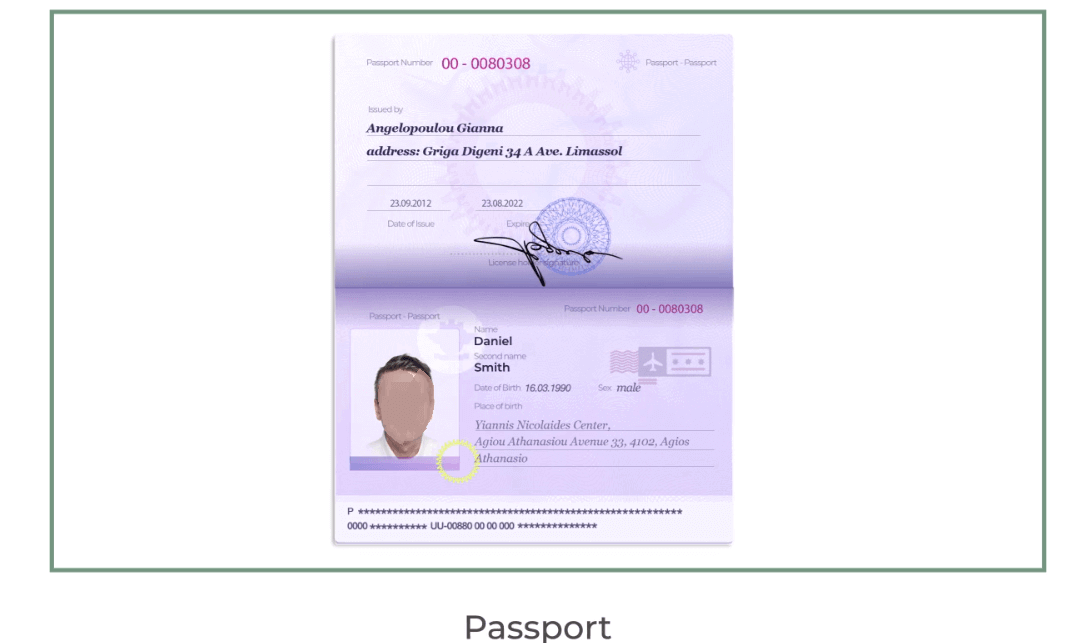
- A colour photo of a primary valid ID or Passport which shows your photo and full name
Passport
ID Card on both sides
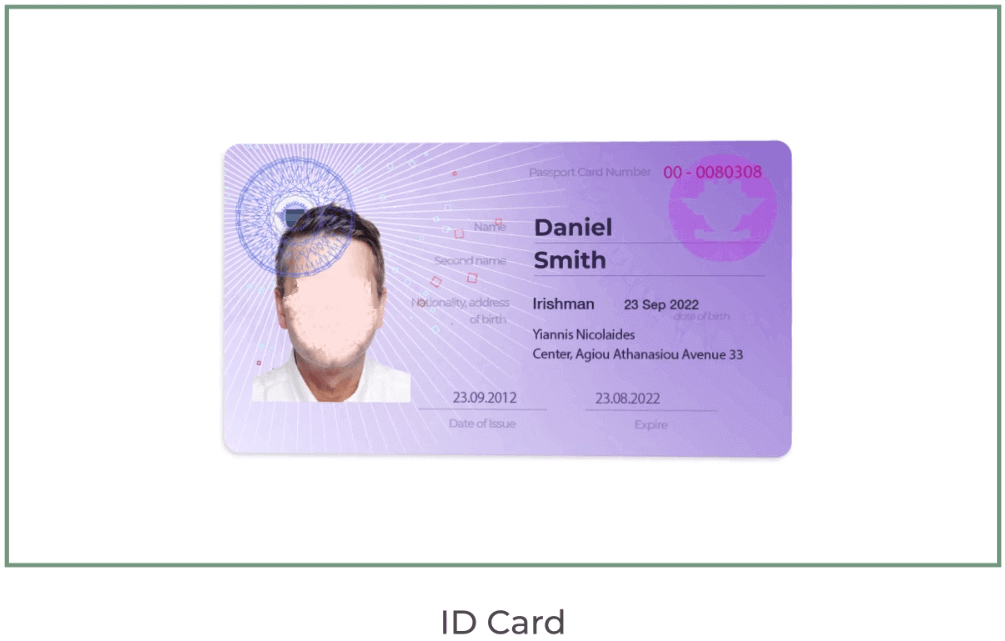
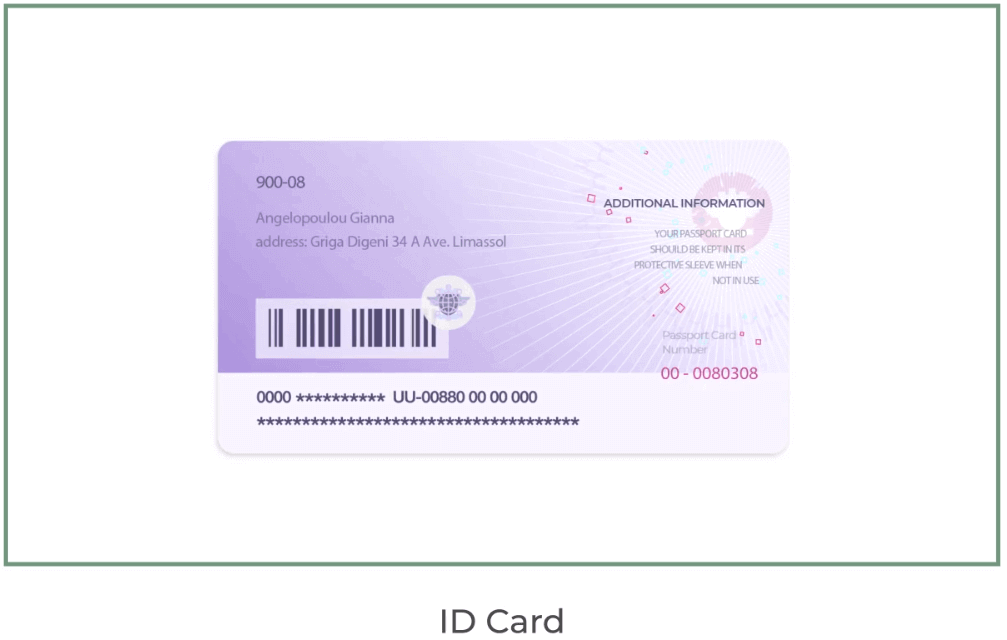
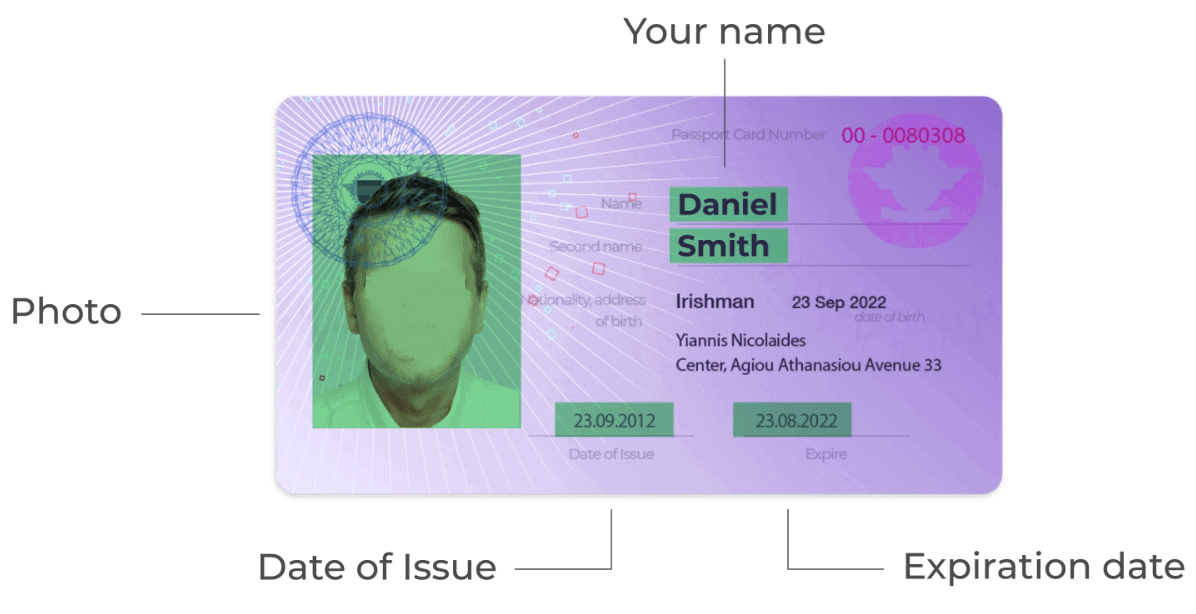
The documents must show your name, photo,o and not expired. re
- A photo of the bank card (front side of your card used for deposit, showing with first six and last four digits, with your name and expiry date)
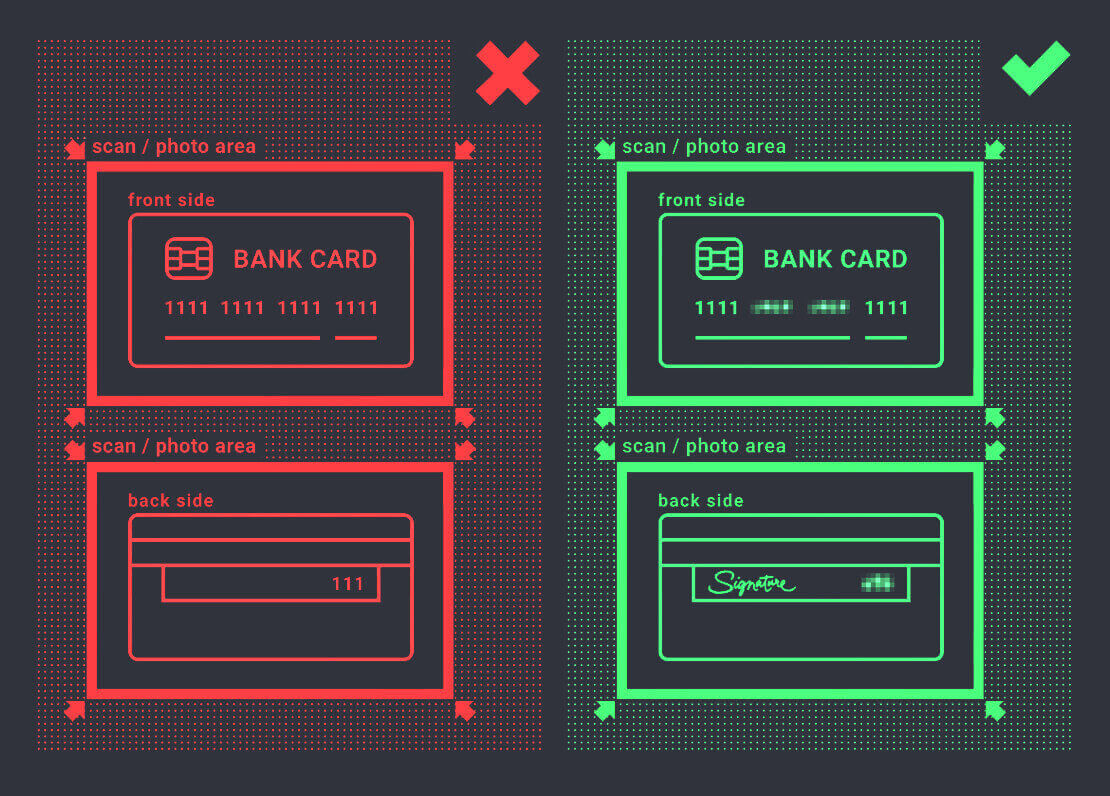
If you choose to deposit using an e-wallet, cryptocurrency, online banking, or mobile payment, we will only need to verify your primary valid ID or Passport.
Please note that the photos must be of high quality, the entire document should be visible, and we do not accept photocopies or scans.
Verification is only available after creating a REAL account and after depositing.
How to Deposit Money on ExpertOption
How do I make a Deposit on ExpertOption
You are welcome to deposit using a debit or credit card (VISA, MasterCard), Internet Banking, an e-wallet like Perfect Money, Skrill, WebMoney, or Crypto.The minimum deposit is 10 USD. If your bank account is in a different currency, the funds will be converted automatically.
Many of our traders prefer using E-payments instead of bank cards because it’s faster for withdrawals.
And we have good news for you: We don’t charge any fees when you make a deposit.
Deposit on ExpertOption using Bank Cards (VISA/ MasterCard)
1. Visit the ExpertOption website or mobile app.2. Log in to your trading account.
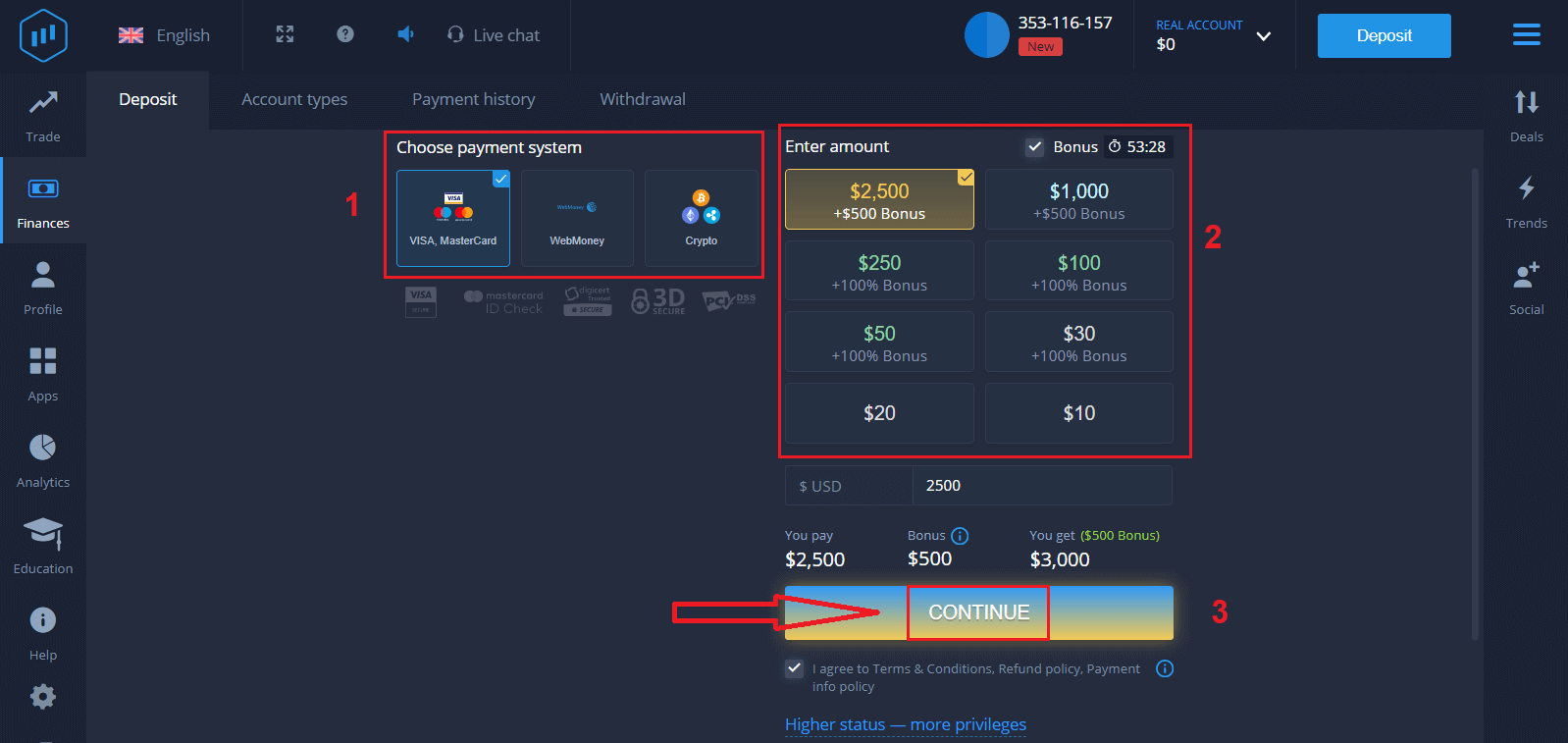
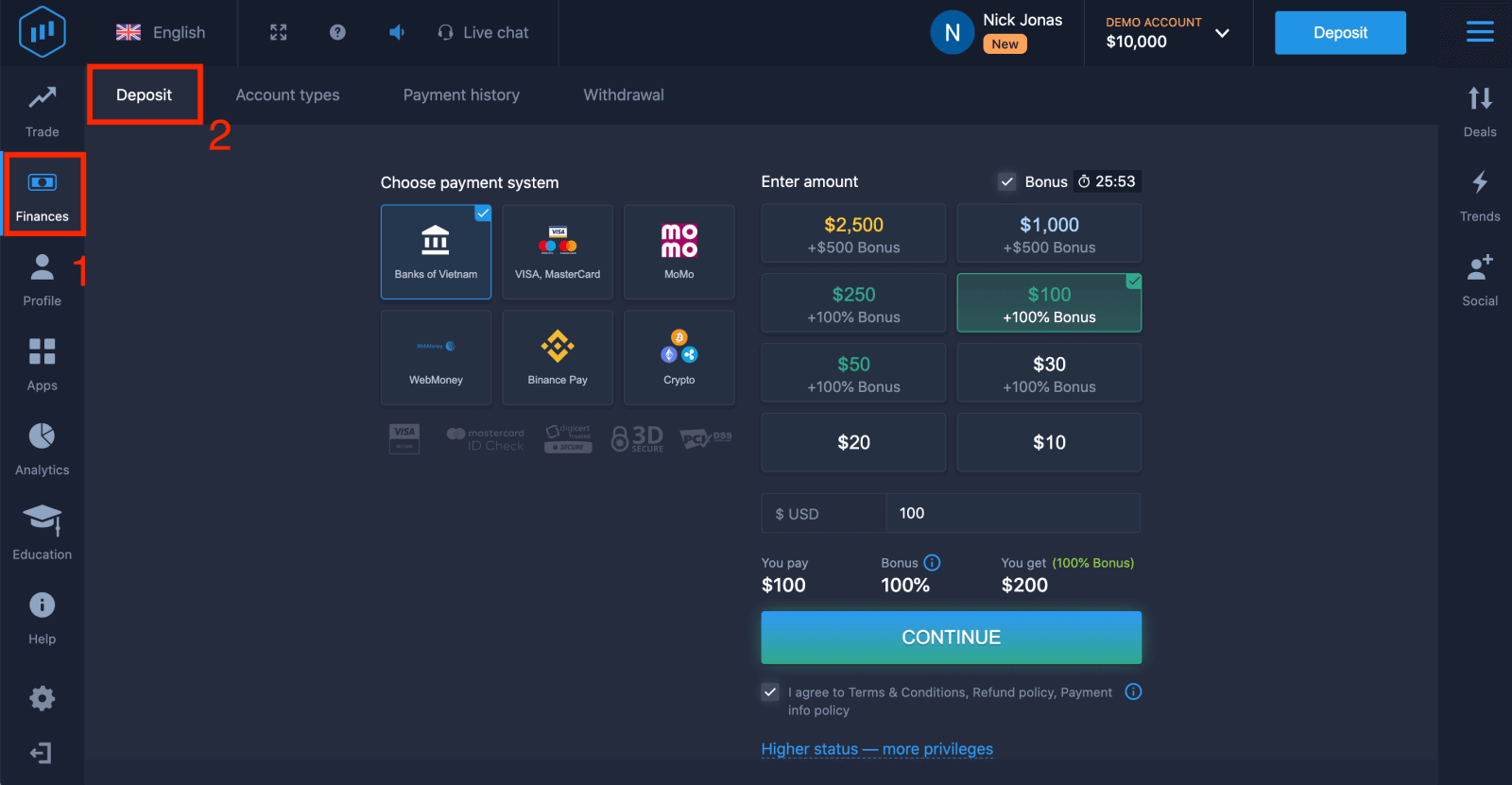
3. Click on the “Finances” on the left upper corner menu and click "Deposit".
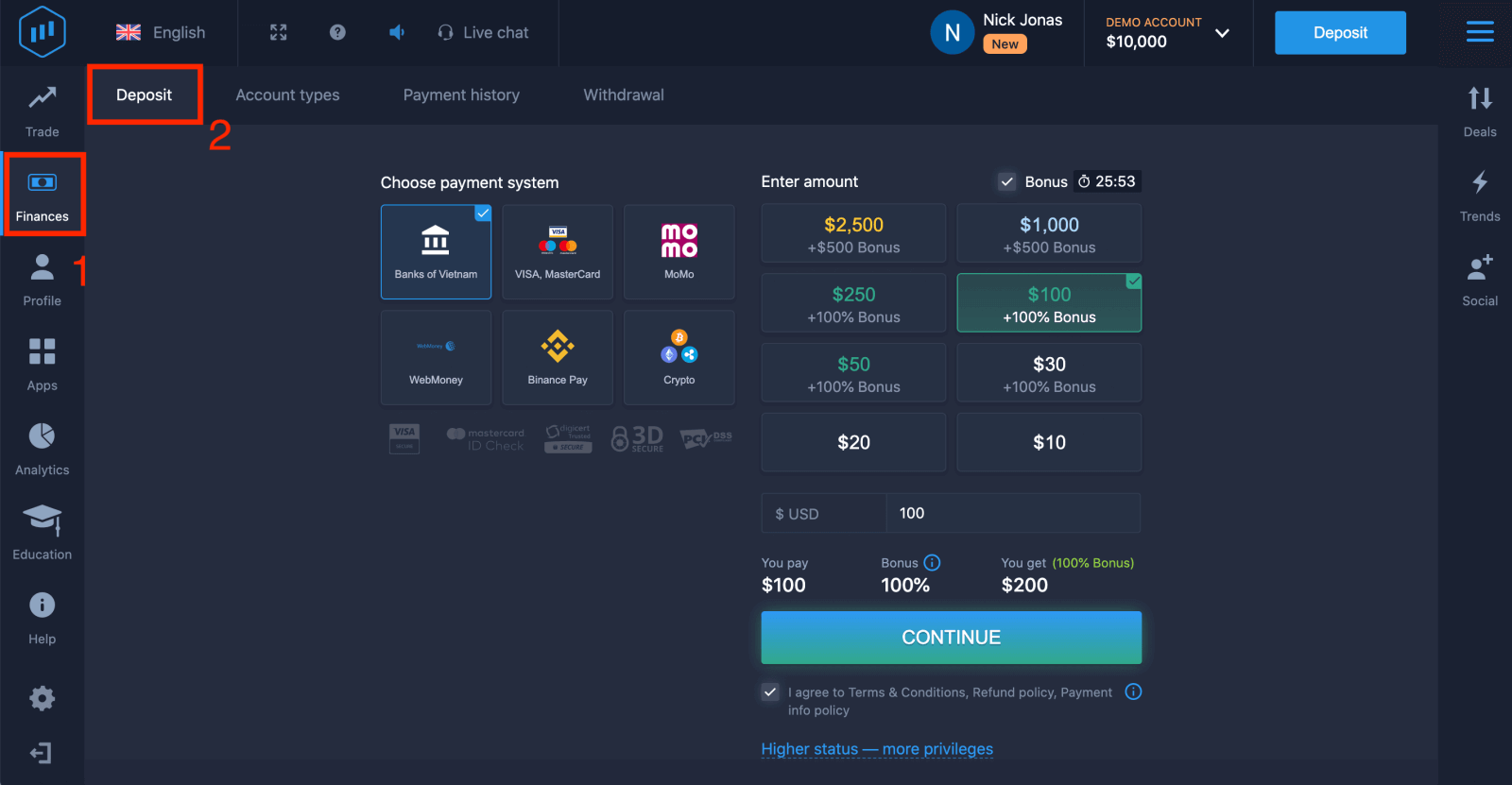
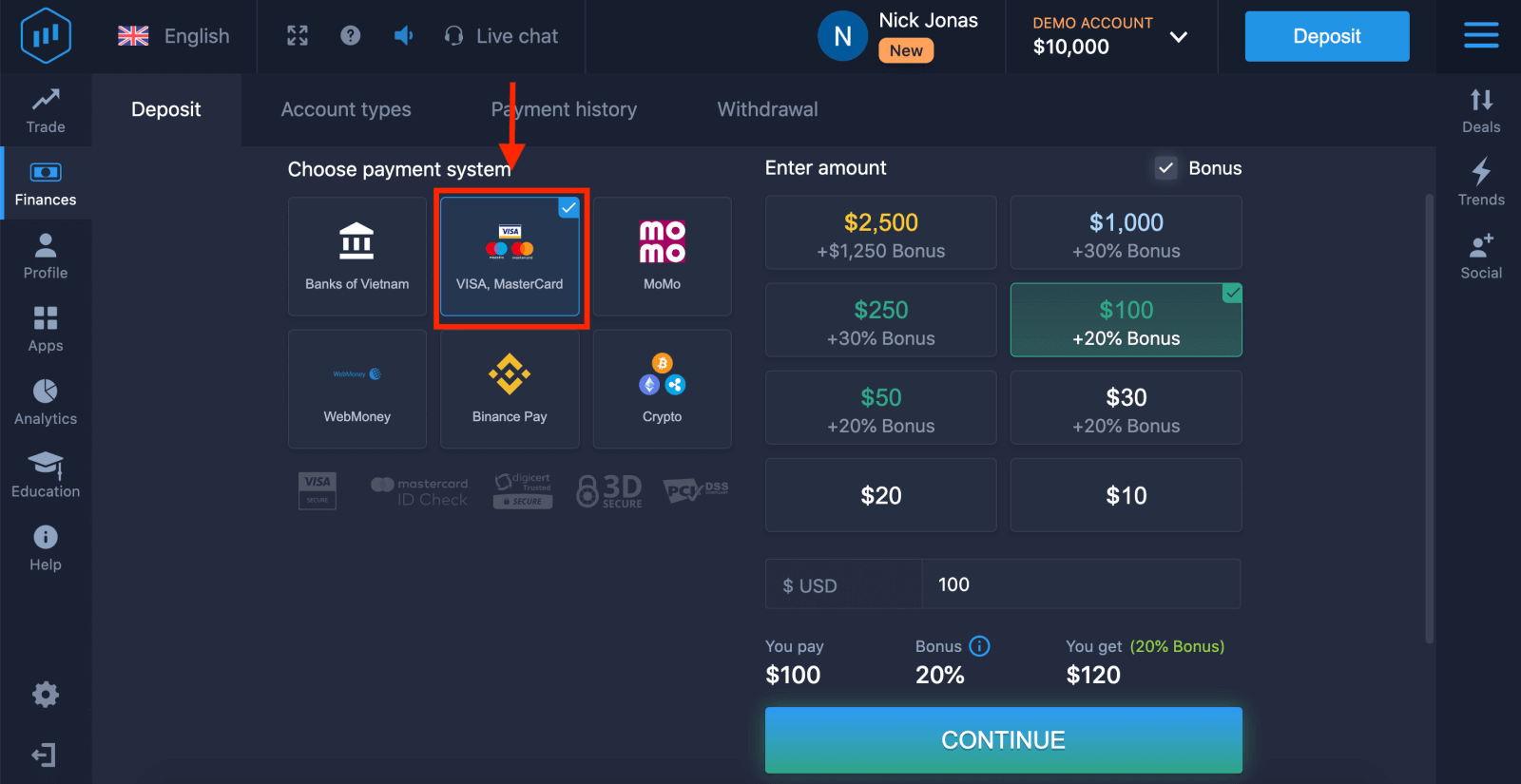
4. There are several ways to deposit funds into your account; you can make deposits via any debit or credit card. The card must be valid and registered in your name and support international online transactions. Select "VISA / MasterCard".
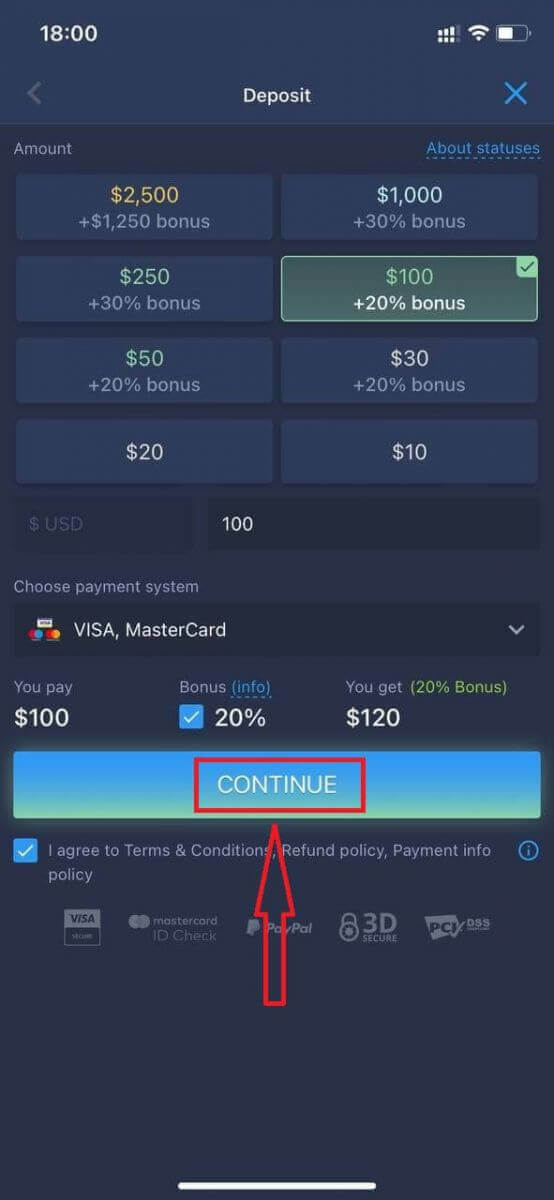
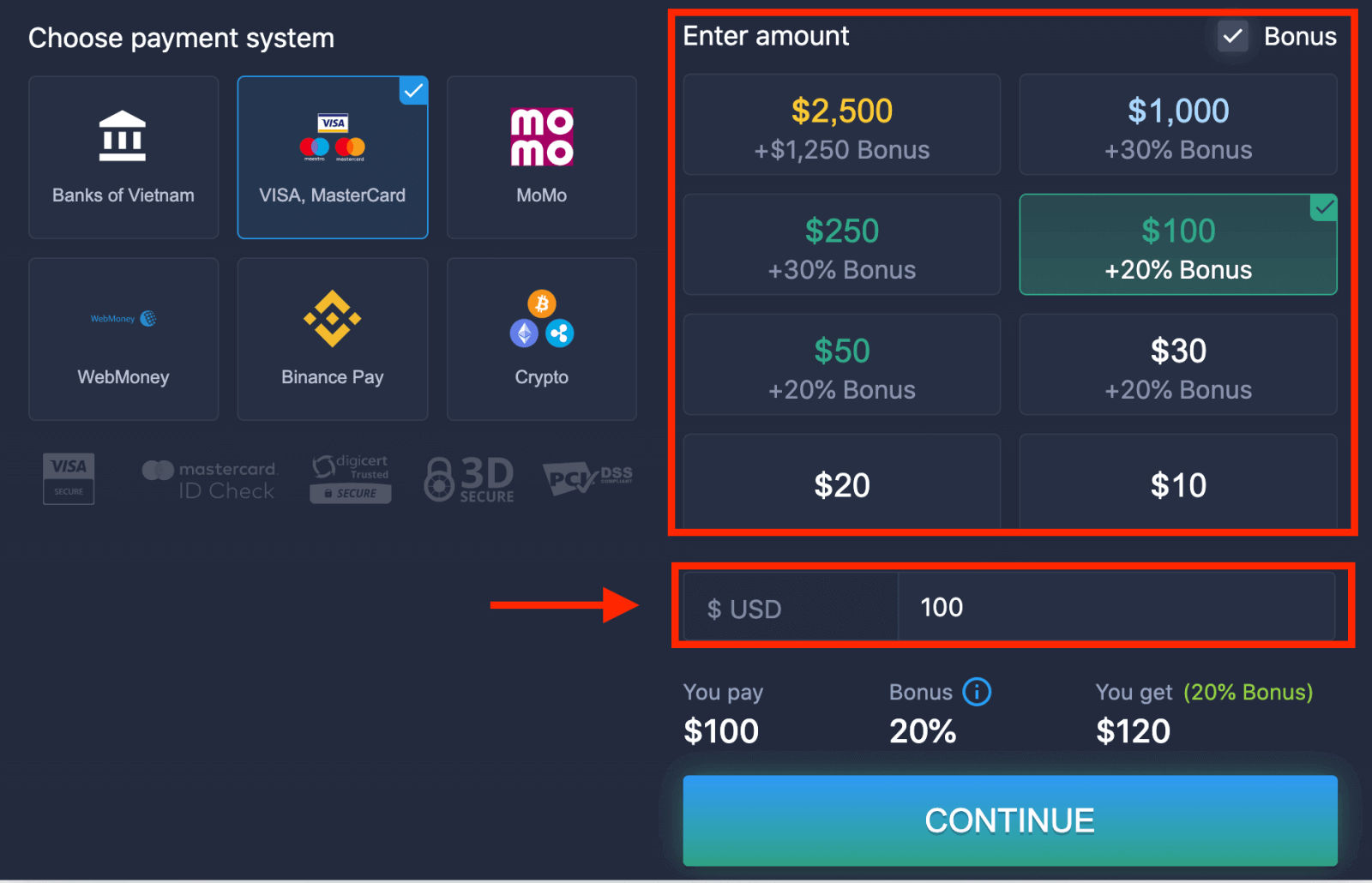
5. You may enter a deposit amount manually or select one from the list.
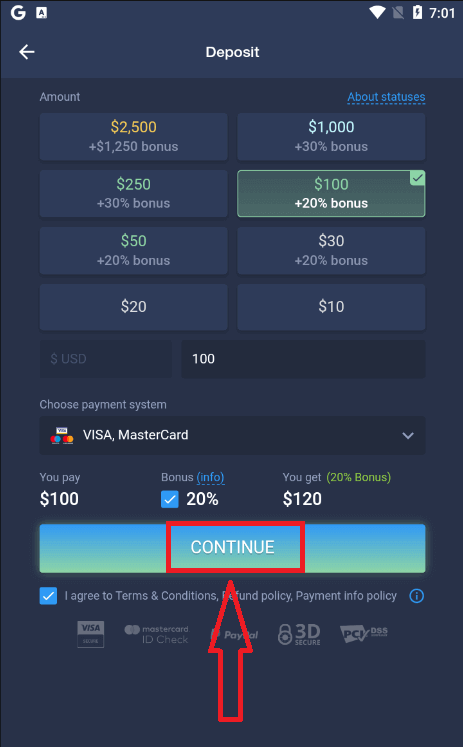
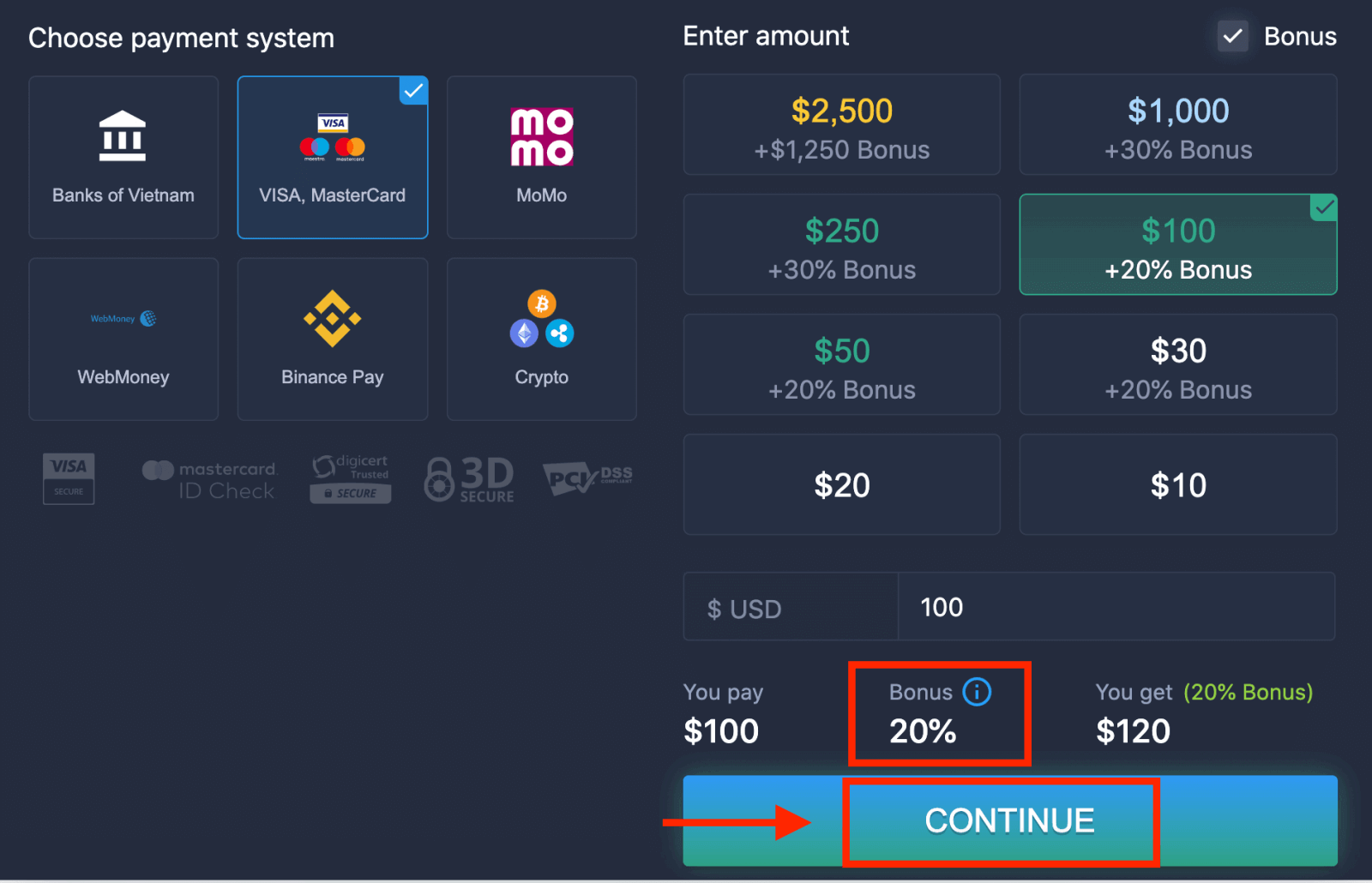
6. The system may offer you a deposit bonus; take advantage of the bonus to increase the deposit. After that, click "CONTINUE".
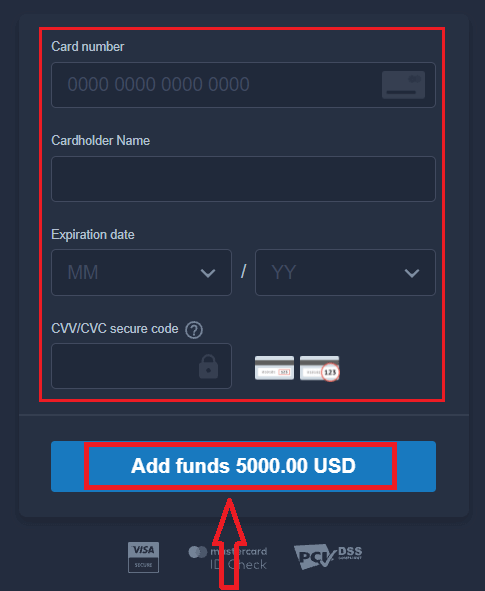
5. You will be redirected to a new page where you will be requested to enter your card number, cardholder name, and CVV.
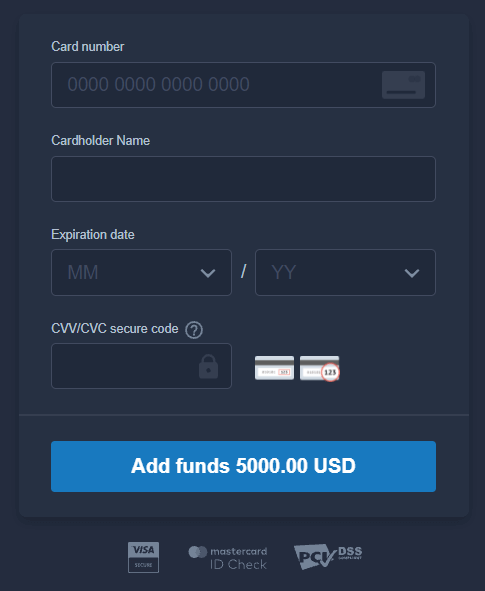
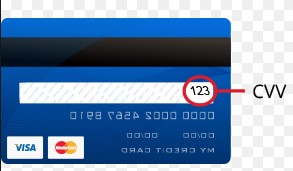
The CVV or СVС code is a 3-digit code that is used as a security element during online transactions. It is written on the signature line on the back of your card. It looks like below.
To complete the transaction, press the "Add funds ..." button.
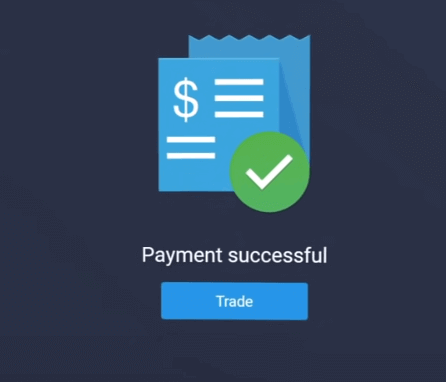
If your transaction has been completed successfully, a confirmation window will appear, and your funds will be credited to your account instantly.
Deposit on ExpertOption using Internet Banking
1. Visit the ExpertOption website or mobile app.2. Log in to your trading account.
3. Click on the “Finances” on the left upper corner menu and click "Deposit".
4. Select "Banks of...".
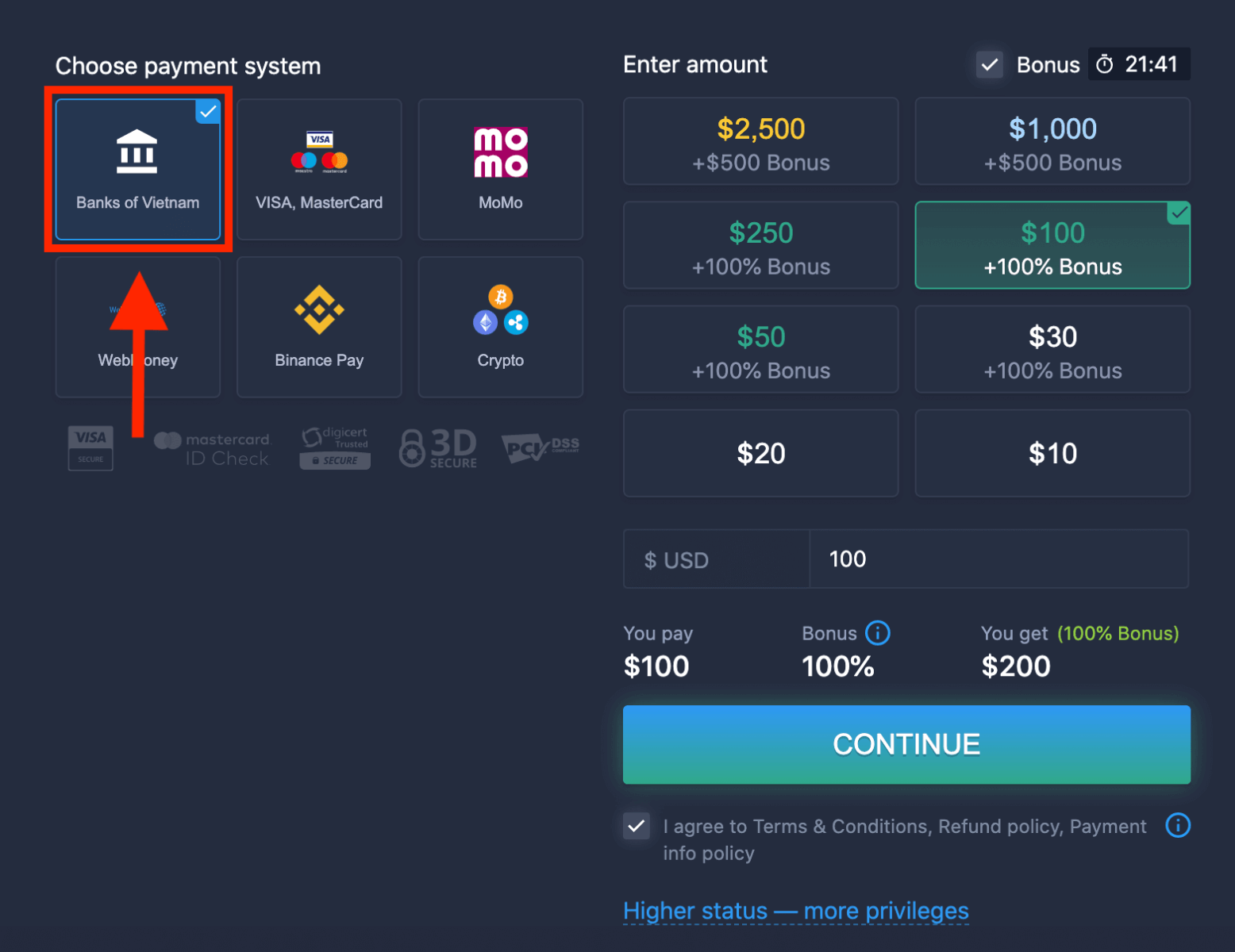
5. You may enter a deposit amount manually or select one from the list.
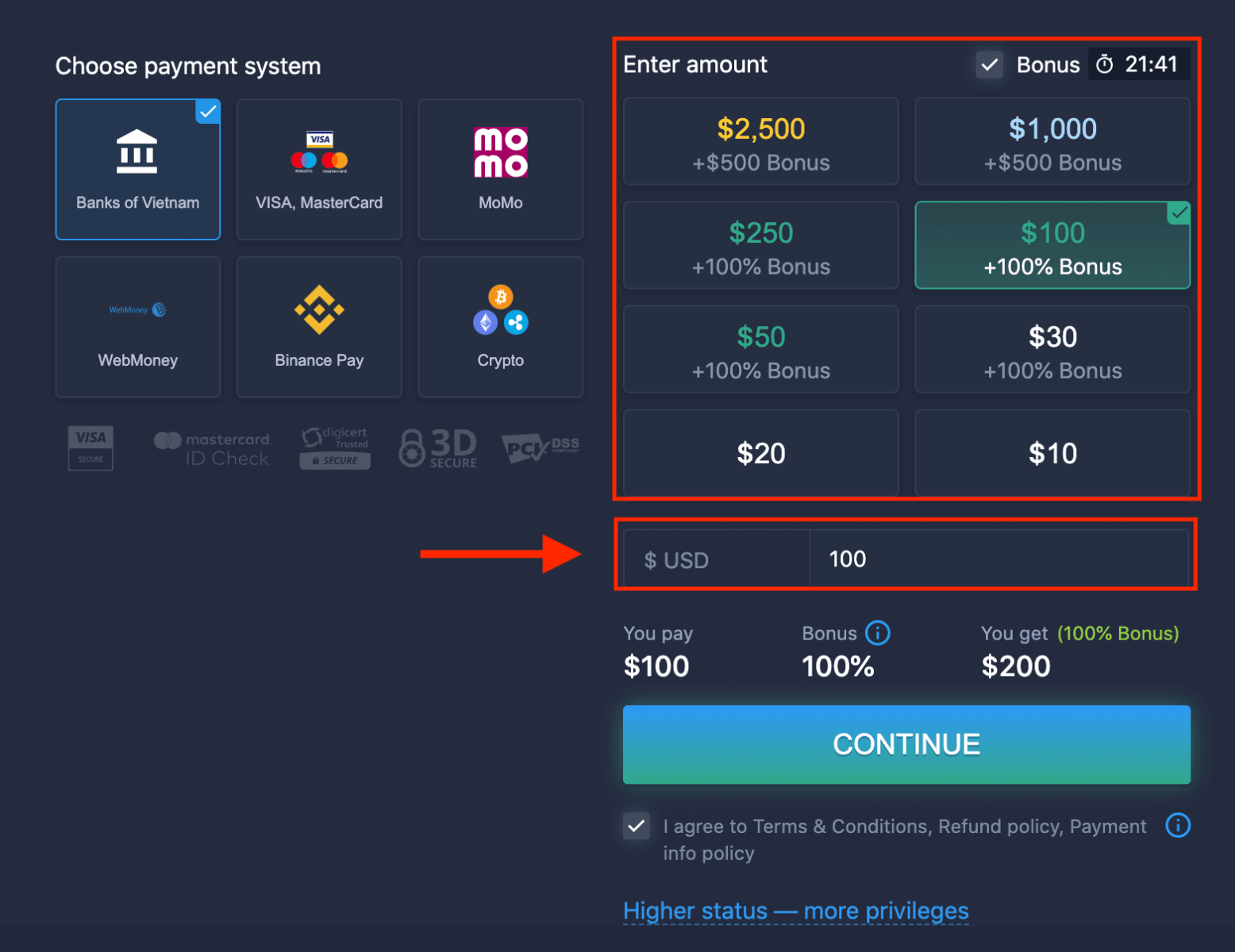
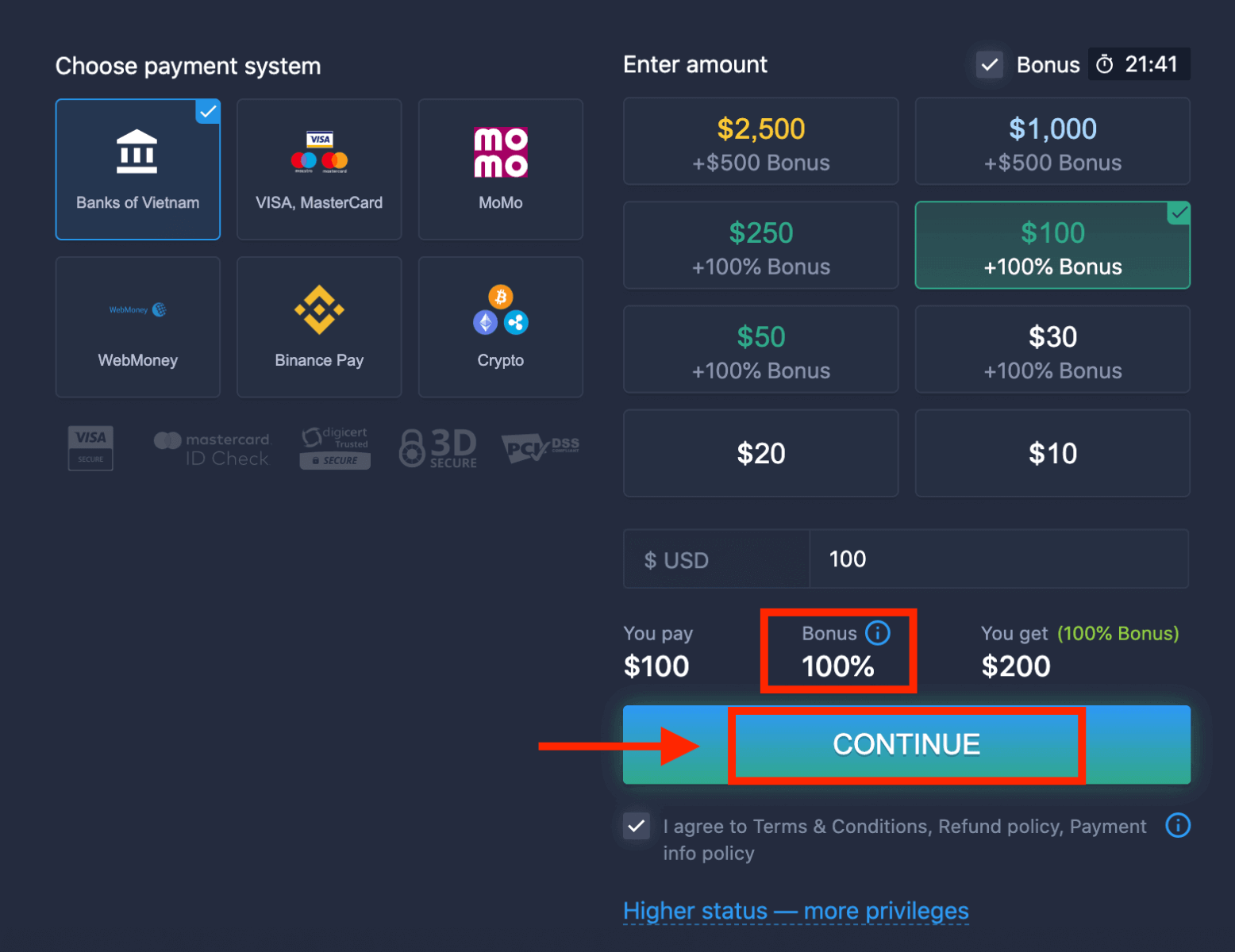
6. The system may offer you a deposit bonus; take advantage of the bonus to increase the deposit. After that, click "CONTINUE".
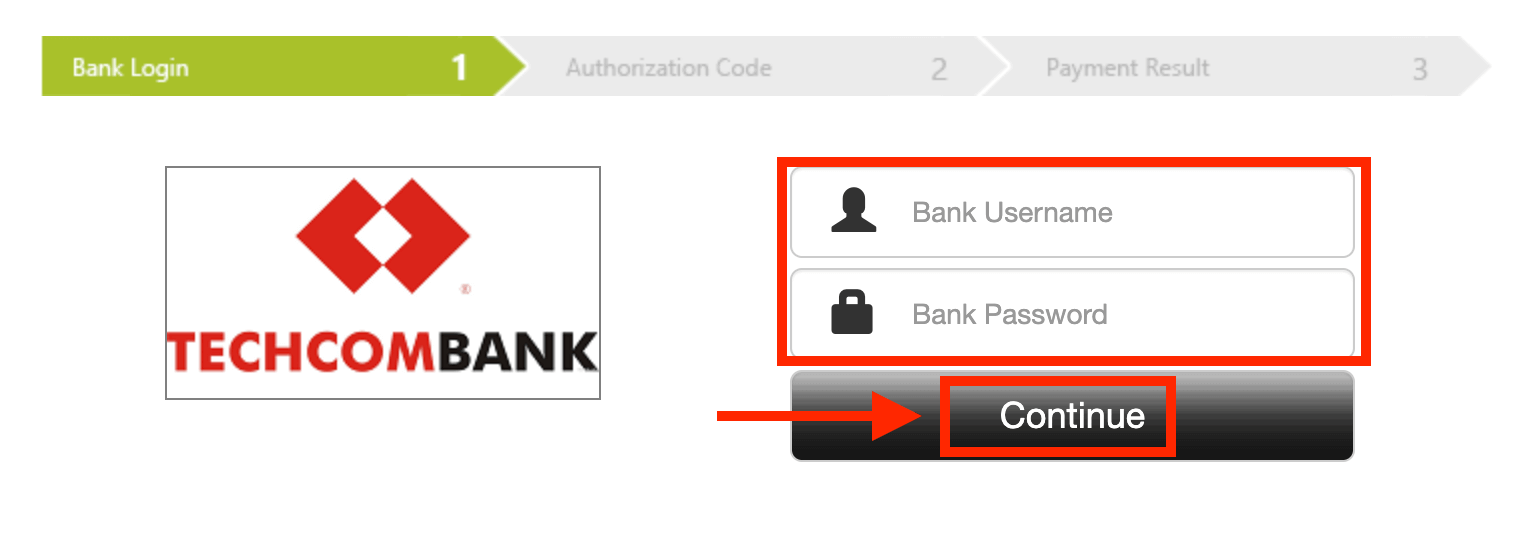
5. You will be redirected to a new page where you need to choose your bank.
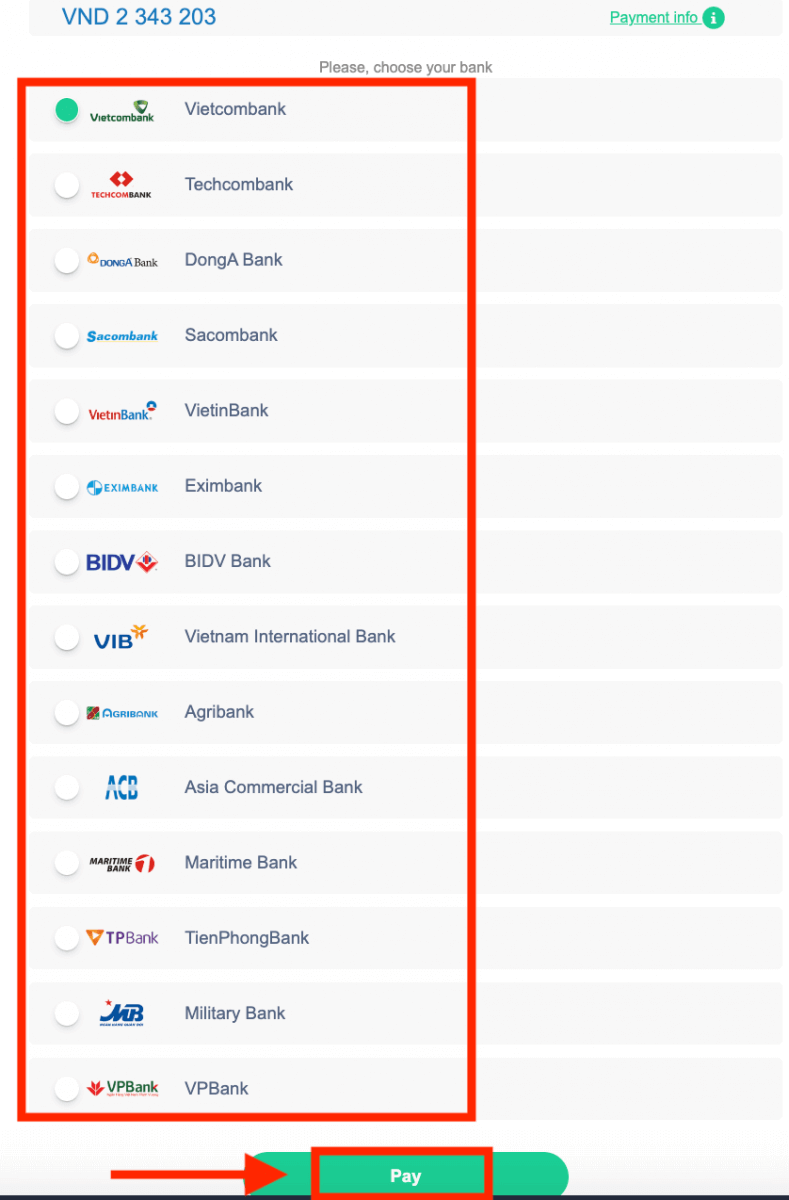
Enter the required data to deposit money to ExpertOption from your bank.
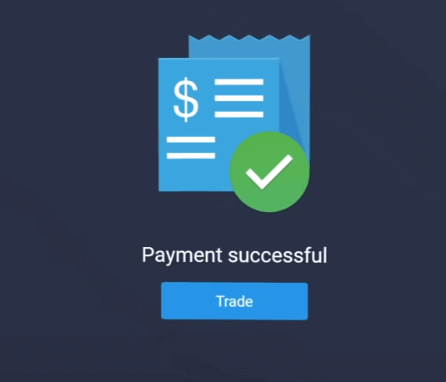
If your transaction has been completed successfully, a confirmation window will appear, and your funds will be credited to your account instantly.
Deposit on ExpertOption using E-payments
1. Visit the ExpertOption website or mobile app.2. Log in to your trading account.
3. Click on the “Finances” on the left upper corner menu and click "Deposit".
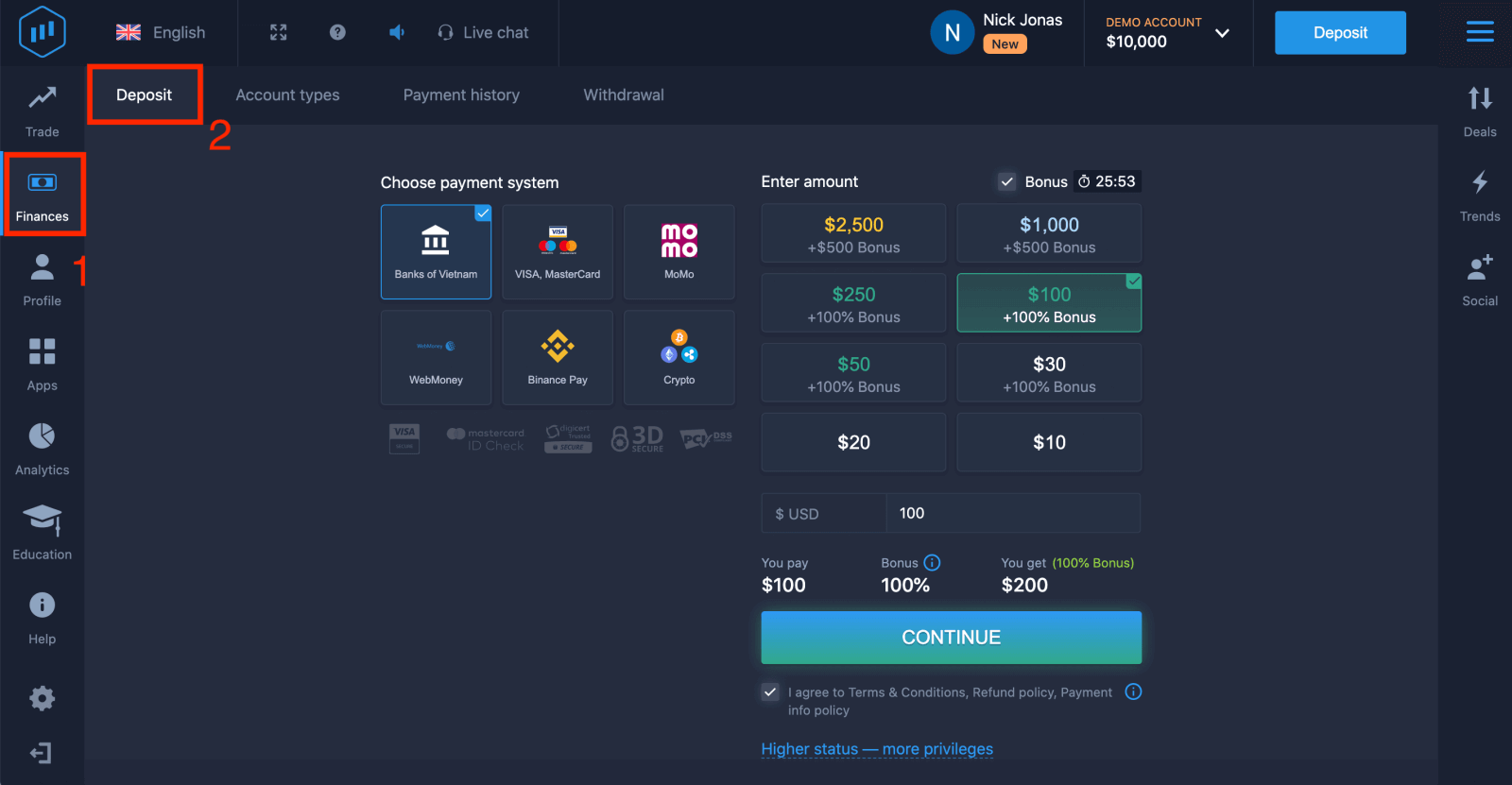 4. Select "WebMoney" as an example.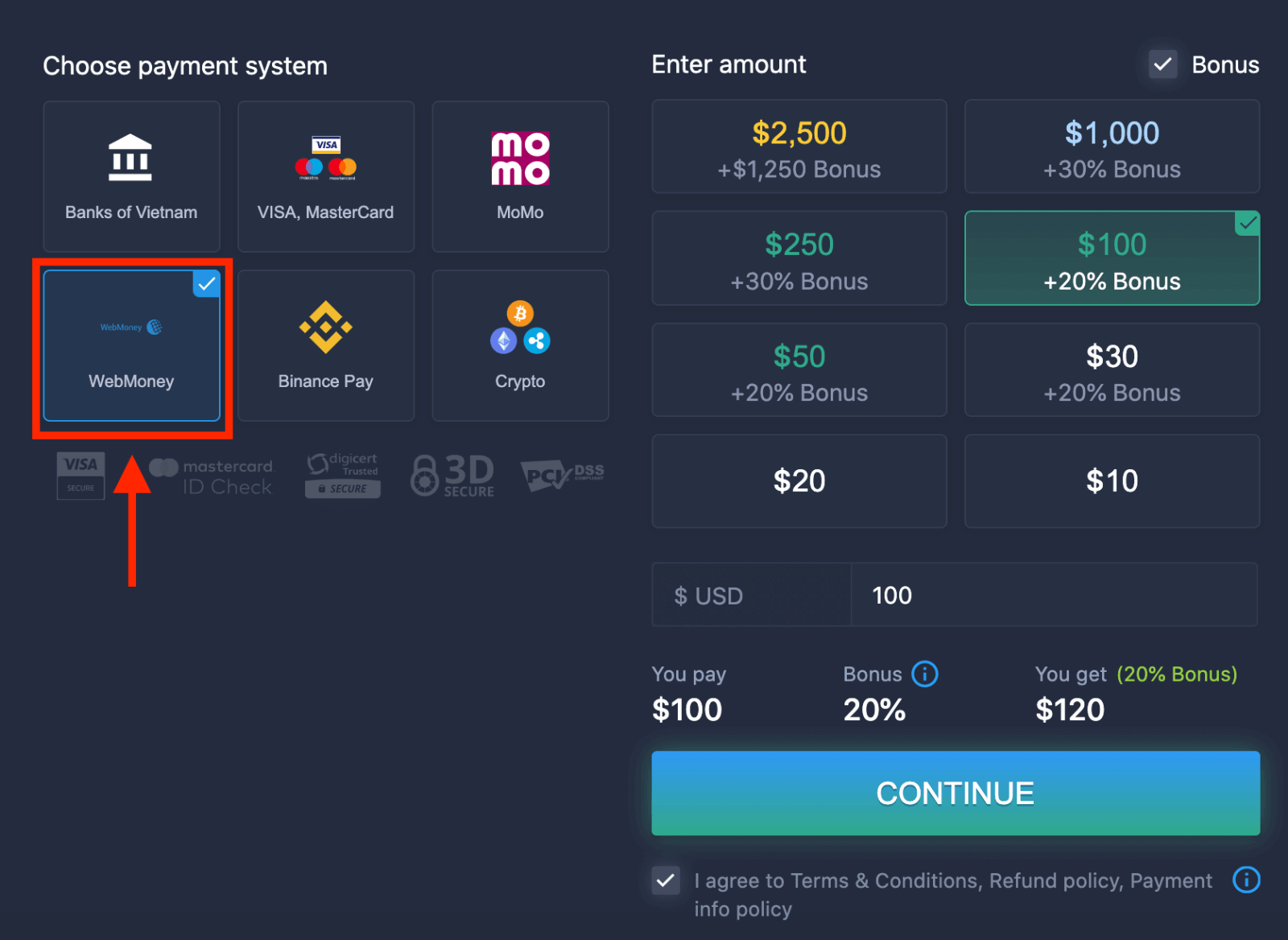
5. You may enter a deposit amount manually or select one from the list.
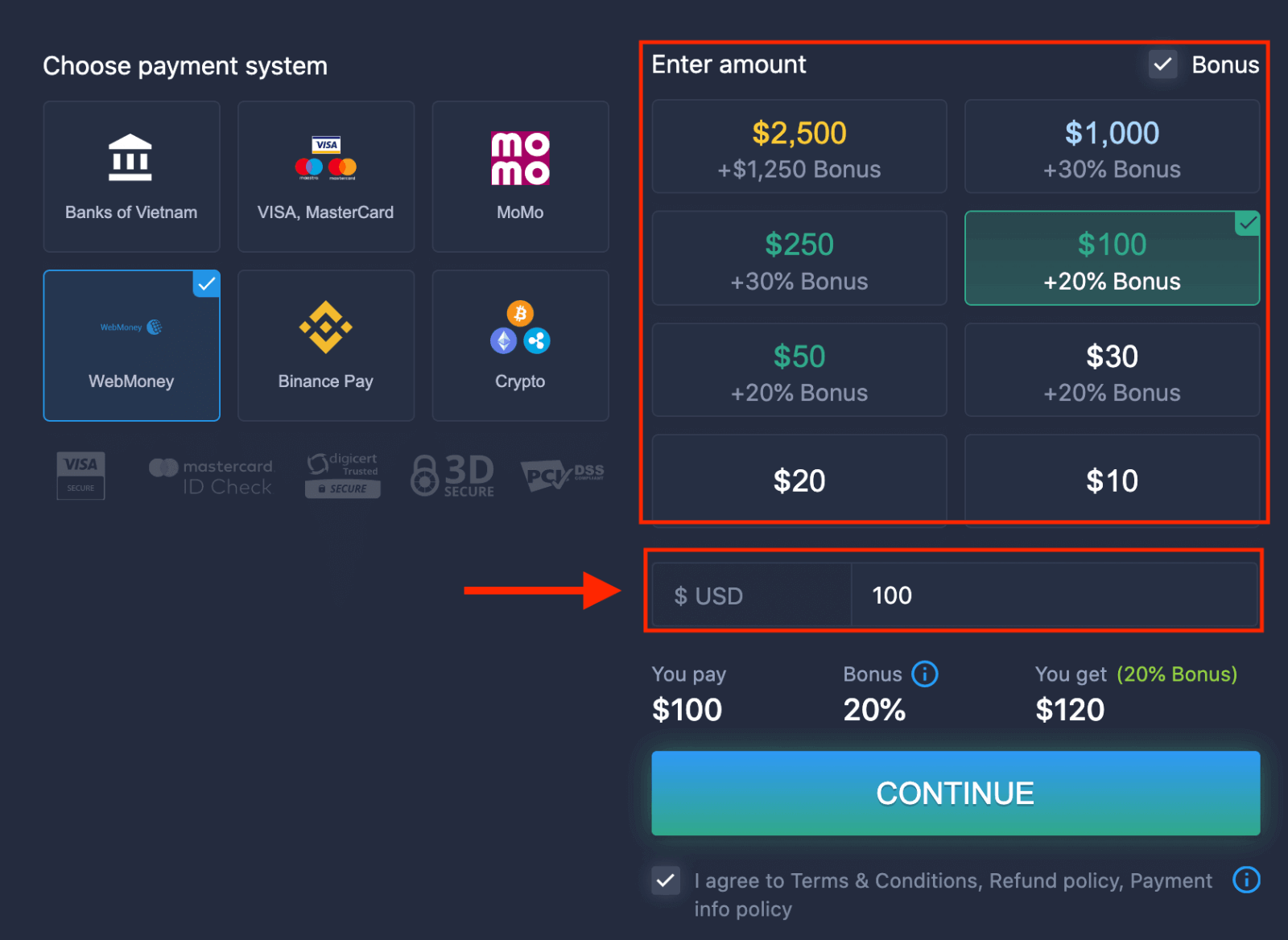
6. The system may offer you a deposit bonus; take advantage of the bonus to increase the deposit. After that, click "CONTINUE".
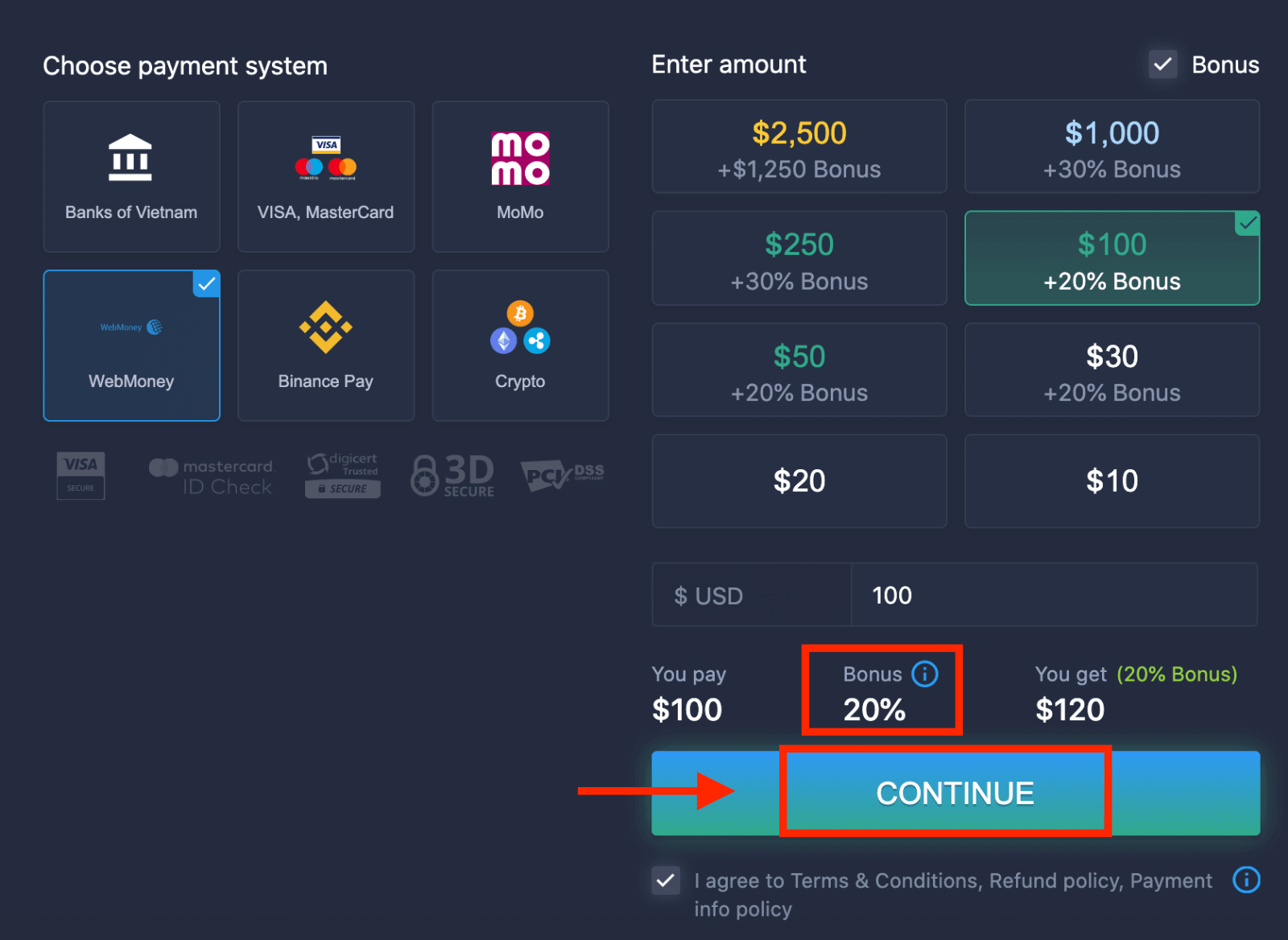 5. You will be redirected to a new page where you need to enter the required data to deposit money to ExpertOption.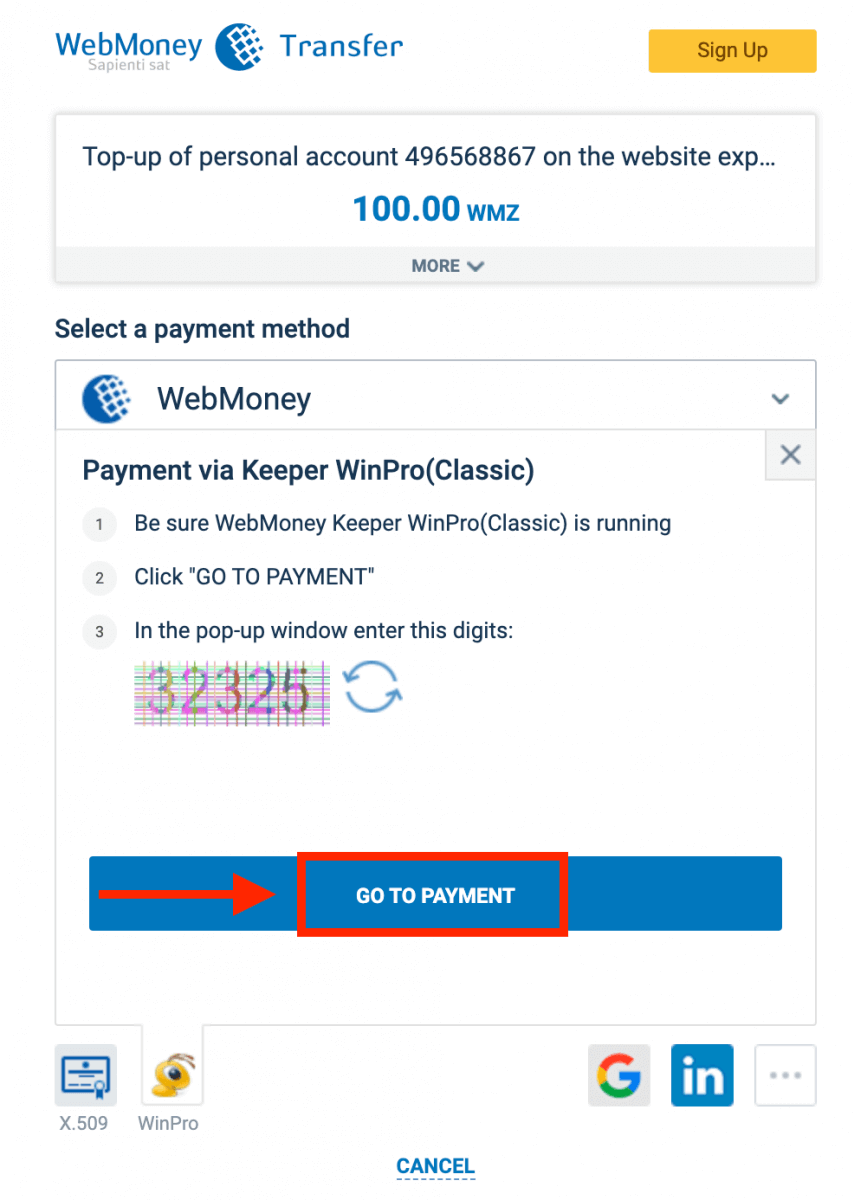
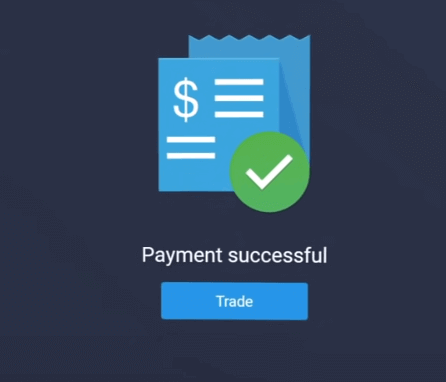
If your transaction has been completed successfully, a confirmation window will appear, and your funds will be credited to your account instantly.
Deposit on ExpertOption using Crypto
1. Visit the ExpertOption website or mobile app.2. Log in to your trading account.
3. Click on the “Finances” on the left upper corner menu and click "Deposit".
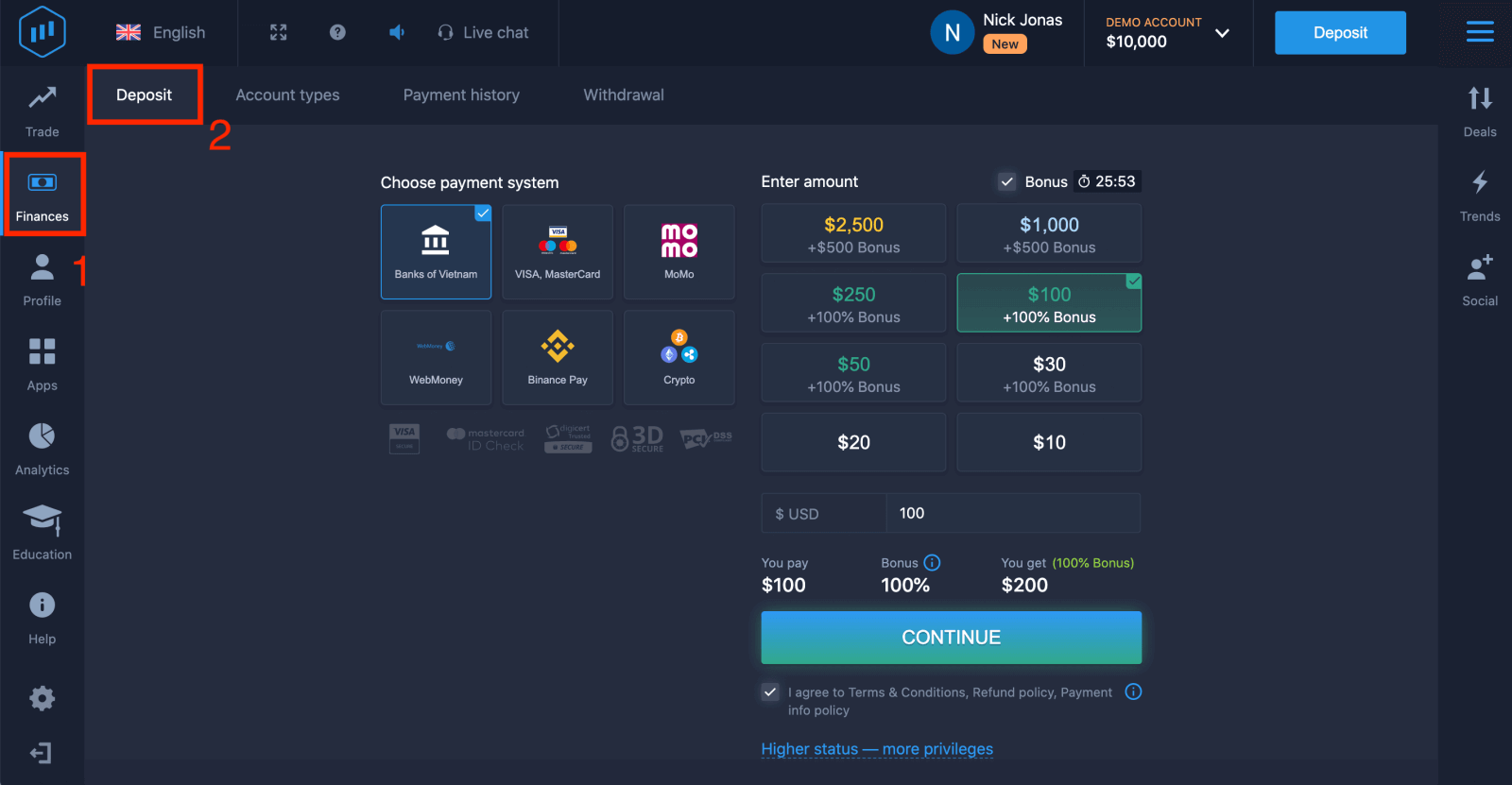 4. Select "Crypto" or "Binance Pay".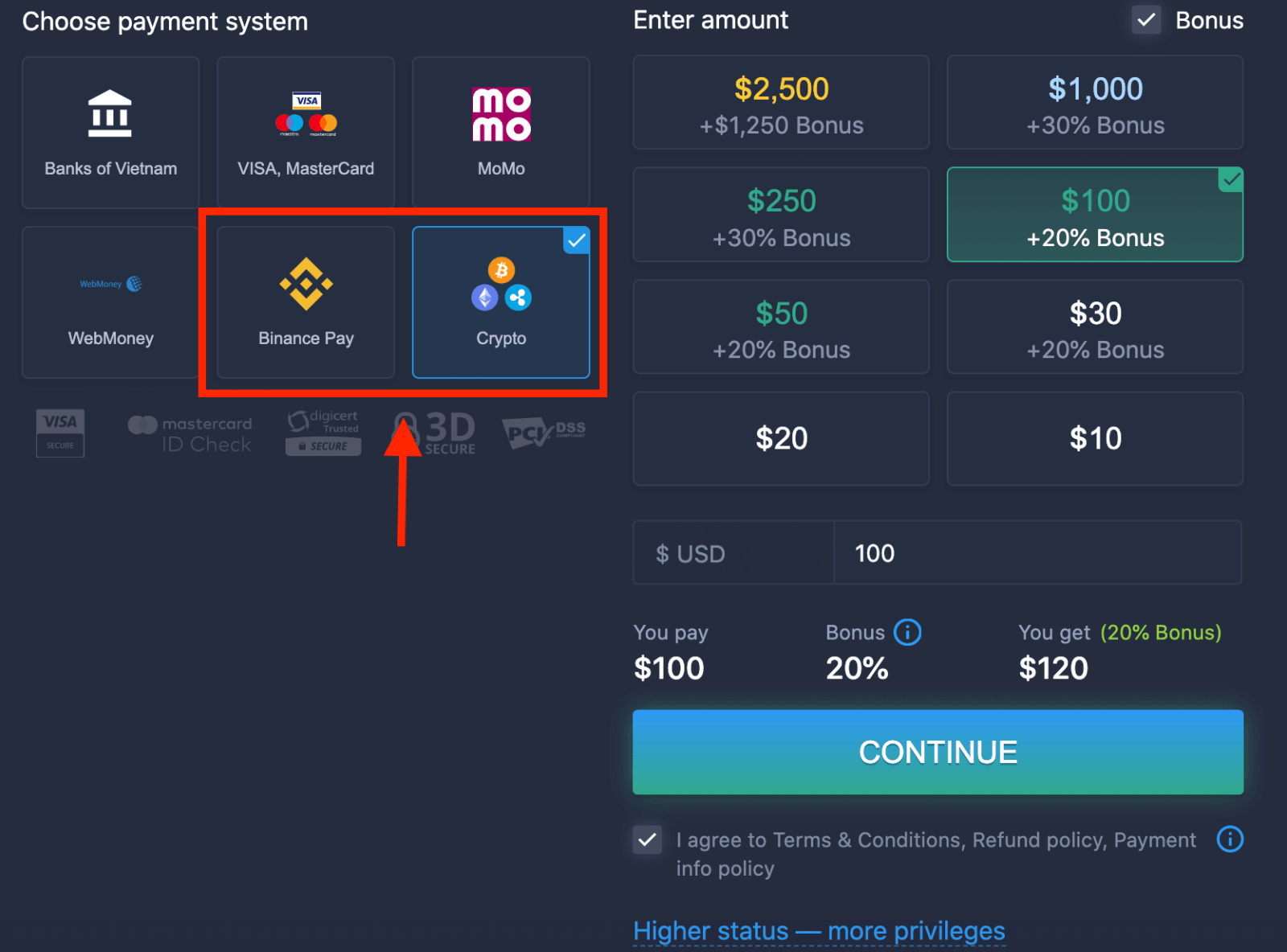
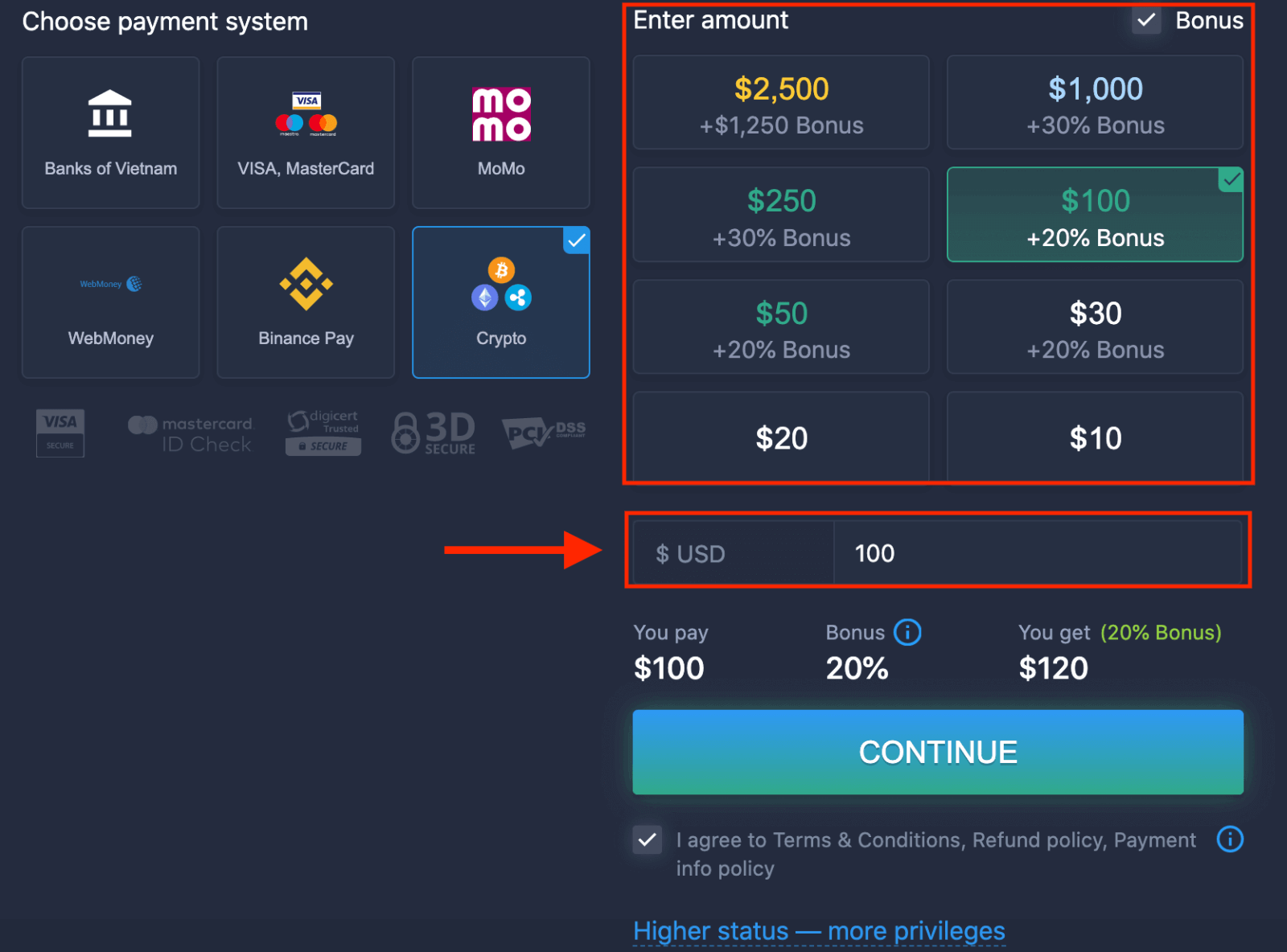
5. You may enter a deposit amount manually or select one from the list.
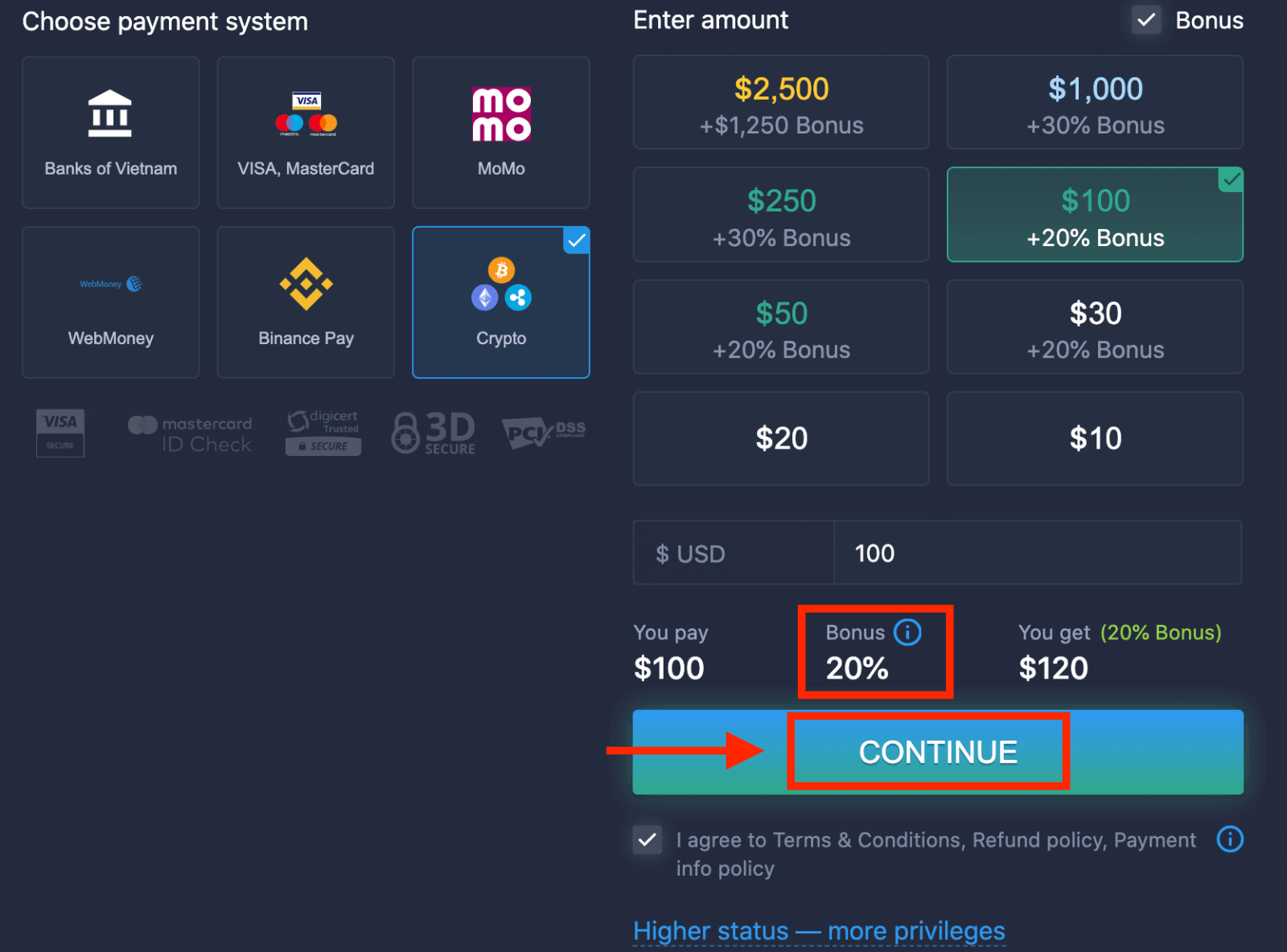
6. The system may offer you a deposit bonus; take advantage of the bonus to increase the deposit. After that, click "CONTINUE".
5. You will be redirected to a new page where you can get the address and send exactly the crypto to that address.
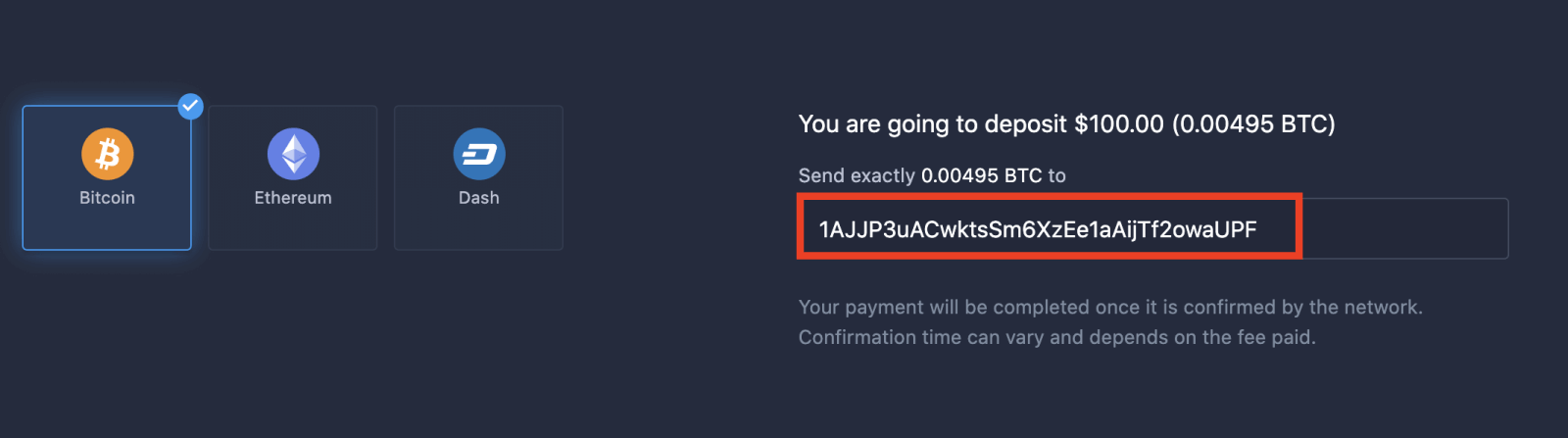
Your payment will be completed once it is confirmed by the network. Confirmation time can vary and depends on the fee paid.
Higher status — more privileges
| Micro | Basic | Silver | Gold | Platinum | Exclusive |
|
For those who prefer a light start. Upgrade to a higher status when ready |
For those who prefer a light start. Upgrade to a higher status when ready | The majority of our clients start with a Silver account. Free consultations included | Smart investments start with a Gold account. Get the most from your account with privileged features | Our best expertise and exclusive account management for serious investors | Ask your account manager for additional information |
|
from $10
|
How to Trade Binary Options on ExpertOption
Features on ExpertOption
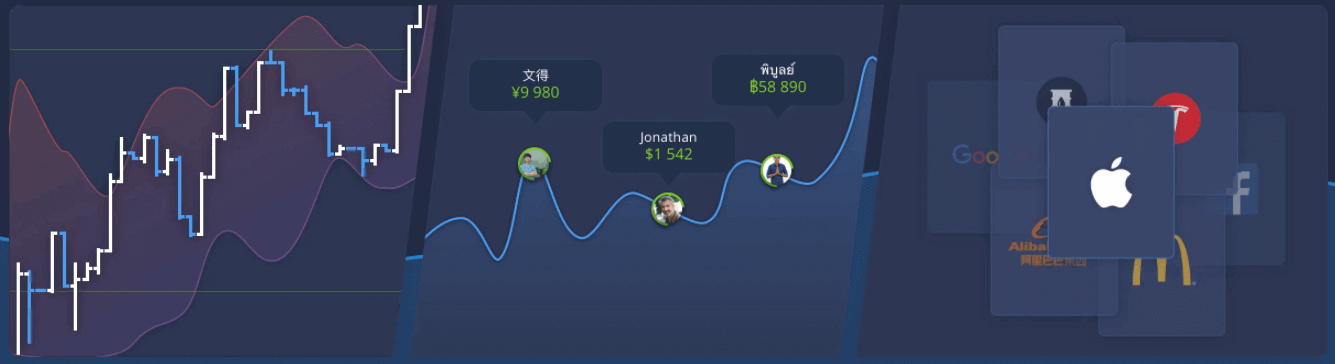
We provide the fastest trading using modern technologies. No delays in order executions and most accurate quotes. Our trading platform is available 24/7, including weekends. ExpertOption customer service is available 24/7. We continually add new financial instruments.
- Technical analysis tools: 4 chart types, 8 indicators, trend lines
- Social trading: watch deals across the globe or trade with your friends
- Over 100 assets, including popular stocks like Apple, Facebook, and McDonald’s
How to Open a Trade on ExpertOption
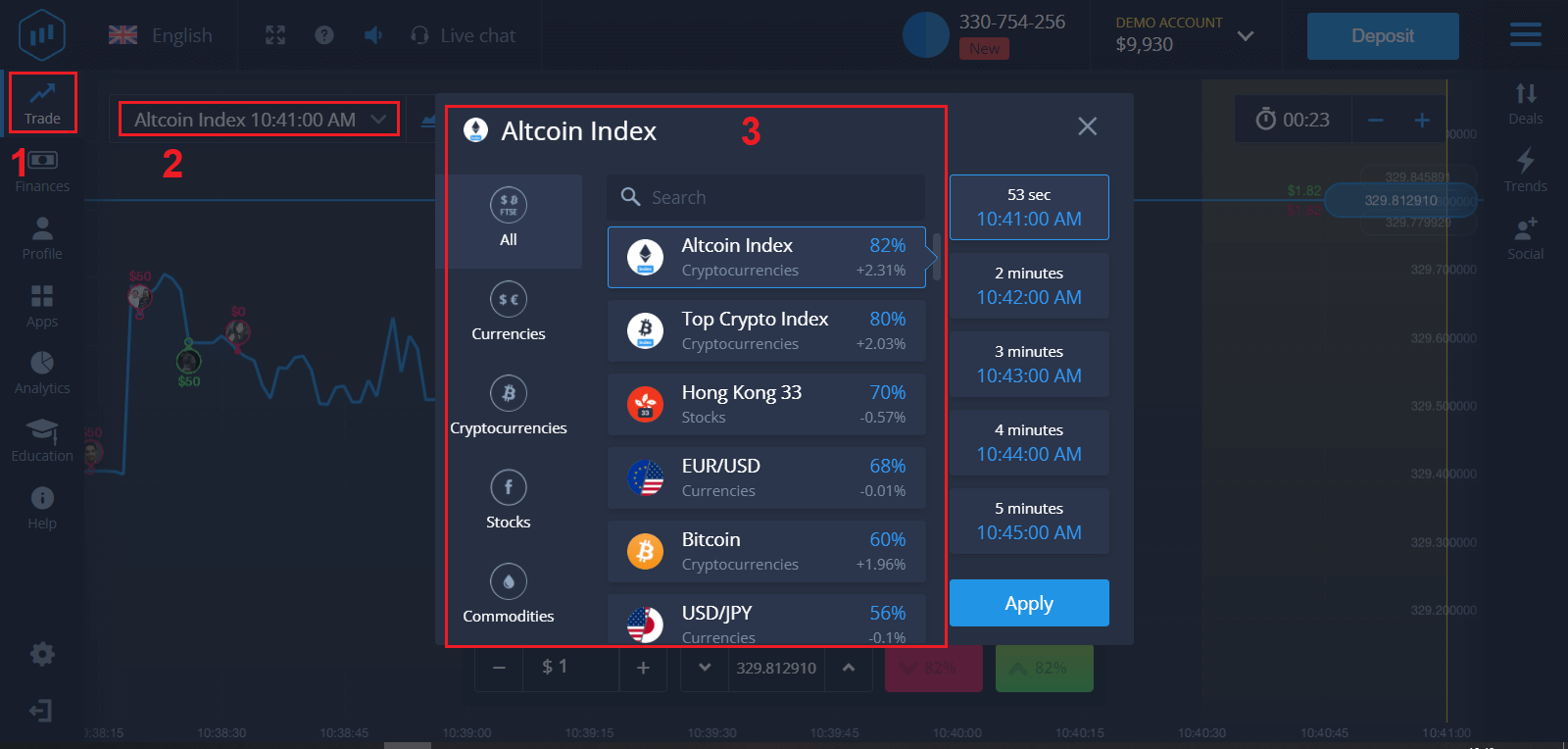
1. Choose an asset for trading
- You can scroll through the list of assets. The assets that are available to you are colored white. Click on the asset to trade on it.
- The percentage determines its profitability. The higher the percentage, the higher your profit in case of success.
All trades close with the profitability that was indicated when they were opened.
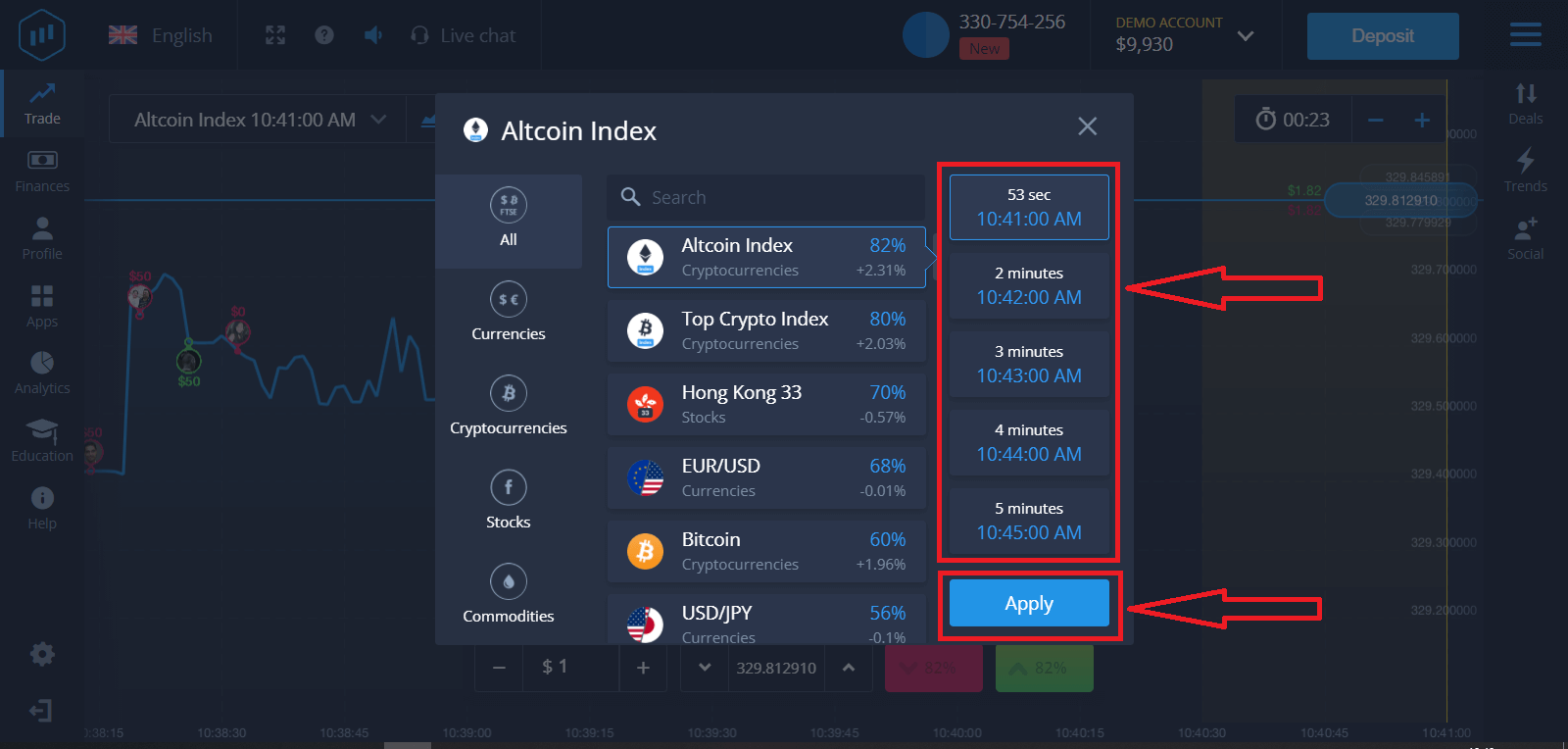
2. Choose an Expiration Time and click the Apply button
The expiration period is the time after which the trade will be considered completed (closed), and the result is automatically summed up.
When concluding a trade with ExpertOption, you independently determine the time of execution of the transaction.
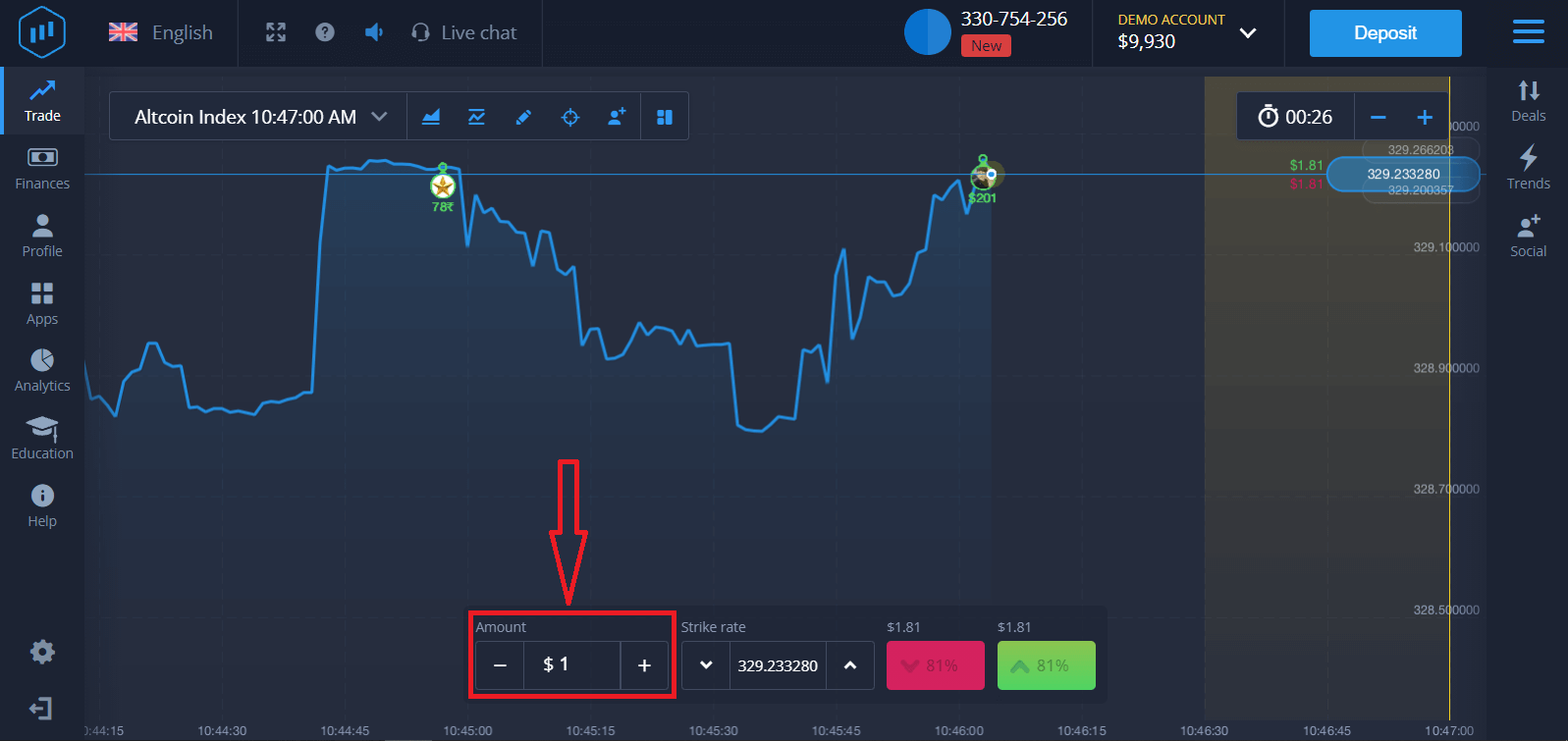
3. Set the amount you’re going to invest
The minimum amount for a trade is $1, the maximum $1,000, or an equivalent in your account currency. We recommend you start with small trades to test the market and get comfortable.
4. Analyze the price movement on the chart and make your forecast
Choose Higher (Green) or Lower (Pink) options depending on your forecast. If you expect the price to go up, press "Higher," and if you think the price is going down, press "Lower."
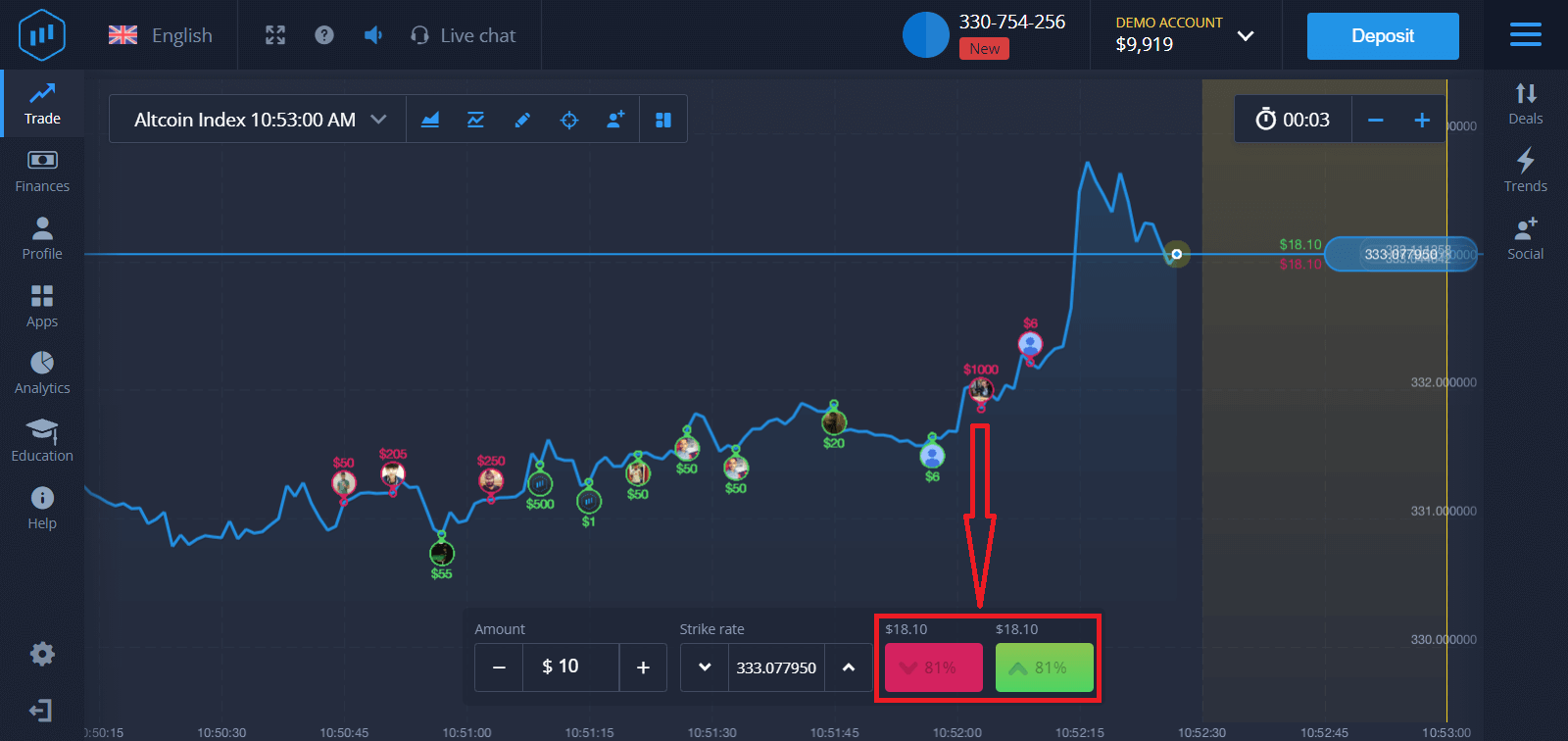
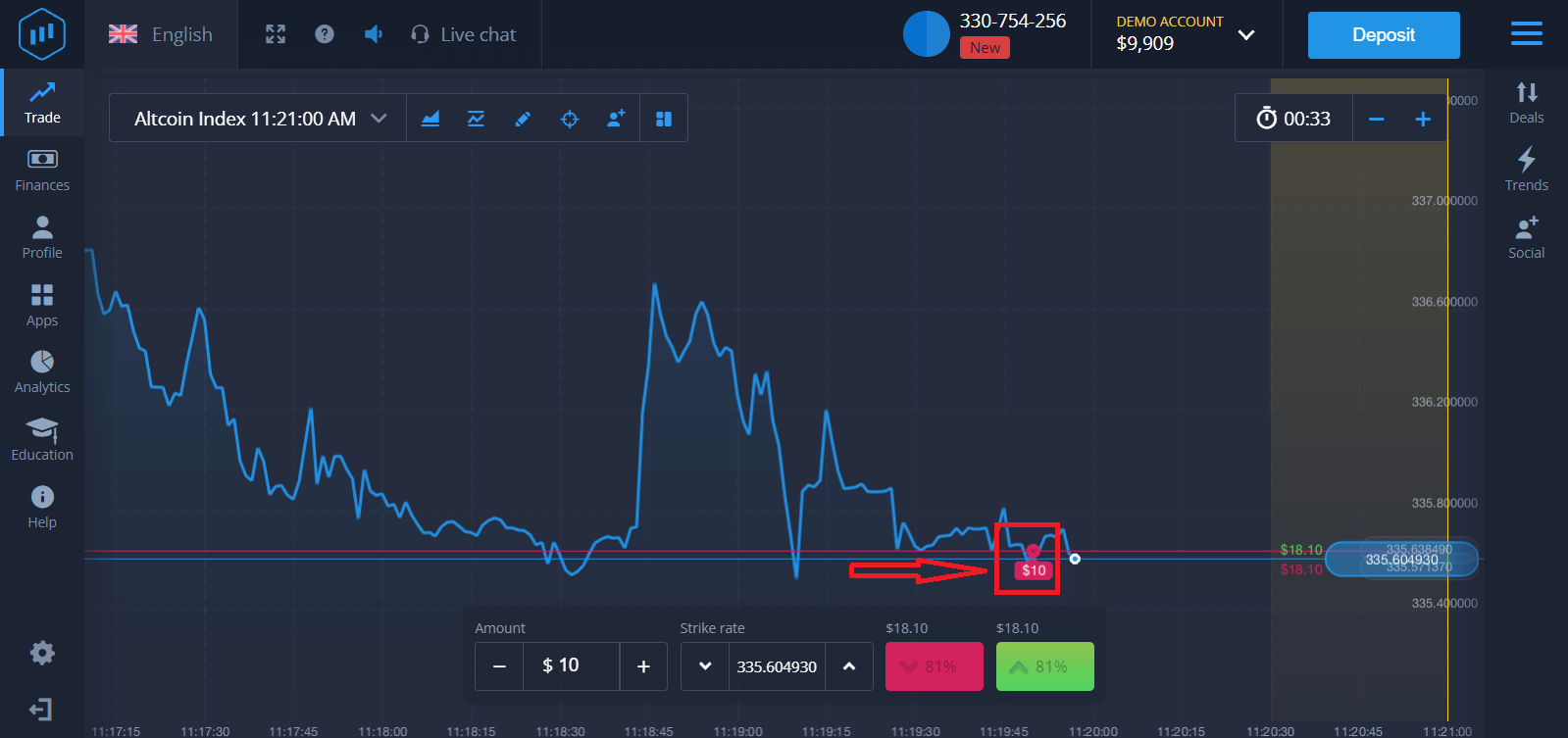
5. Wait for the trade to close to find out whether your forecast was correct. If it were, the amount of your investment plus the profit from the asset would be added to your balance. If your forecast was incorrect, the investment would not be returned.
You can monitor the Progress of your Order on the chart.t
Or in the Deals
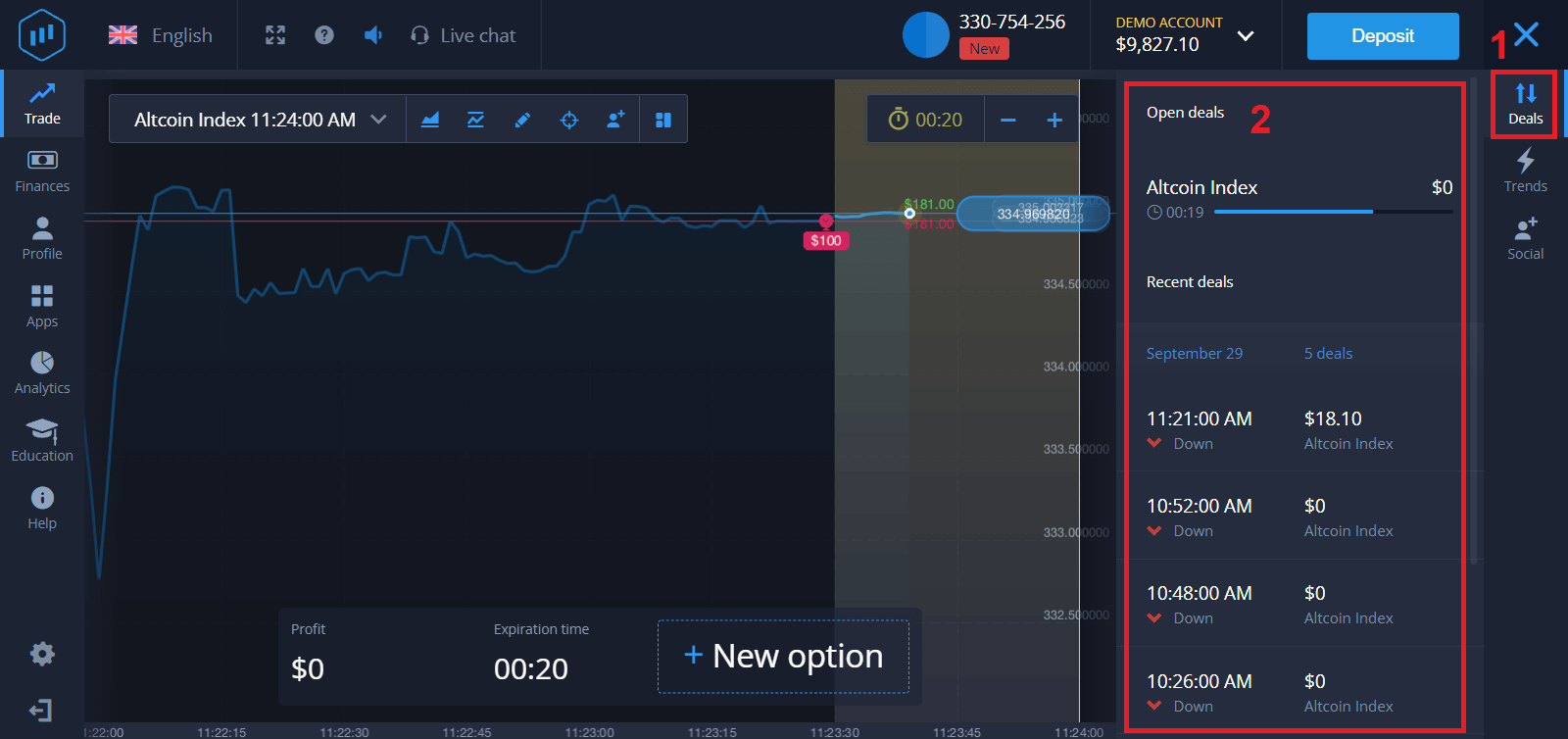
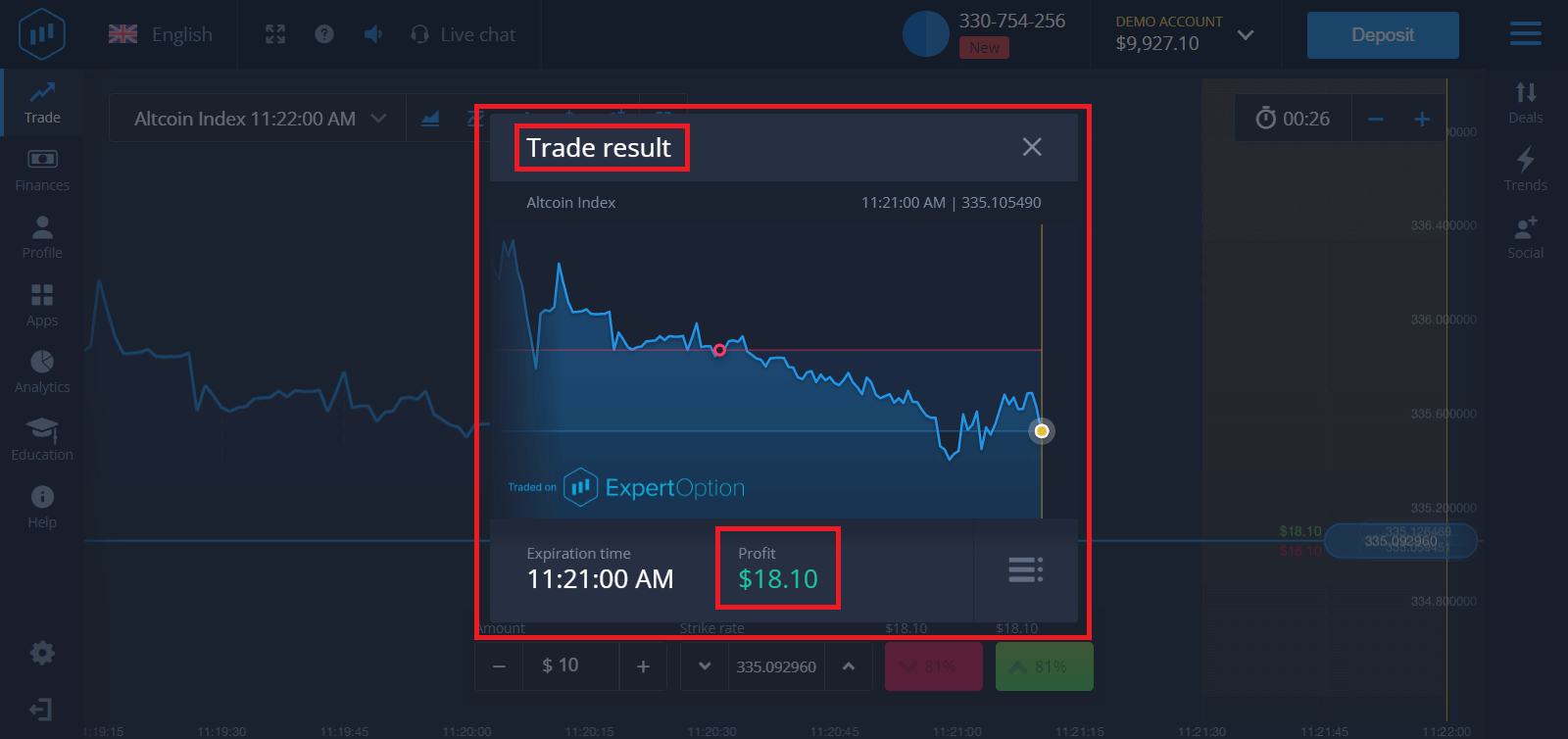
You will receive the notification about the result of your trade when it is finished.
Frequently Asked Questions (FAQ)
Is my profit calculated?
Your profit from a trade can be up to 95% of the investment amount. Profit depends on the current situation of the market.
What is the minimum amount that I can invest?
The minimum amount to invest in a single trade is $1.
Are there any commissions upon making transactions with my trading account?
Our company does not take any commissions on your transactions. But such commissions can be taken by the payment systems or a payment aggregator.How to Withdraw Money from ExpertOption
Which Payment Methods are available for Withdrawal on ExpertOption
We work with more than 20 payment systems. You can transfer money to your debit or credit card: Visa, MasterCard, Maestro, UnionPay. We are integrated with electronic payment methods as well: Neteller, Skrill, Perfect Money, FasaPay, and others.Gold, Platinum, and Exclusive accounts have priority withdrawal.
First withdrawals have to be made to an account card or e-wallet that was used for making a deposit. In case of withdrawal, to bank card amount of withdrawal has to be equal to the deposit amount. Other funds (revenue) you can withdraw to any e-wallet (Skrill, Neteller, UnionPay, or any other method)
How can I Withdraw Money from ExpertOption
First, let’s clarify a small point. It may seem ridiculous or stupid to some, but we receive many similar questions every day. Money can be withdrawn ONLY from a real account; a demo account is, in fact, a simulation profile on which you can practice making money using the ExpertOption platform. Therefore, at the very beginning, on a demo account, a very large $10,000 is available for trading.So, you have a real account, and you’ve topped up using a MasterCard bank card. Now you’ve earned a profit and want to withdraw your winnings. How can it be done?
Withdrawal has never been easier! Follow these steps:
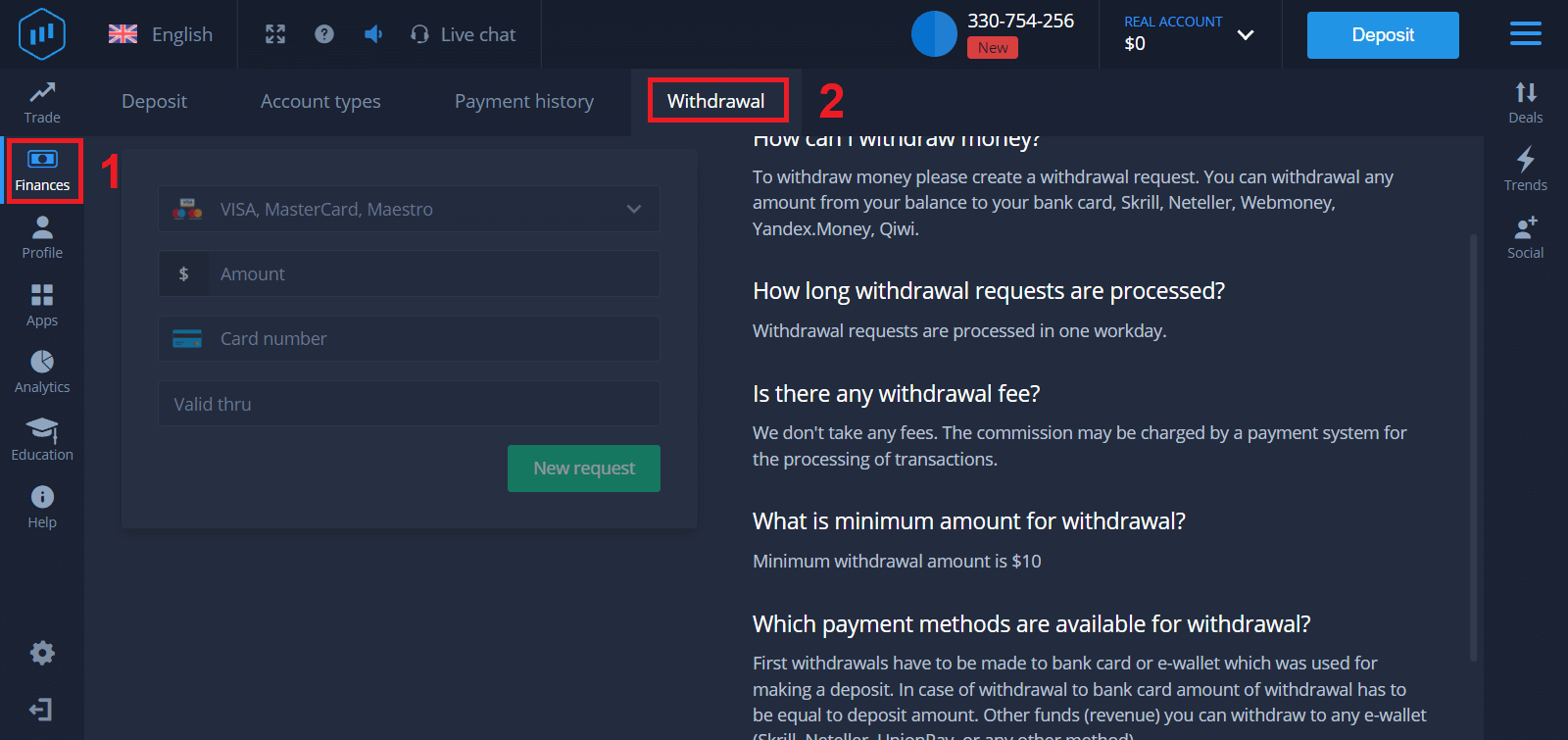
1. Just open the ExpertOption platform and tap on the top left upper corner menu.
2. Then choose the Finances option. You’ll now see a Withdrawal option in the lower right corner of the window.
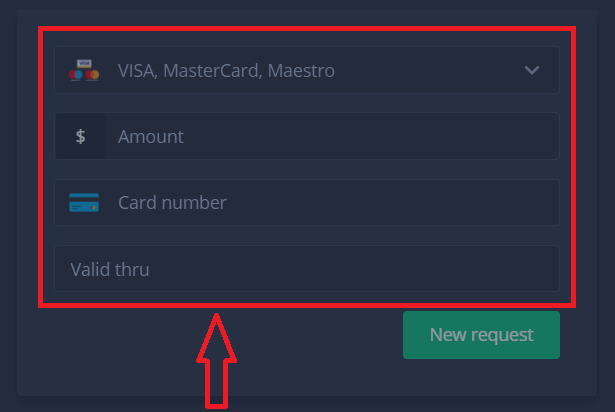
3. There, you should enter all the data of the payment method you wish to use for withdrawal
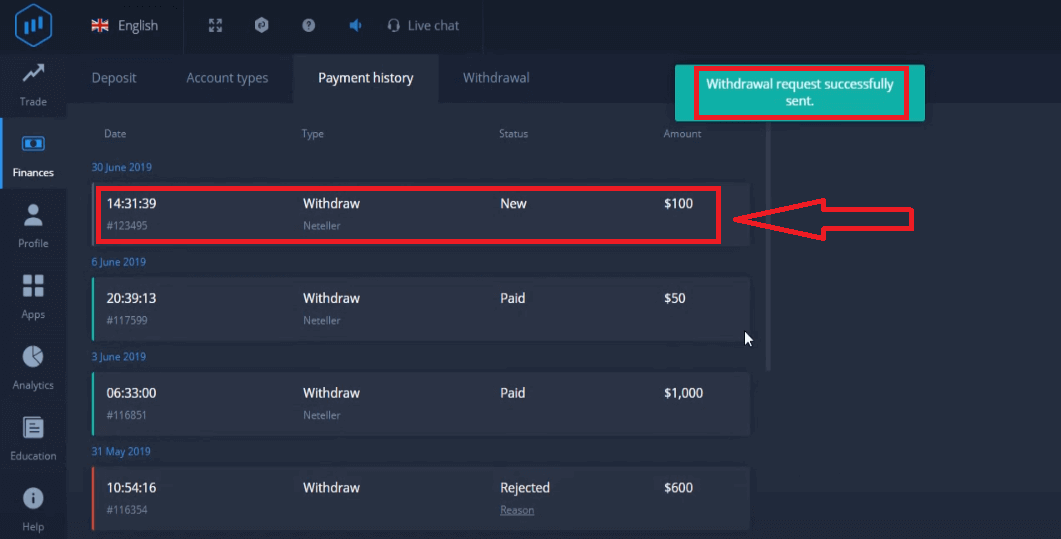
4. Once you’ve provided all the information in this field, press the “New request” button.
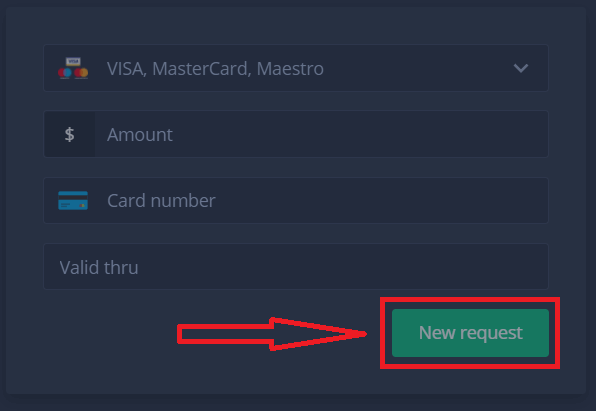
That’s it, your money is on its way to your credit card or other payment method. You will see the new request in "Payment history.y"
One more important thing!
In addition to the usual withdrawal methods - such as credit cards, there are dozens of other withdrawal ways in ExpertOption. But the first withdrawal is always available only (!) to the payment method you used for deposit.
Frequently Asked Questions (FAQ)
How long are withdrawal requests?
Withdrawal requests are processed in one workday.
Is there any withdrawal fee?
We don’t take any fees. The commission may be charged by a payment system for the processing of transactions.
What is the minimum amount for withdrawal?
Minimum withdrawal amount is $10
Conclusion: Your Next Step to Successful Trading on ExpertOption
Starting your trading journey on ExpertOption in 2021 doesn’t have to be overwhelming. By registering your account, practicing with the demo mode, understanding market movements, and applying disciplined strategies, you set a strong foundation for your trading path. Remember, trading is not about luck but about consistency, strategy, and emotional control. Take your first step confidently with ExpertOption, practice diligently, and gradually transition into live trading as you gain experience.