ExpertOption Open Account: Steps to Open a Trading Account
Writen By

Online Trading Platform Researcher and Guide Writer
Researches broker platforms and trading account Systems.
Getting ready to trade on ExpertOption means more than filling a form — it’s about choosing the right account type, preparing verification documents, and confirming payment options so you won’t face access or withdrawal restrictions later. Many beginners stall at identity checks or pick an account tier without understanding minimum funding and feature limits, which delays their first real trades and can create avoidable frustration.
This page gives a practical step-by-step checklist to open an ExpertOption trading account: how to register credentials, what ID and address proof to have ready, how verification and account activation typically work, and the next actions to fund the account or use the demo. You’ll also get pragmatic tips to prevent common verification rejections and ensure secure, uninterrupted access once you’re approved.
This page gives a practical step-by-step checklist to open an ExpertOption trading account: how to register credentials, what ID and address proof to have ready, how verification and account activation typically work, and the next actions to fund the account or use the demo. You’ll also get pragmatic tips to prevent common verification rejections and ensure secure, uninterrupted access once you’re approved.
Start the Trading Interface in 1 Click
Registration on the platform is a simple process consisting of just a few clicks. In order to open the trading interface in 1 click, click on the “Try free demo” button.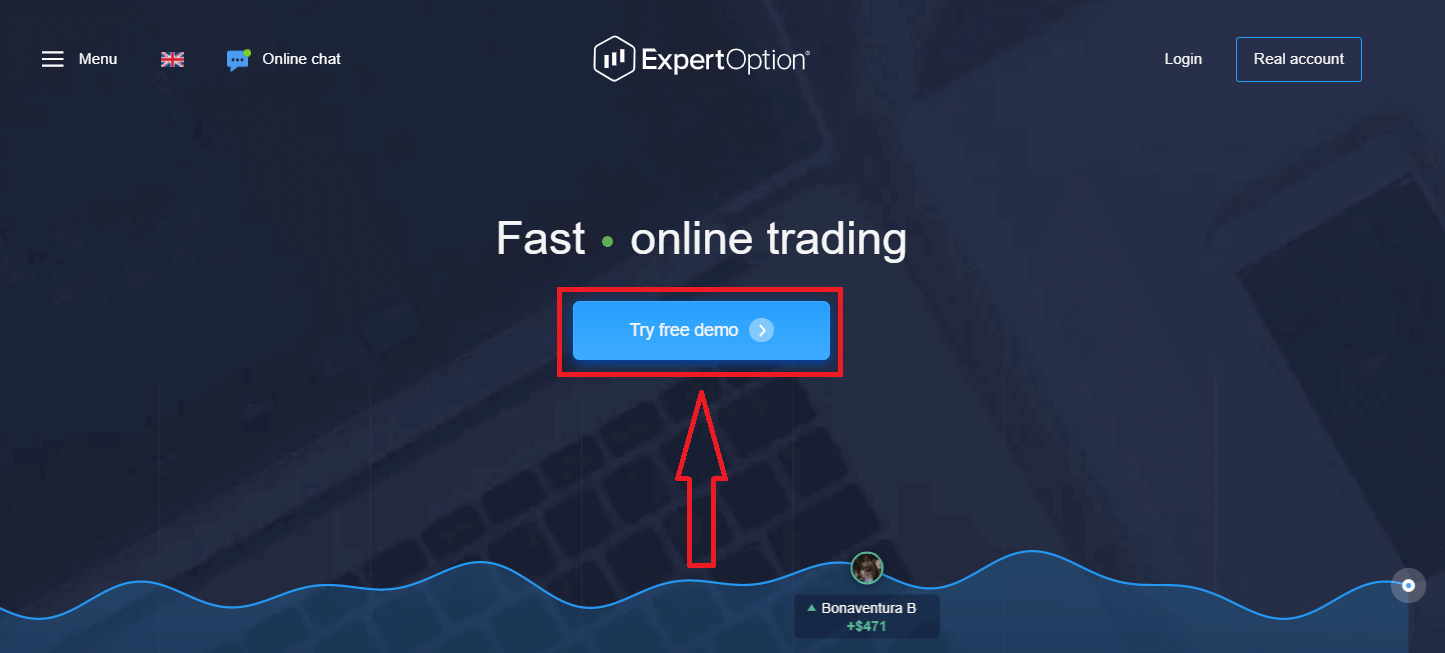
This will take you to the Demo trading page to start trading with $10,000 in Demo account
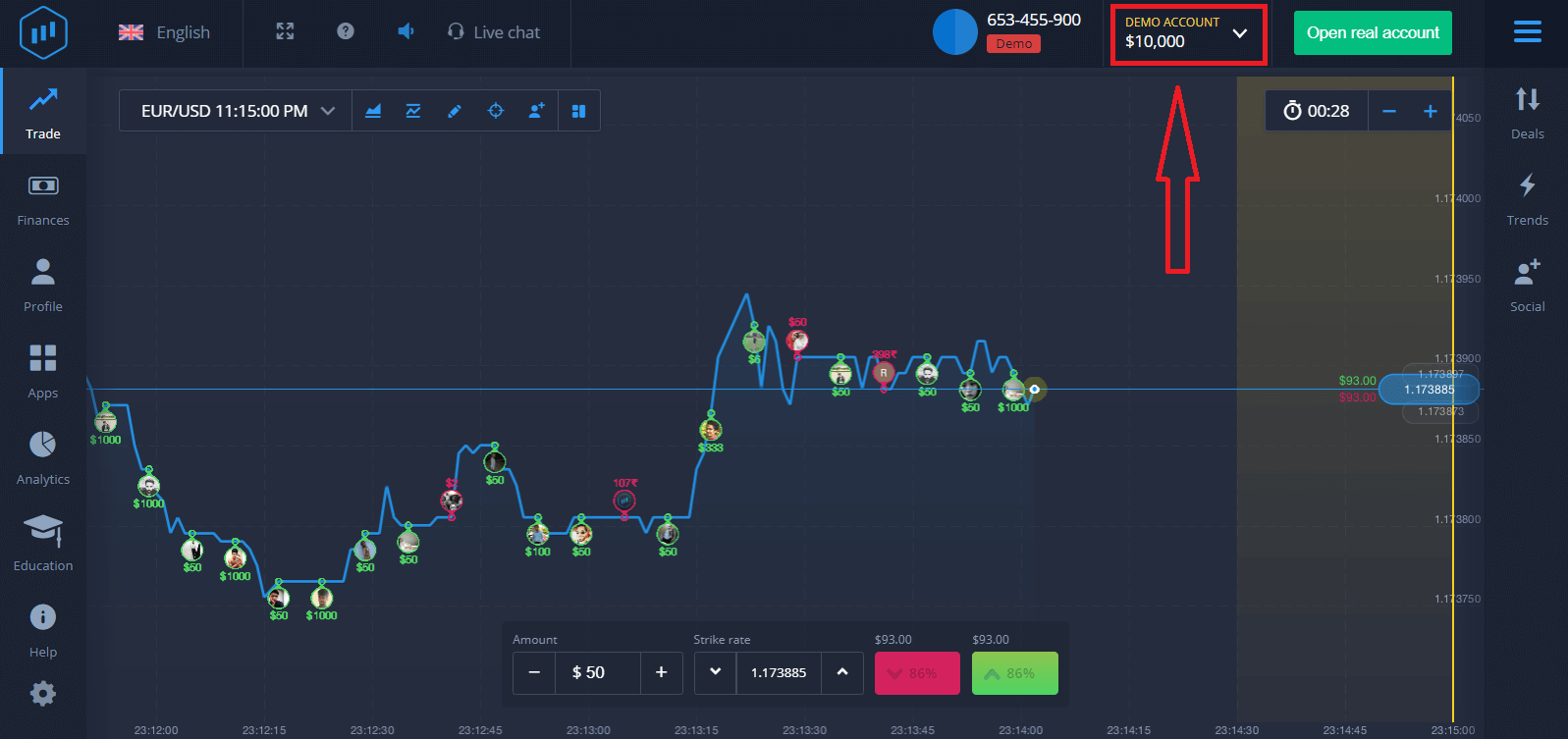
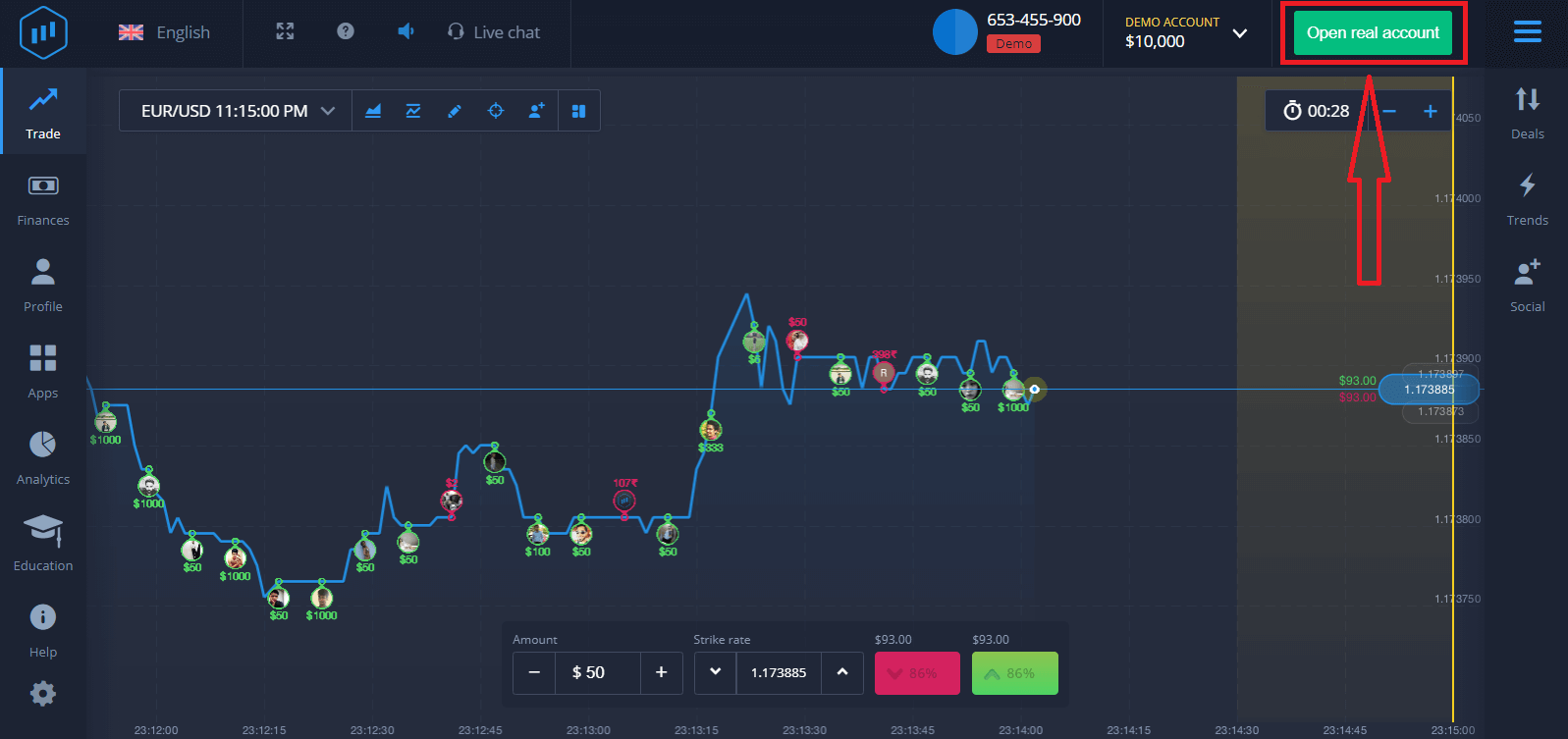
In order to continue using the account, save trading results and can trade on a real account. Click "Open real account" to create a ExpertOption account.
There are three available options: signing up with your email address, Facebook account or Google account as below. All you need is to choose any suitable method and create a password.
How to Sign up with an Email
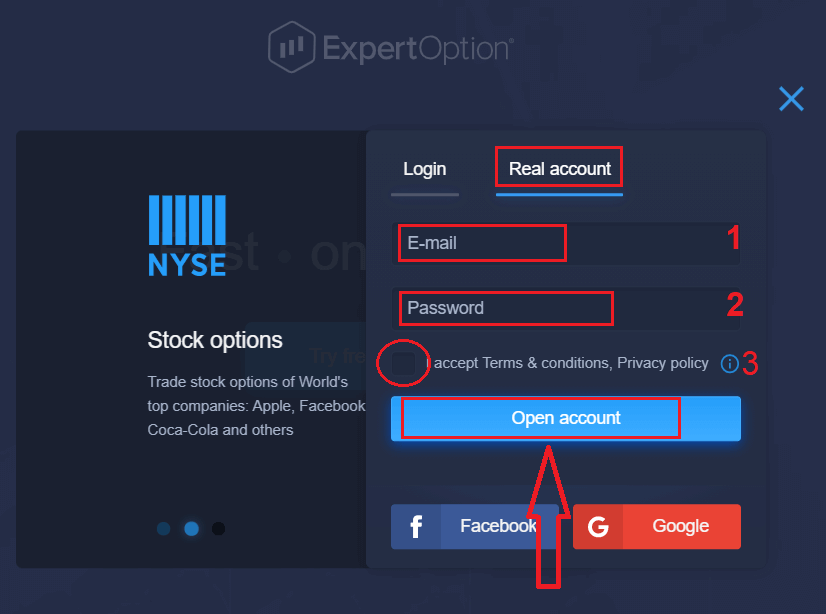
1. You can sign up for an account on the platform by clicking the “Real Account” button in the upper right corner.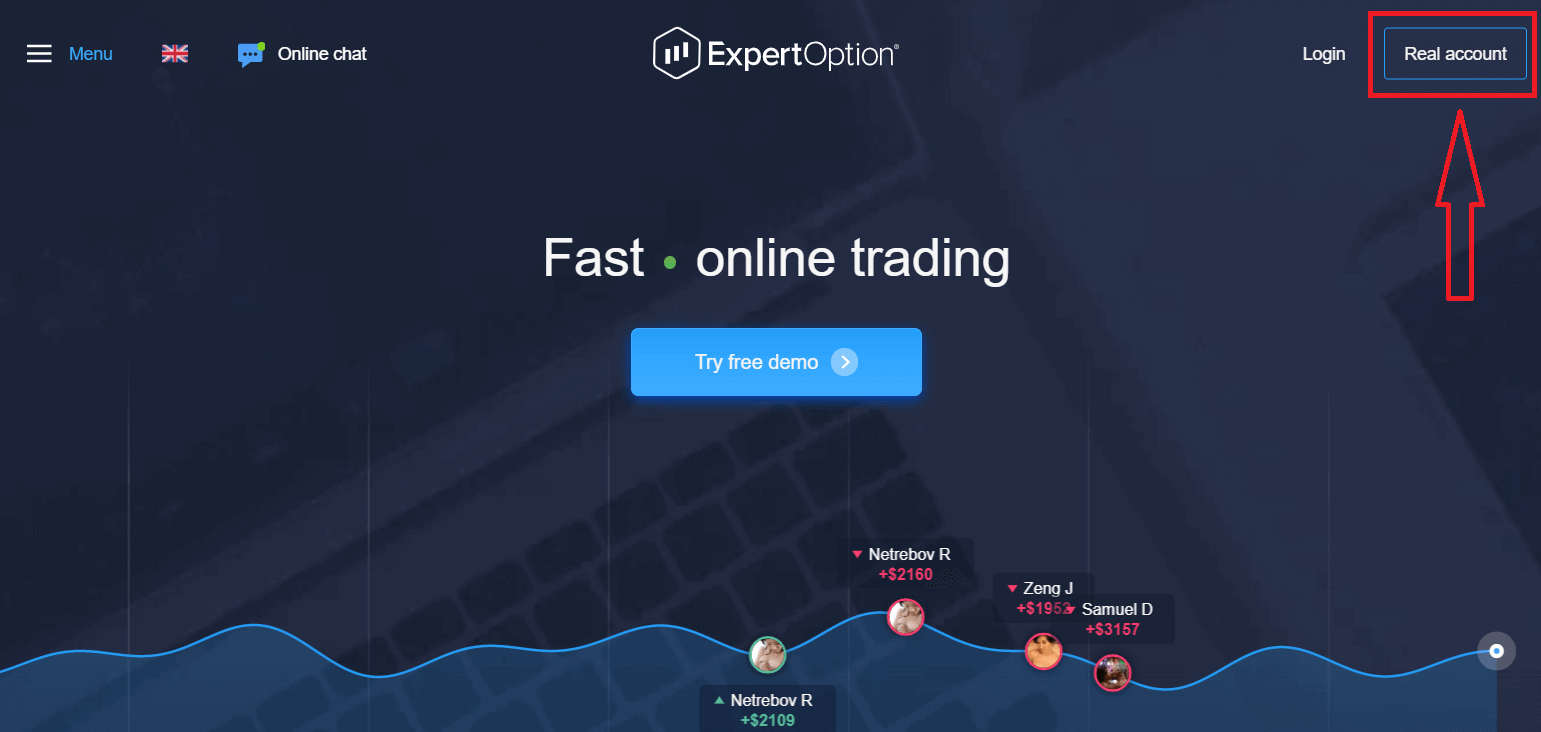
2. To sign-up you need to fill in all the necessary information and click "Open Account"
- Enter a valid email address.
- Create a strong password.
- You also need to read "Terms and Conditions" and check it.
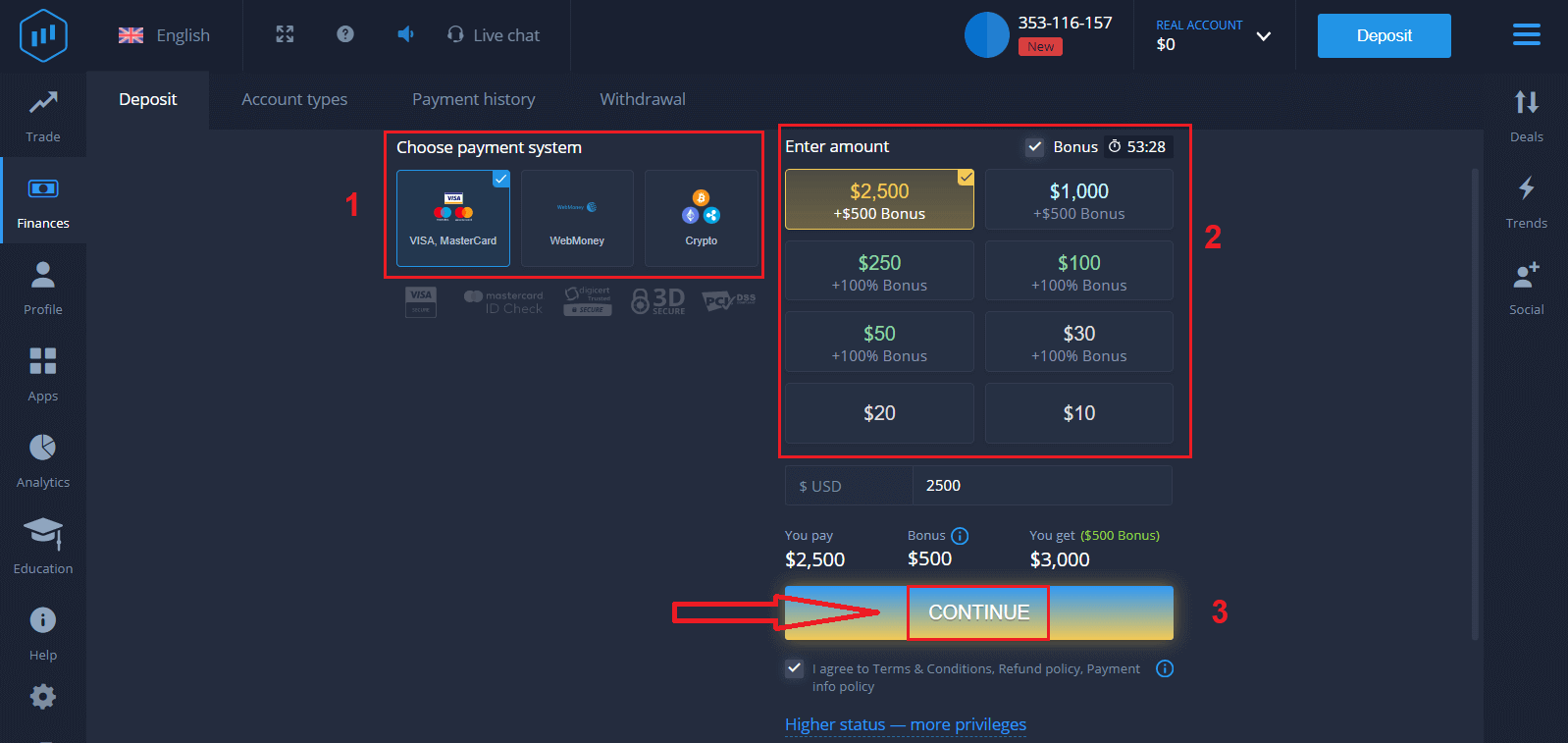
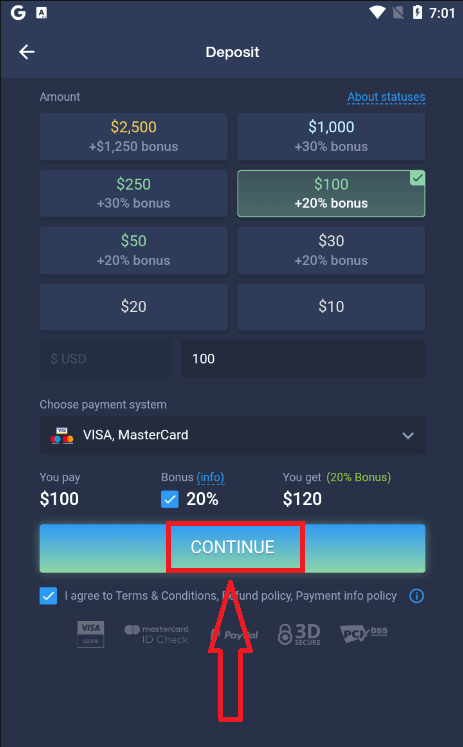
Congratulation! You have registered successfully. To start Live trading you have to make an investment in your account (The minimum deposit is 10 USD).
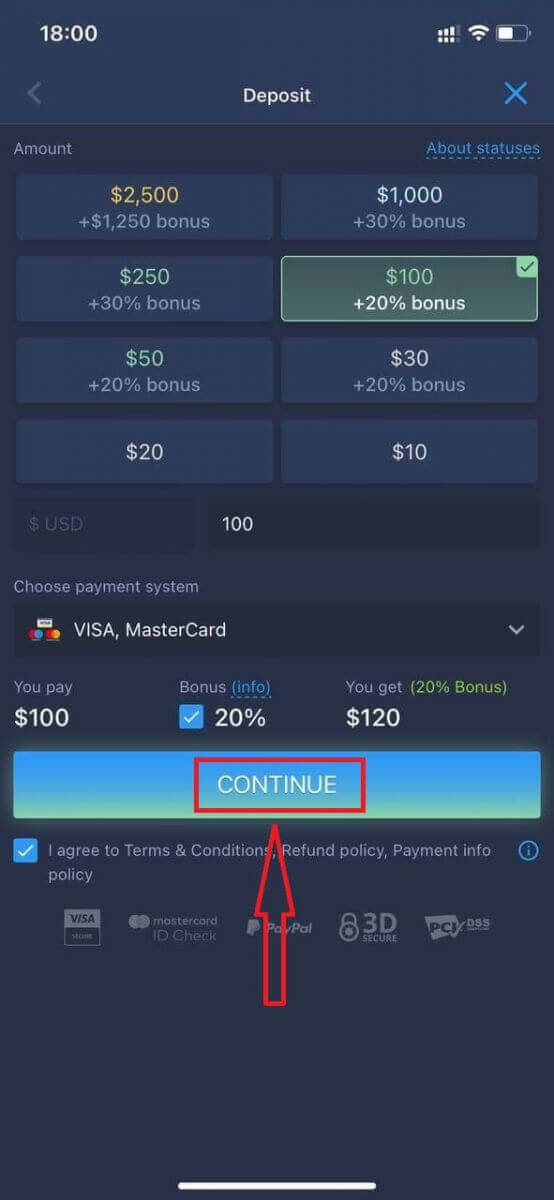
How to make a Deposit in ExpertOption
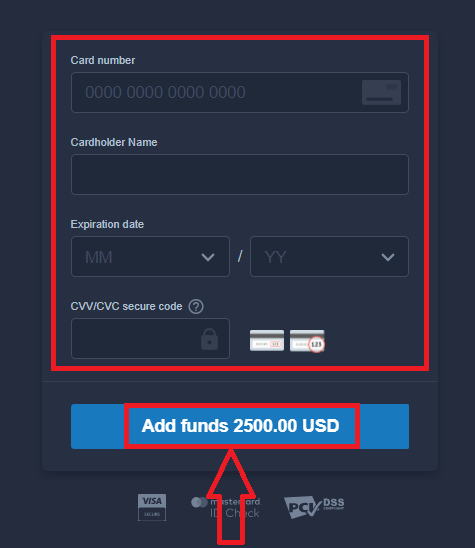
Enter the card data and click "Add funds ..."
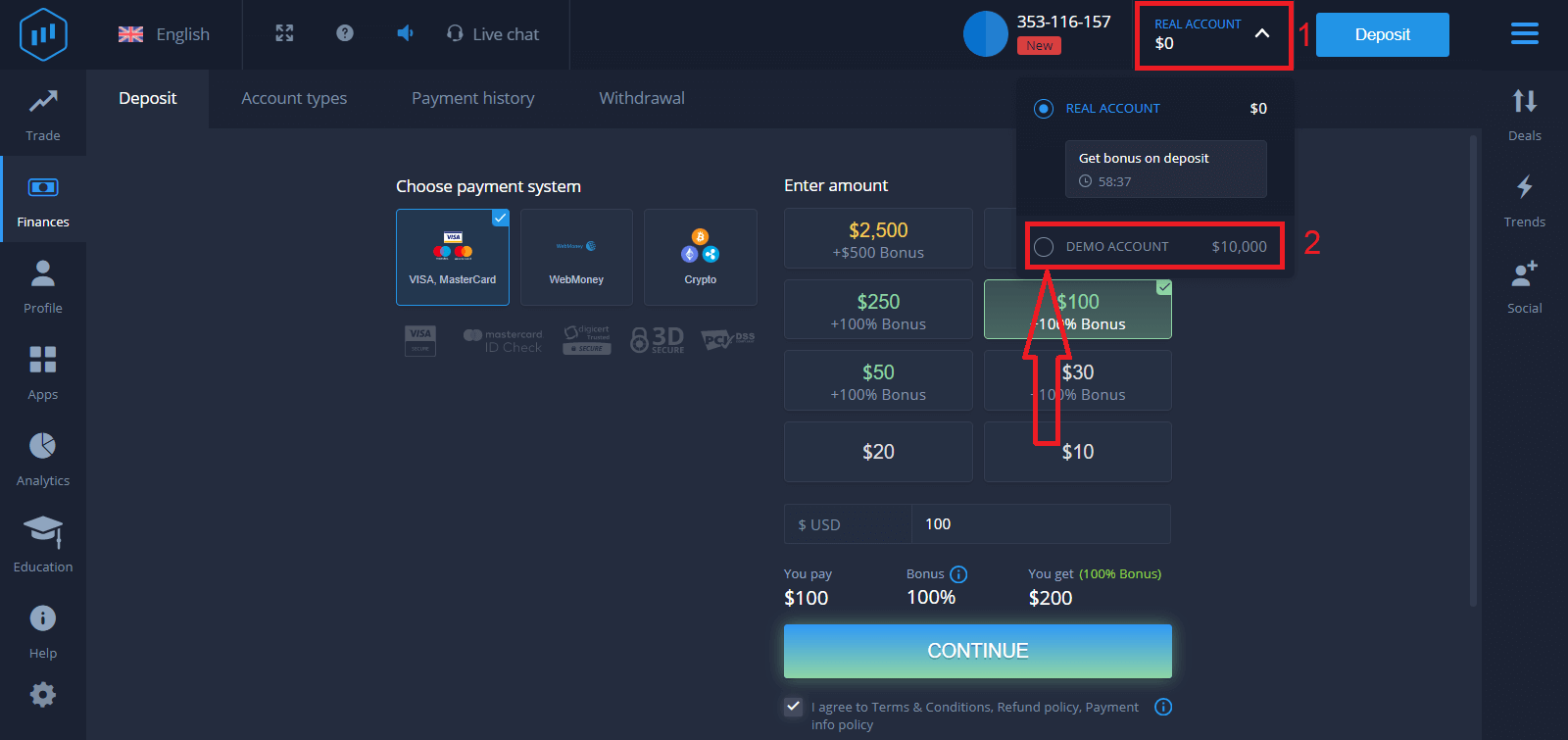
Now you can trade on a real account after depositing successfully.
If you want to use Demo Account, click "REAL ACCOUNT" and select "DEMO ACCOUNT" to start trading with $10,000 in Demo Account. A demo account is a tool for you to get familiar with the platform, practice your trading skills on different assets and try out new mechanics on a real-time chart without risks.
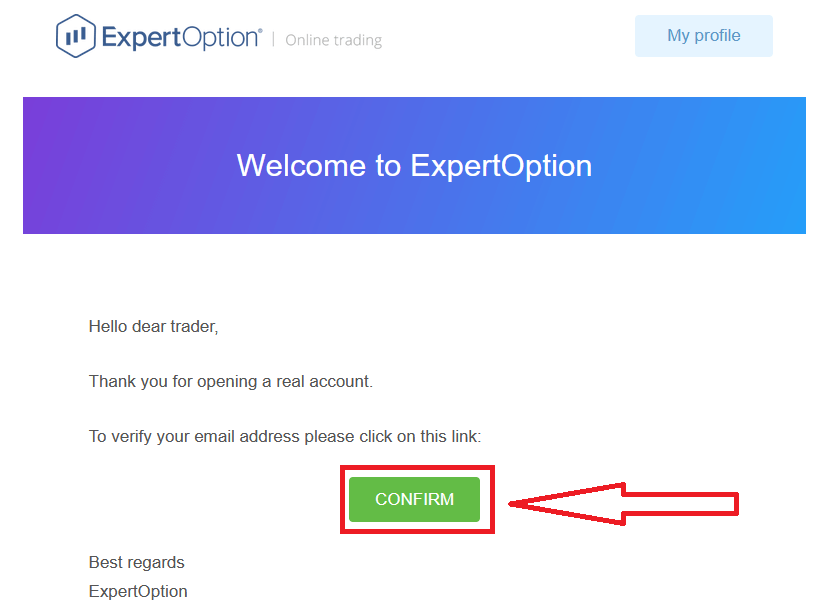
Finally, you access your email, ExpertOption will send you a confirmation mail. Click the button in that mail to activate your account. So, you will finish registering and activating your account.
How to Sign up with a Facebook account
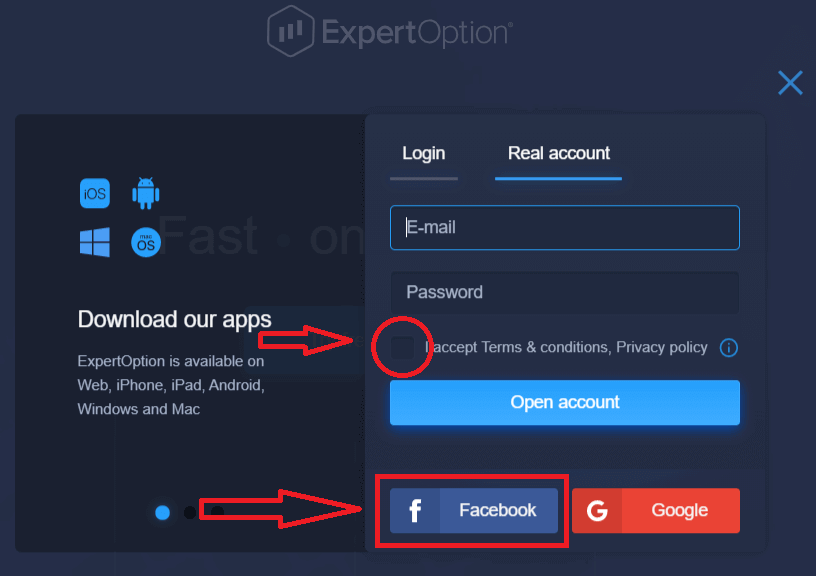
Also, you have an option to open your account by Facebook account and you can do that in just few simple steps:1. Check "Terms and Conditions" and click on Facebook button
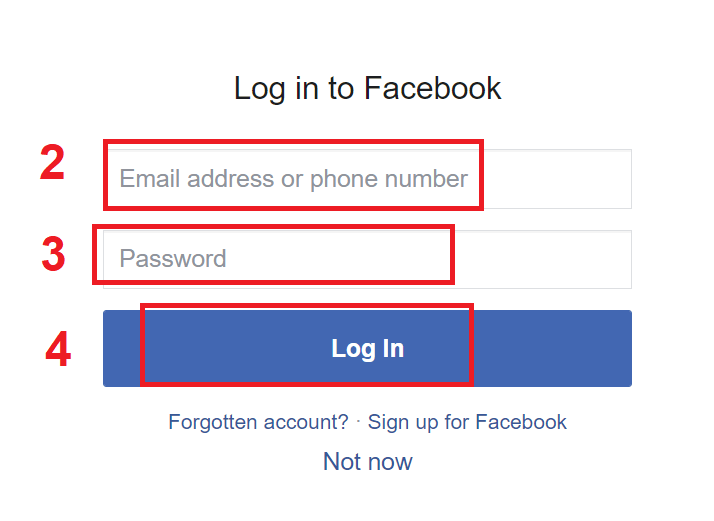
2. Facebook login window will be opened, where you will need to enter your email address that you used to register in Facebook
3. Enter the password from your Facebook account
4. Click on “Log In”
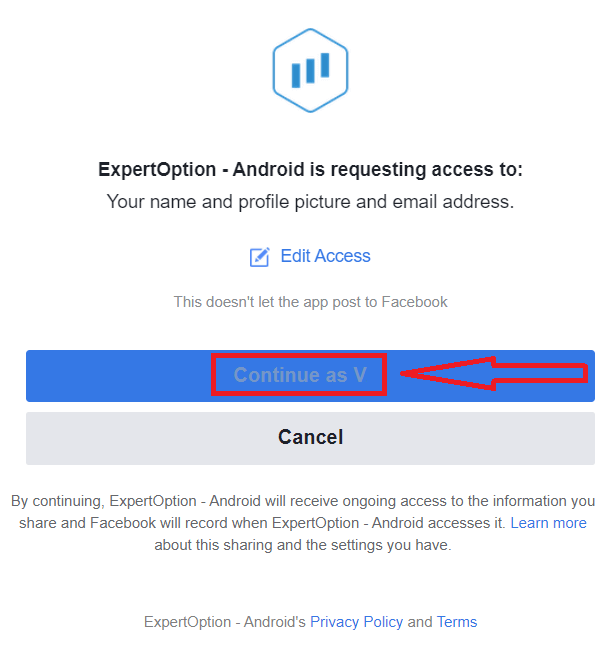
Once you’ve clicked on the “Log in” button, ExpertOption is requesting access to: Your name and profile picture and email address. Click "Continue..."
After that You will be automatically redirected to the ExpertOption platform.
How to Sign up with a Google account
1. To sign up with a Google account, Check "Terms and Conditions" and click on the corresponding button in the registration form.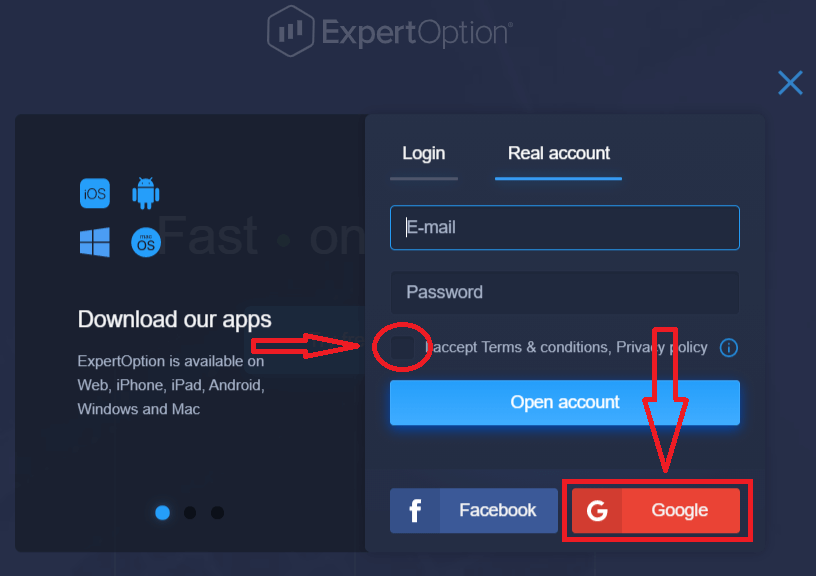
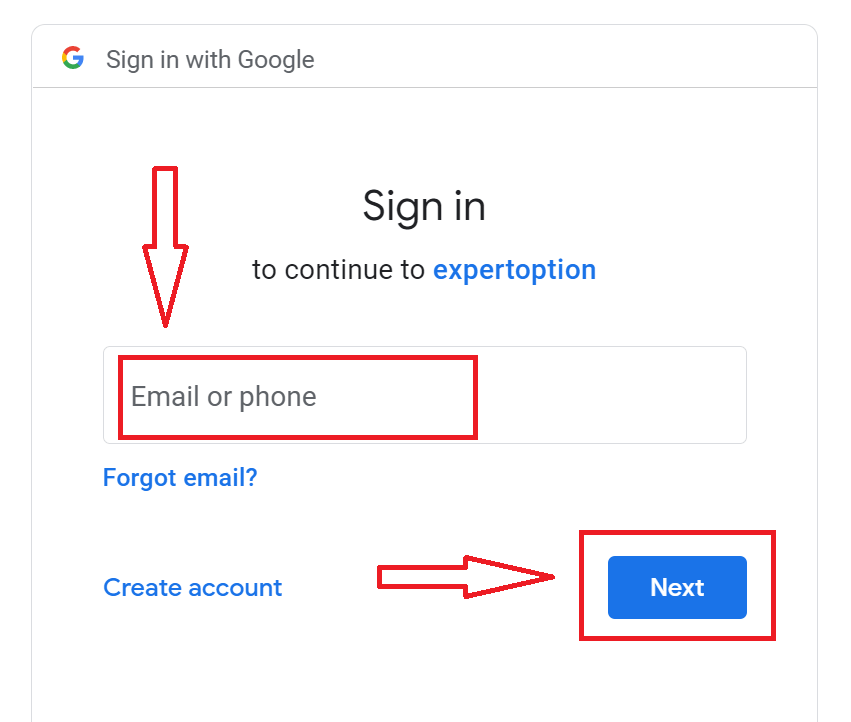
2. In the newly opened window enter your phone number or email and click "Next".
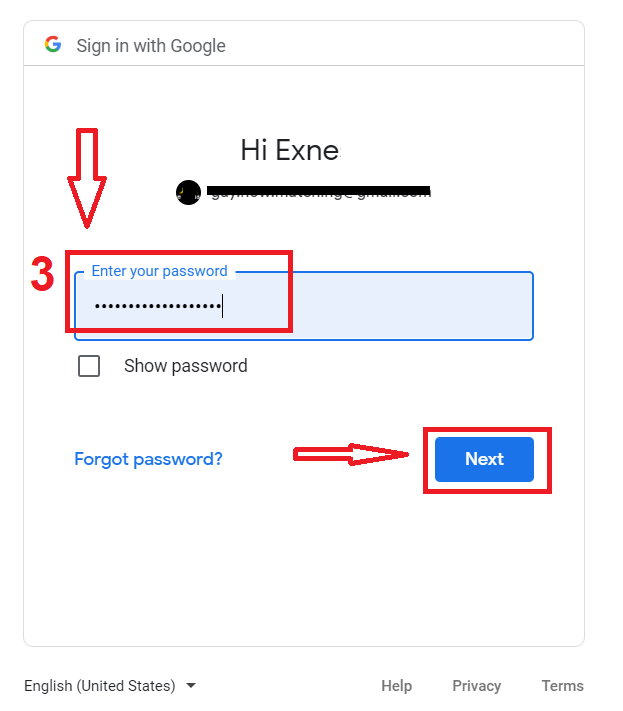
3. Then enter the password for your Google account and click “Next”.
After that, follow the instructions sent from the service to your email address.
Sign up on ExpertOption iOS App
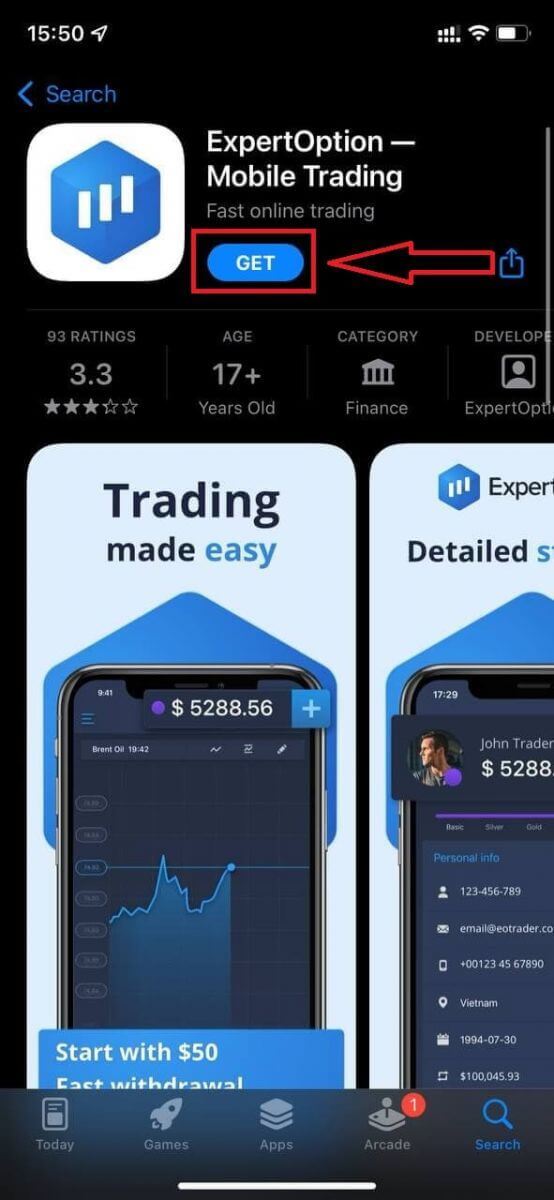
If you have an iOS mobile device you will need to download the official ExpertOption mobile app from App Store or here. Simply search for “ExpertOption - Mobile Trading” app and download it on your iPhone or iPad.The mobile version of the trading platform is exactly the same as web version of it. Consequently, there won’t be any problems with trading and transferring funds.
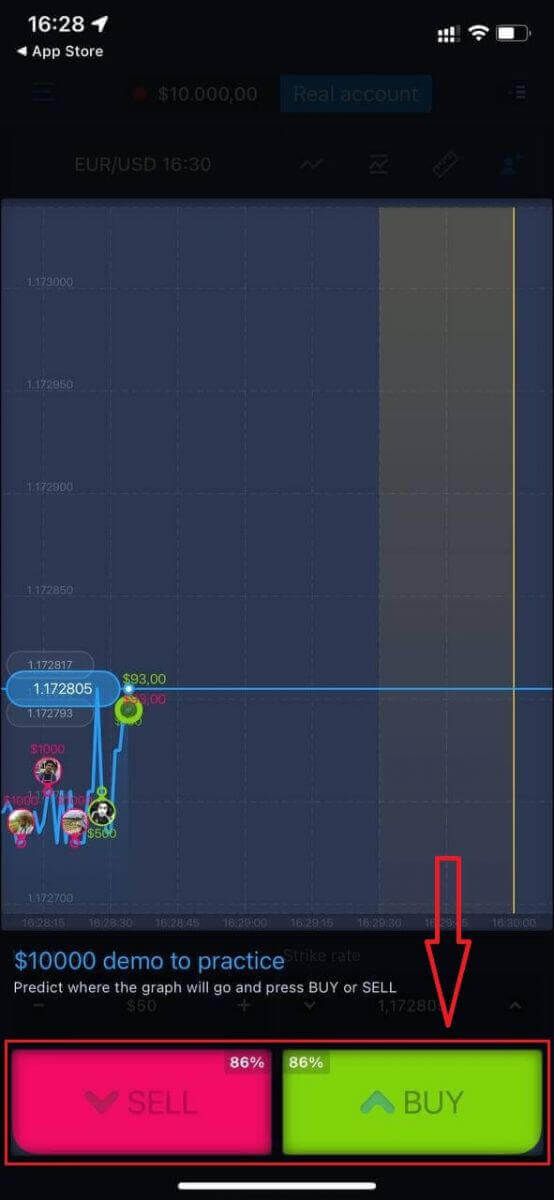
After that, open ExpertOption app, you will see the trading platform, click "Buy" or "Sell" to predict where the graph will go.
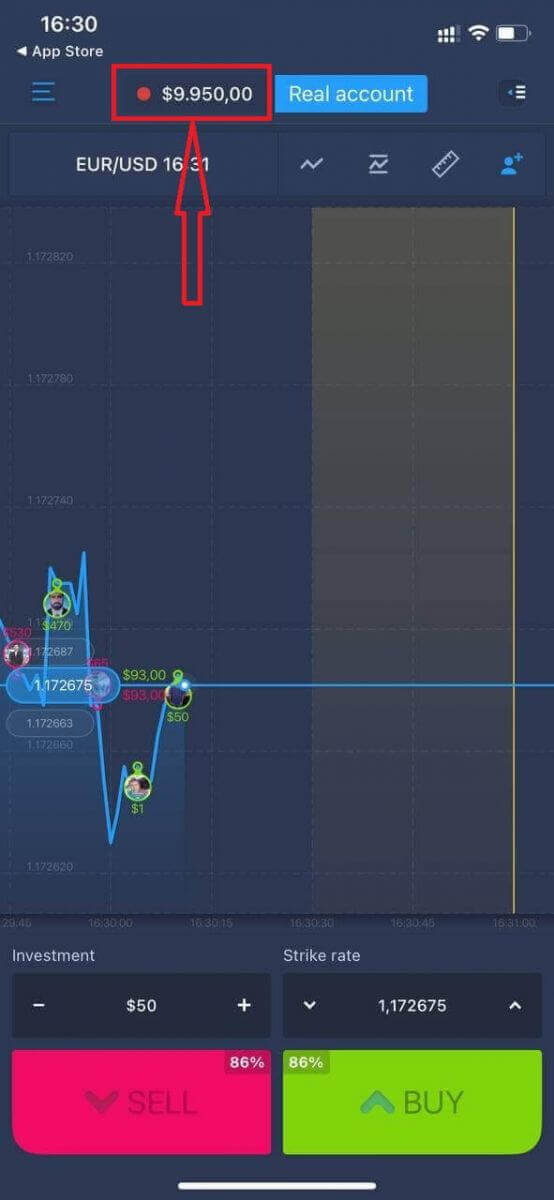
Now you can continure trading with $10,000 in Demo account.
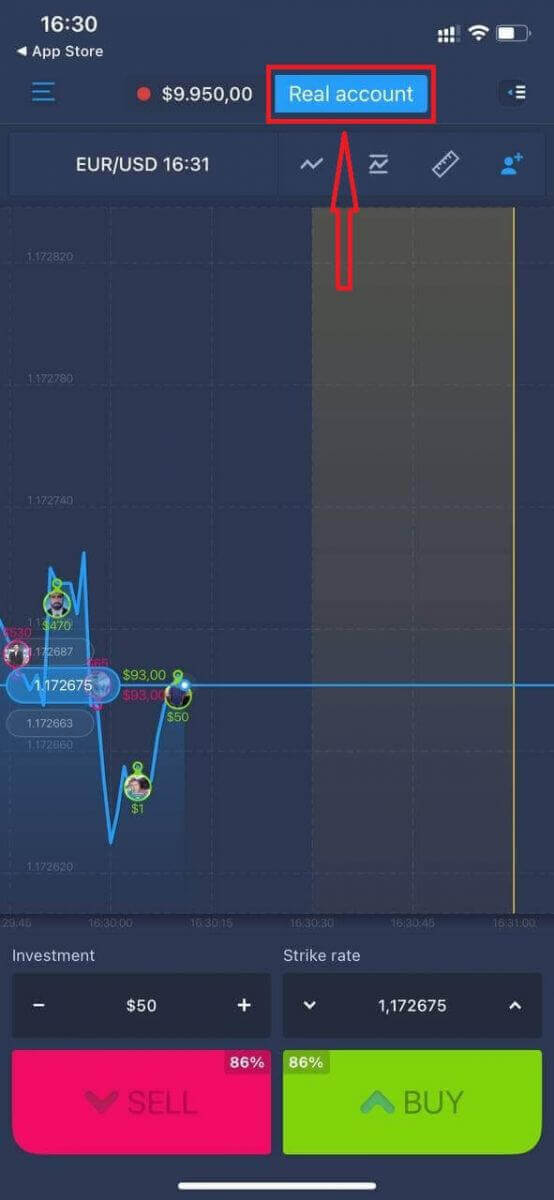
You also can open an account on the iOS mobile platform by clicking "Real account"
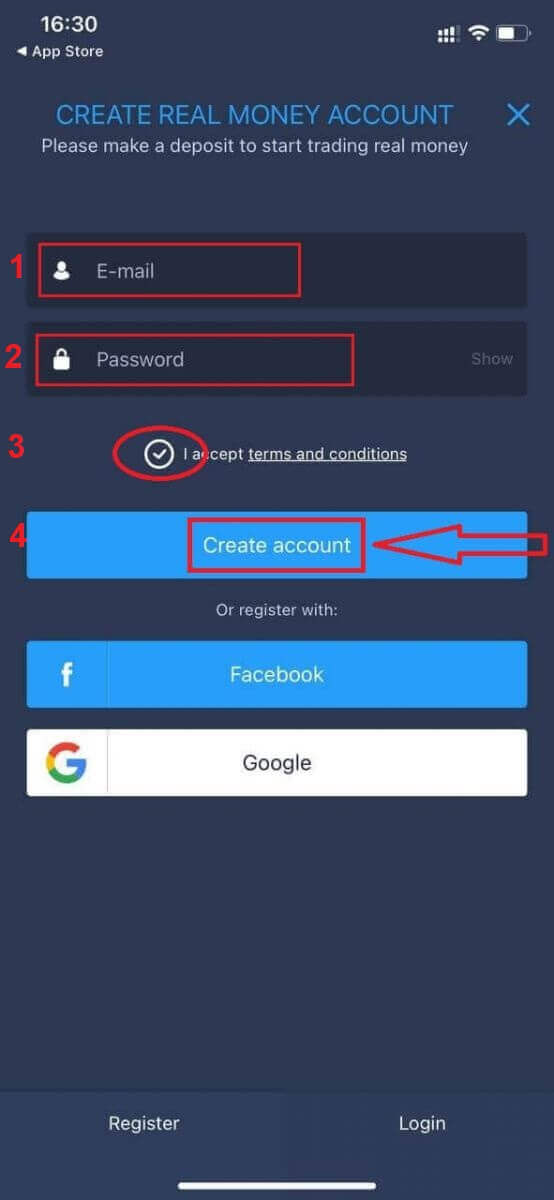
- Enter a valid email address.
- Create a strong password.
- You also need to accept "Terms and Conditions"
- Click "Create account"
Congratulation! You have registered successfully, now you can deposit and start trading with real account
Sign up on ExpertOption Android App
If you have an Android mobile device you will need to download the official ExpertOption mobile app from Google Play or here. Simply search for “ExpertOption - Mobile Trading” app and download it on your device.The mobile version of the trading platform is exactly the same as web version of it. Consequently, there won’t be any problems with trading and transferring funds. Moreover, ExpertOption trading app for Android is considered to be the best app for online trading. Thus, it has a high rating in the store.
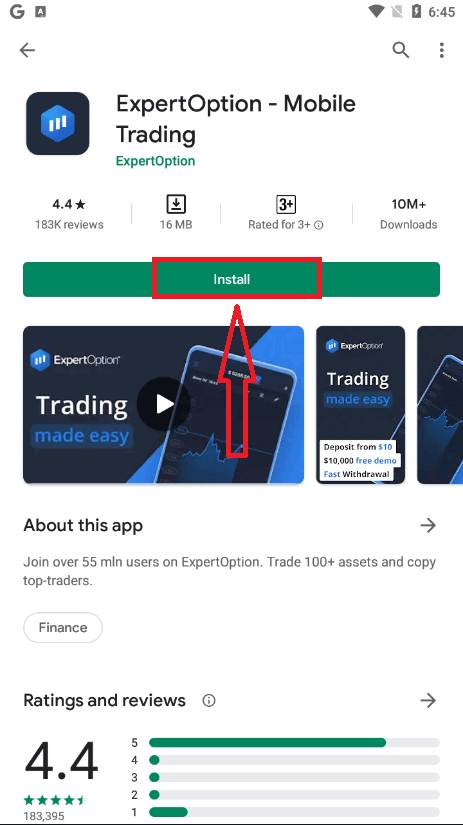
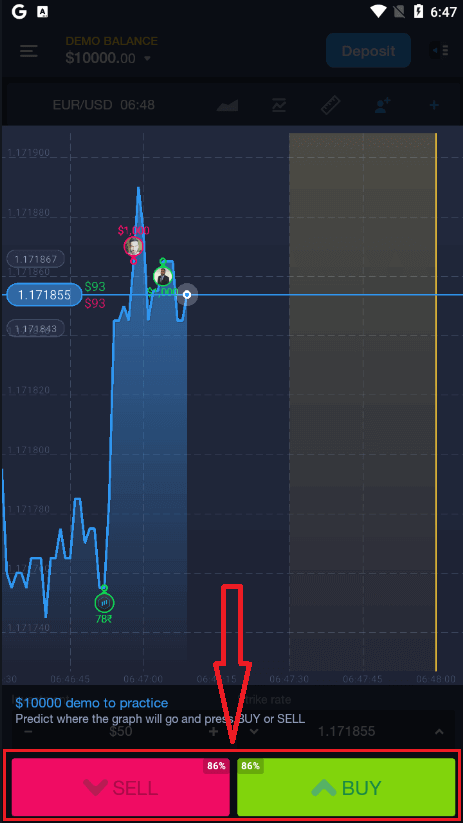
After that, open ExpertOption app, you will see the trading platform, click "Buy" or "Sell" to predict where the graph will go.
Now you can continure trading with $10,000 in Demo account.
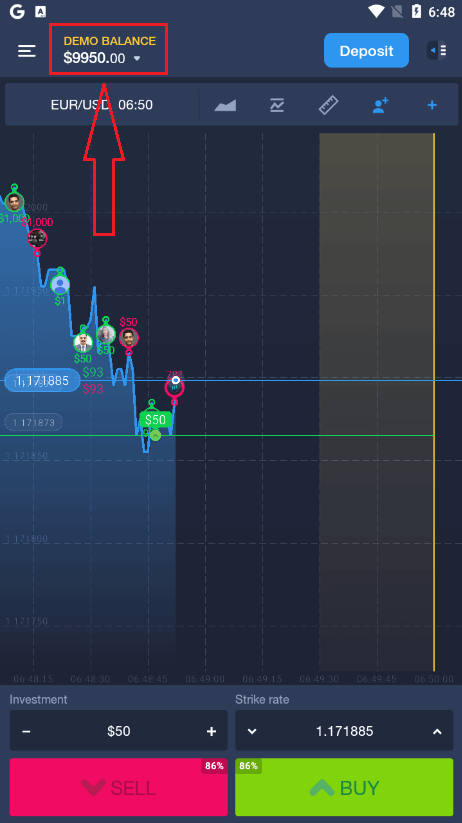
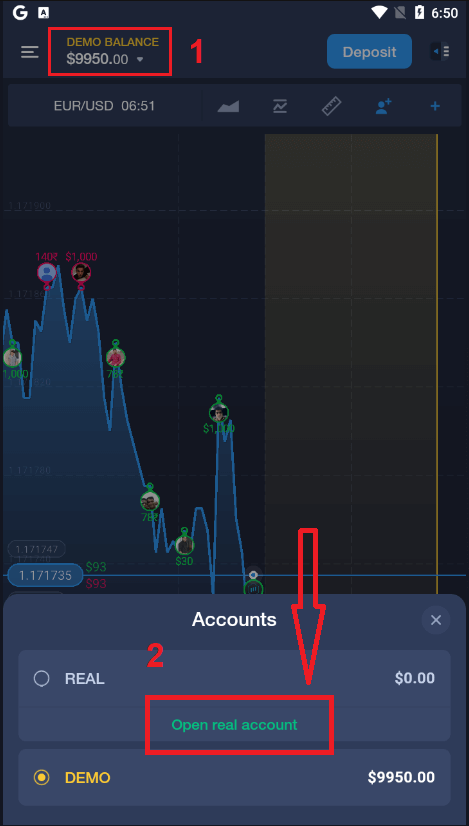
You also can open an account on the Android mobile platform by clicking "DEMO BALANCE" then click "Open real account"
- Enter a valid email address.
- Create a strong password.
- You also need to accept "Terms and Conditions"
- Click "Create account"
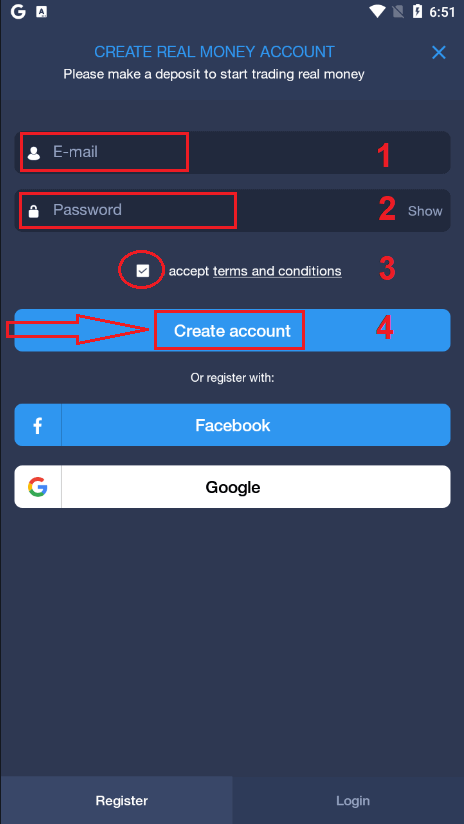
Congratulation! You have registered successfully, now you can deposit and start trading with real account
Sign up ExpertOption account on Mobile Web Version
If you want to trade on the mobile web version of ExpertOption trading platform, you can easily do it. Initially, open up your browser on your mobile device. After that, search for “expertoption.com” and visit the official website of the broker.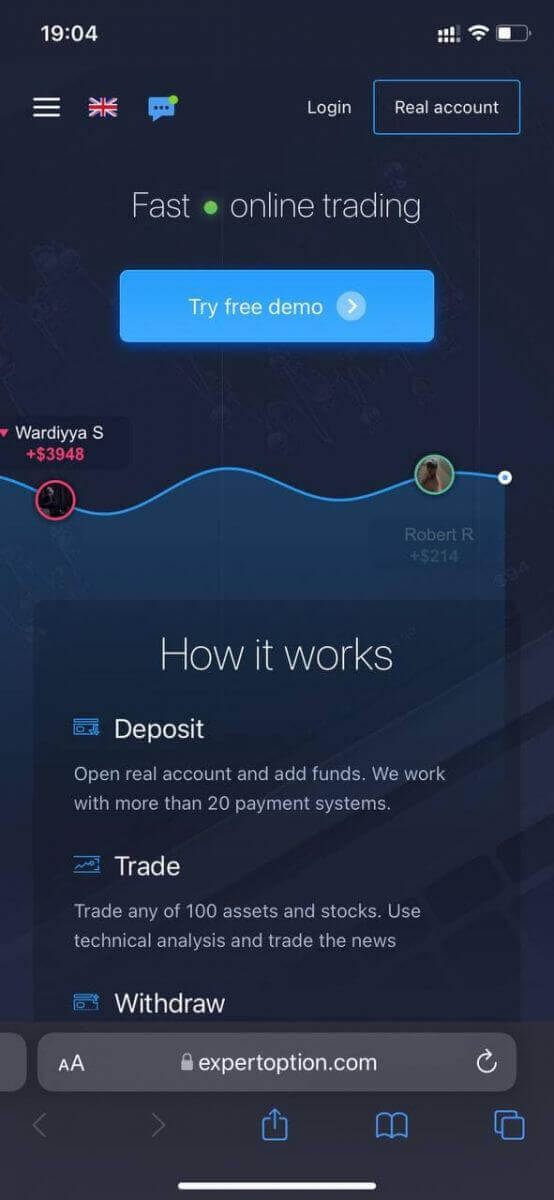
Click "Real account" button in the upper right corner.
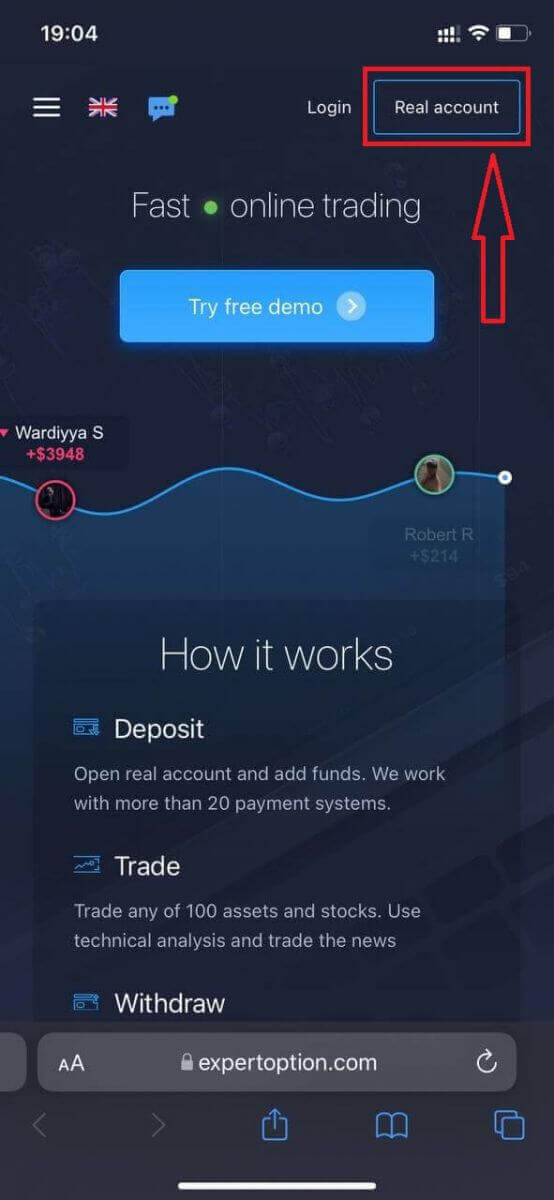
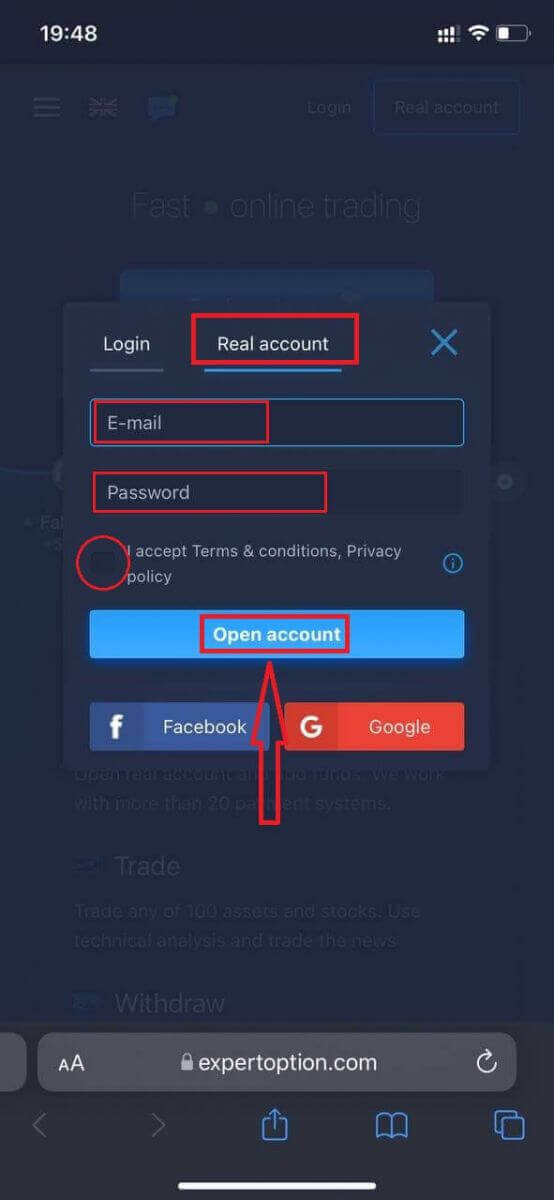
At this step we still enter the data: email, password, accept "Terms and Conditions" and click "Open account"
Congratulation! You have registered successfully, Now you can deposit and start trading with real account
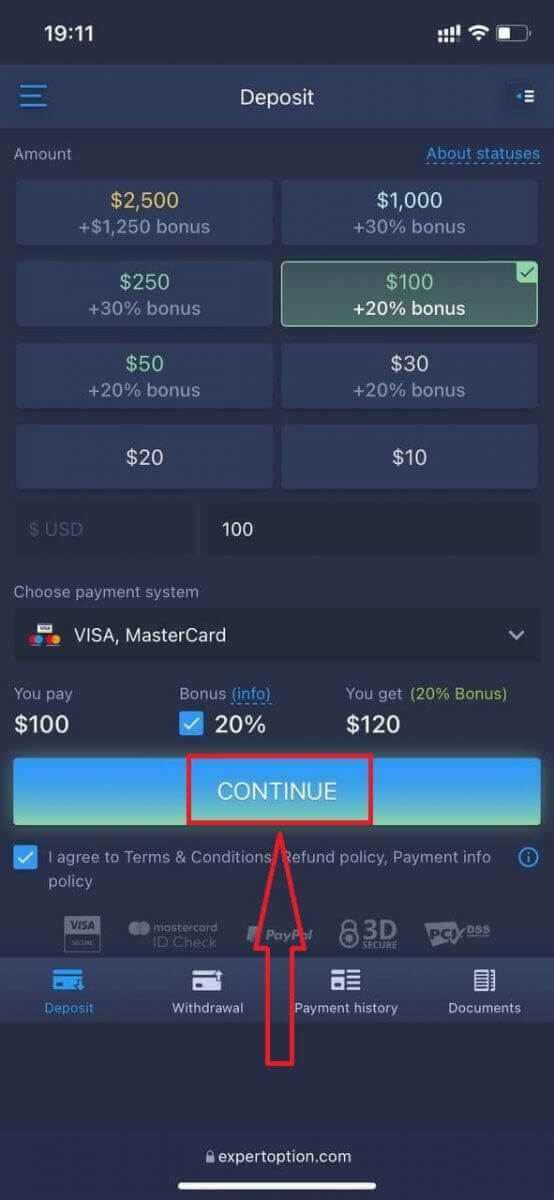
The mobile web version of the trading platform is exactly the same as a regular web version of it. Consequently, there won’t be any problems with trading and transferring funds.
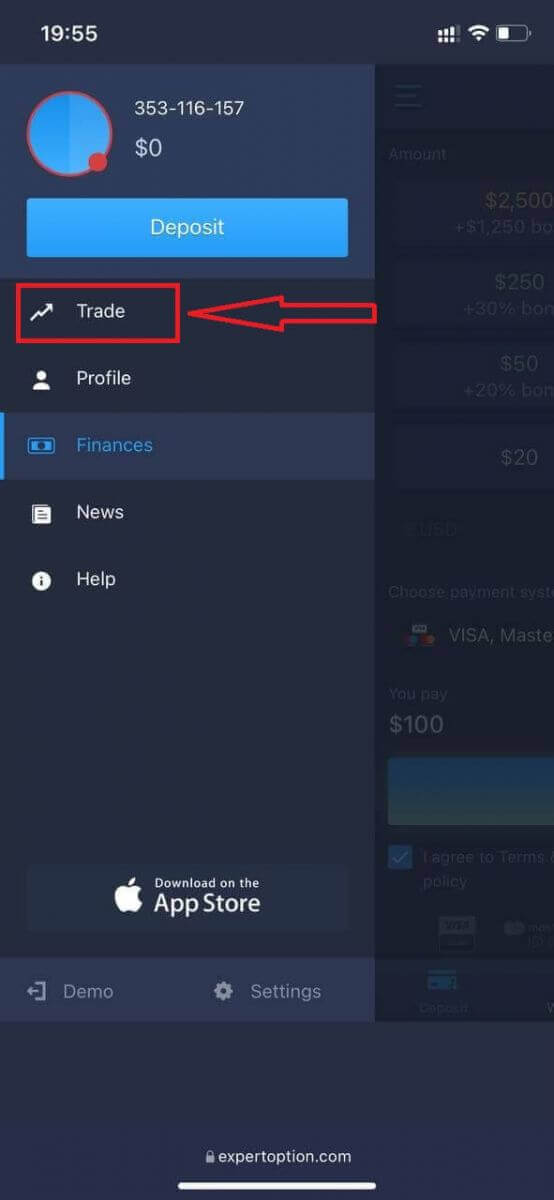
Or you want to trade with Demo account firstly, to do that by clicking the menu icon
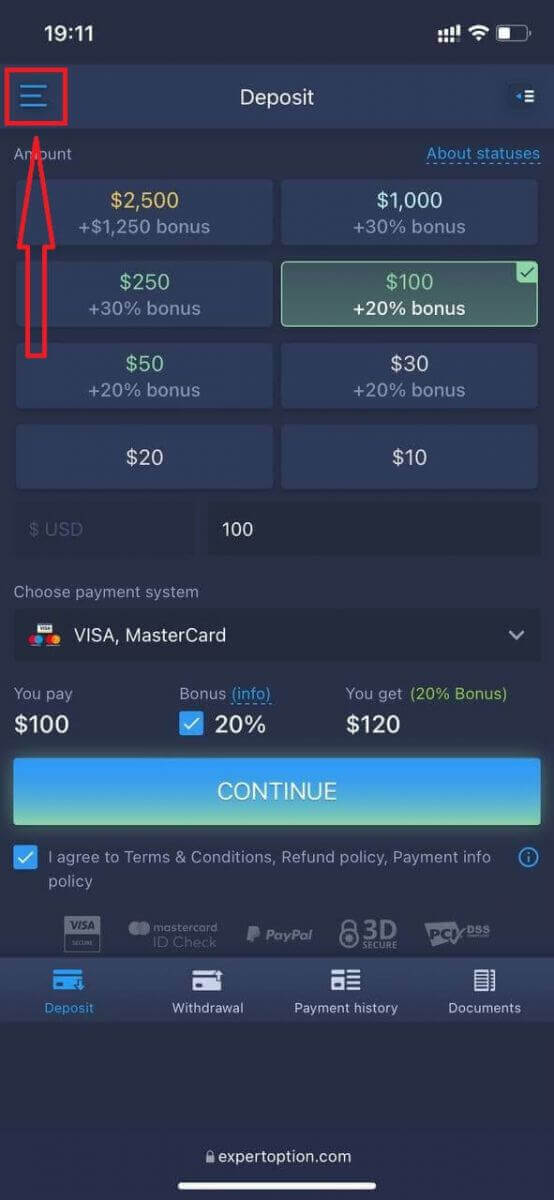
Click "Trade"
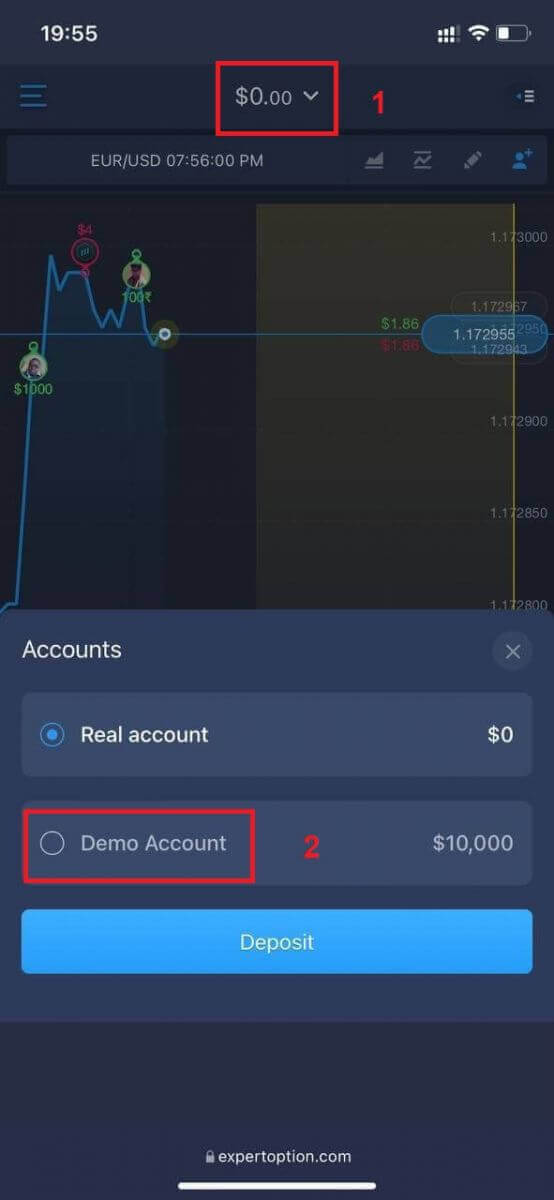
Switch accounts from Real account to Demo account
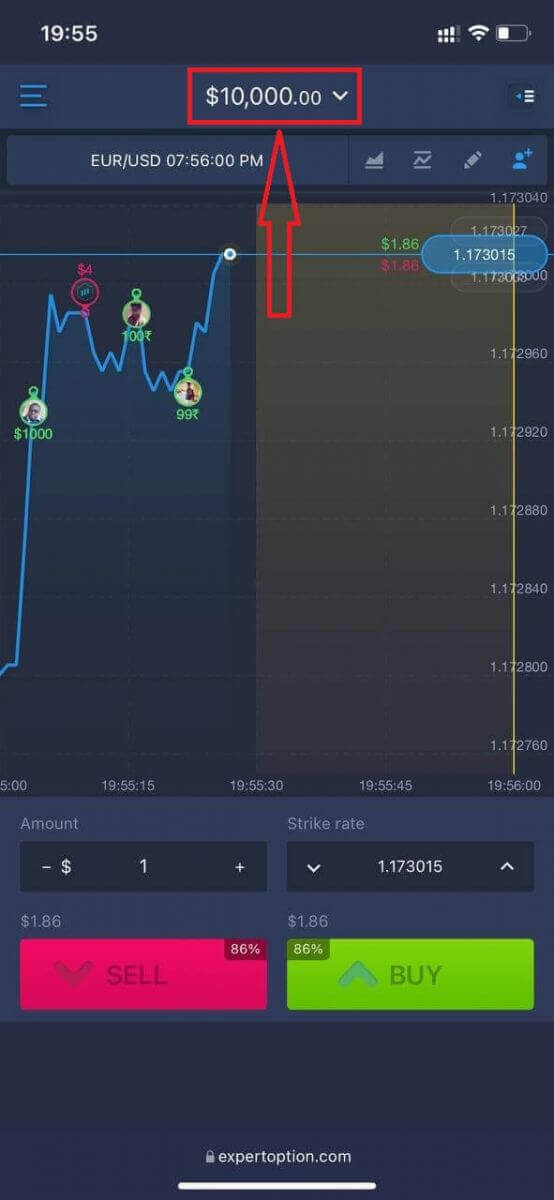
You will have $10,000 in demo account.
Frequently Asked Questions (FAQ)
Is there a demo account?
We offer you to use a demo account with the balance of 10 000 virtual money in order to be able to evaluate the benefits of the trading platform.
How much money can I make on the practice account?
You cant take any profit from transactions you complete on the practice account. You get virtual funds and make virtual transactions. It is intended for training purposes only. To trade using real money, you need to deposit funds to a real account.
How do I switch between the practice account and the real account?
To switch between accounts, click your balance in the upper-center corner. Make sure you are in the traderoom. The panel that opens shows all your accounts: your real account and your practice account. Click an account to make it active so you can use it for trading. FAQs
To open an account, register with an email or social sign-in, confirm your contact details, select the account type you want, and complete identity verification if you plan to trade with real funds. After verification and a qualifying deposit (if required by the chosen tier) you can switch from demo to live trading and place orders via the platform.
Minimum deposit requirements vary by account type and payment method; many users can start with a small initial deposit but some tiers require higher funding to unlock advanced features. Check the deposit section in your account dashboard for exact minimums before funding.
Common causes are blurry or cropped files, mismatched names or addresses, expired documents, or using screenshots instead of official files. Re-upload clear, full-color scans of valid ID and proof of address that match your registration details; contact support with a case reference if processing exceeds the stated review window.
Typically you’ll need a government-issued photo ID (passport, national ID, or driver’s license) and a recent proof of address (utility bill, bank statement, or official letter). Additional checks may request a selfie or proof of payment method; prepare originals and avoid edits to prevent delays.
Yes. Demo accounts are available for practice without funding and let you learn the platform, test strategies, and check execution. Remember demo conditions differ from live markets, so use it for familiarization before completing verification and making your first deposit.